AI tools (MCP)
On the Club plan, coaches can connect their own AI tool, such as Claude or ChatGPT, to Good Coach App through MCP (Model Context Protocol), the standard Claude, ChatGPT and other AI tools use to connect to apps. If you were looking for Good Coach App's MCP server: this is it.
In that tool you can then ask about the athletes you coach: "summarise the last two weeks of load and health for Kasia", "who has a race in the next month?", "when did Marcin last run longer than two hours?". The tool looks the answers up in Good Coach App as it needs them.
It is the same idea as asking the AI Assistant, but in a tool you already use, with its own model, and next to your other conversations and files there.
What it can read
Your AI tool reads only what you can see in Good Coach App yourself: the same athletes, with the same club permissions. A coach who sees only their assigned athletes gets answers only about them.
For one athlete, it can read:
- the calendar: workout plans, workout completions with their laps, races, notes, assessments and health entries, and the comments athletes add to their workouts;
- training load, health and statistics;
- the athlete's profile: thresholds, zones, training cycles and training breaks, and the Athlete's Info tabs;
- the athlete's devices, and whether workout completions or health data have stopped arriving;
- AI Assistant memory and the athlete's period analyses;
- your workout templates and weekly templates.
For the whole club, as far as your permissions allow, it can read your athletes list with each athlete's training state, the races your athletes are entered in, deadlines, and how much of the planned training each athlete did.
It never reads messages between coaches and athletes, payments and billing, or the Coach board.
It can't change anything. It only reads. Adding or changing workout plans from your AI tool is planned; when it comes, the tool will only propose, and nothing will change until you confirm in Good Coach App.
Switching it on for the club
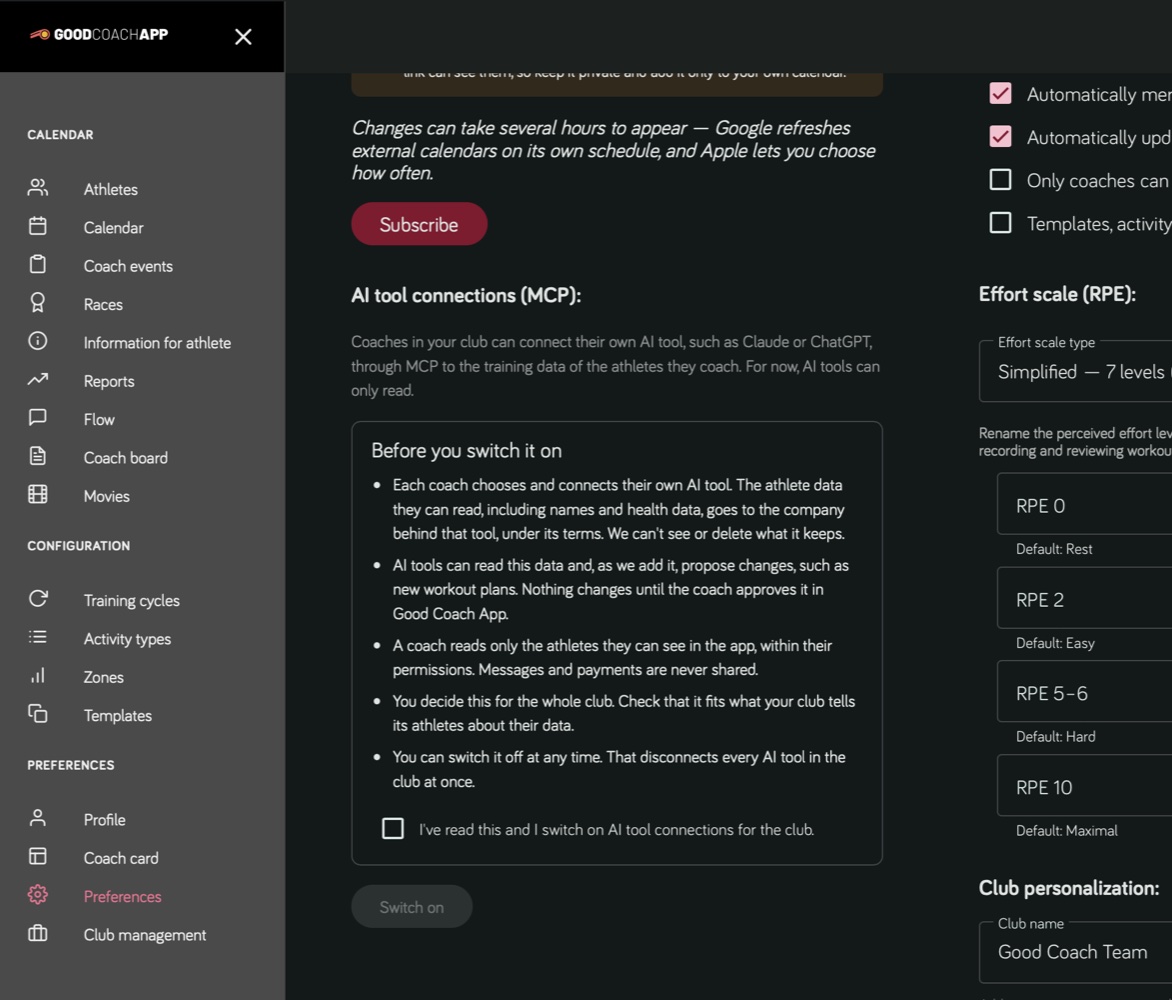
AI tool connections are off until the club switches them on. The club's Owner, or a coach with the Manage Club permission, does it:
- Open Preferences and find AI tool connections (MCP).
- Read the notice under Before you switch it on.
- Tick the checkbox and click Switch on.
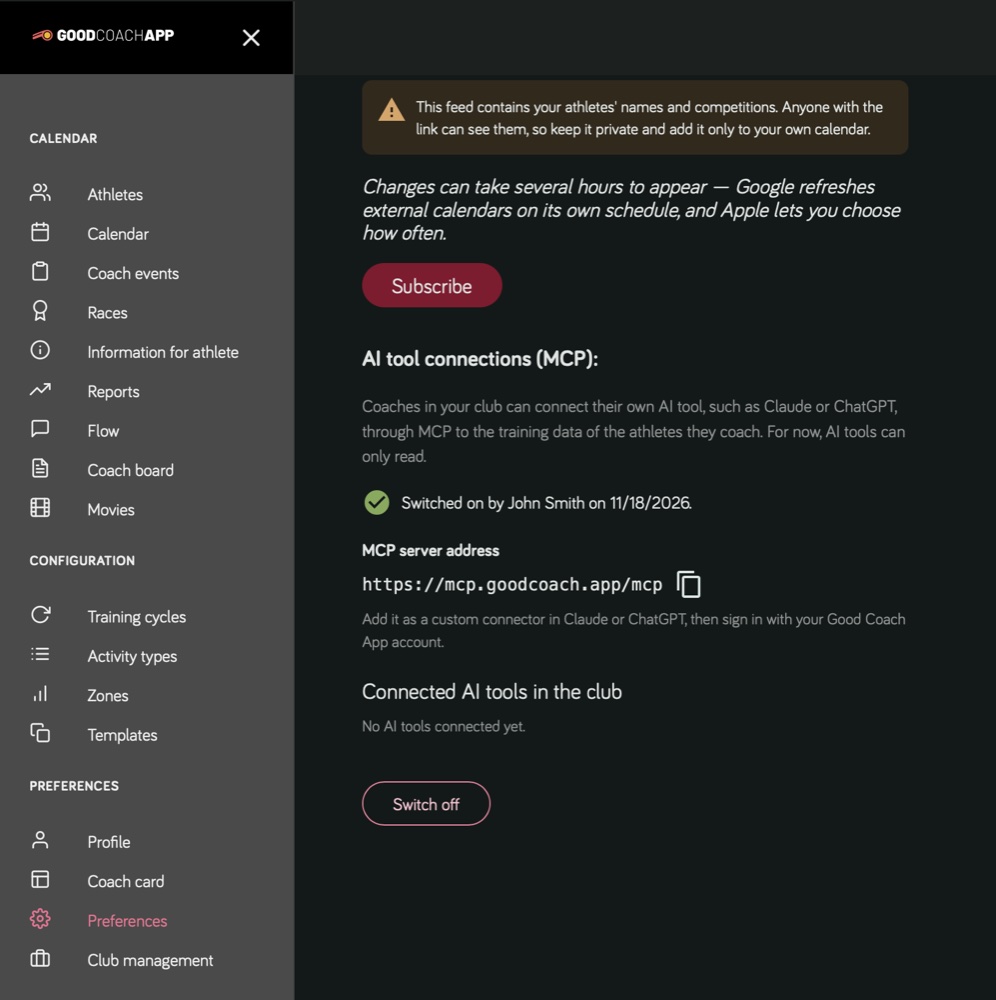
The section then shows who switched it on and when, the MCP server address coaches add in their AI tool, and every coach's connected AI tools.
Switching off disconnects every AI tool in the club at once, and coaches can't connect new ones until it is switched on again. If the club leaves the Club plan, the switch stays on, but no AI tool can read anything until the club is back on the Club plan.
Connecting your AI tool
Once the club has switched it on, every coach sees AI tool connections (MCP) in Preferences, with the MCP server address to add.
-
Copy the MCP server address from AI tool connections (MCP).
-
In your AI tool, add Good Coach App with that address:
-
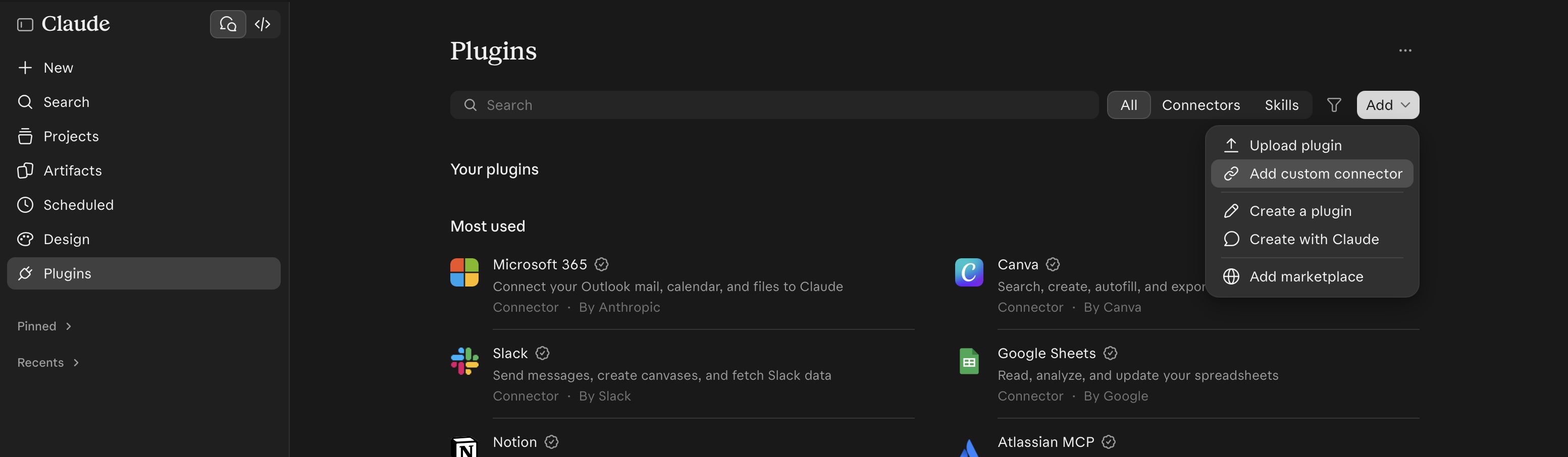
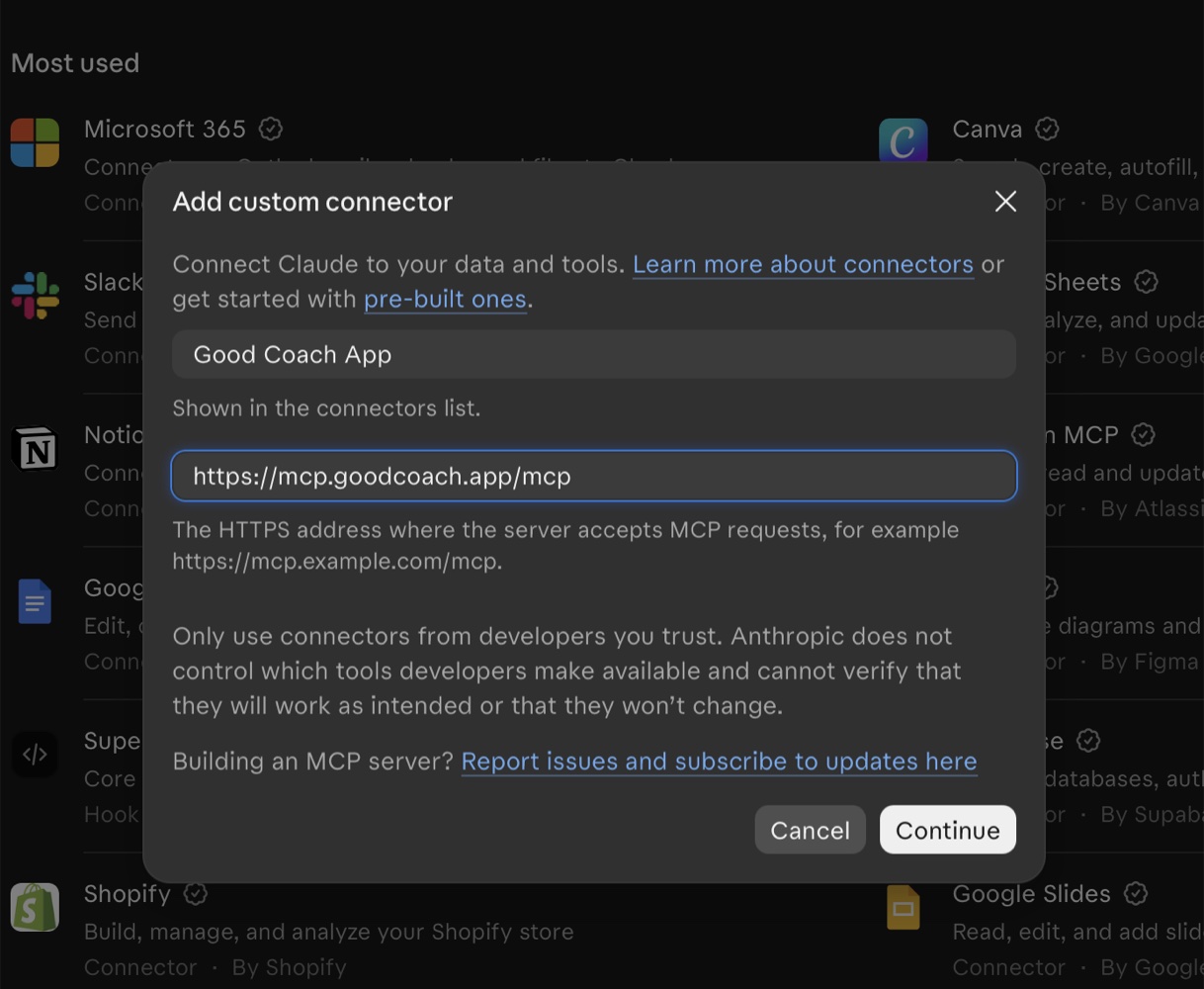
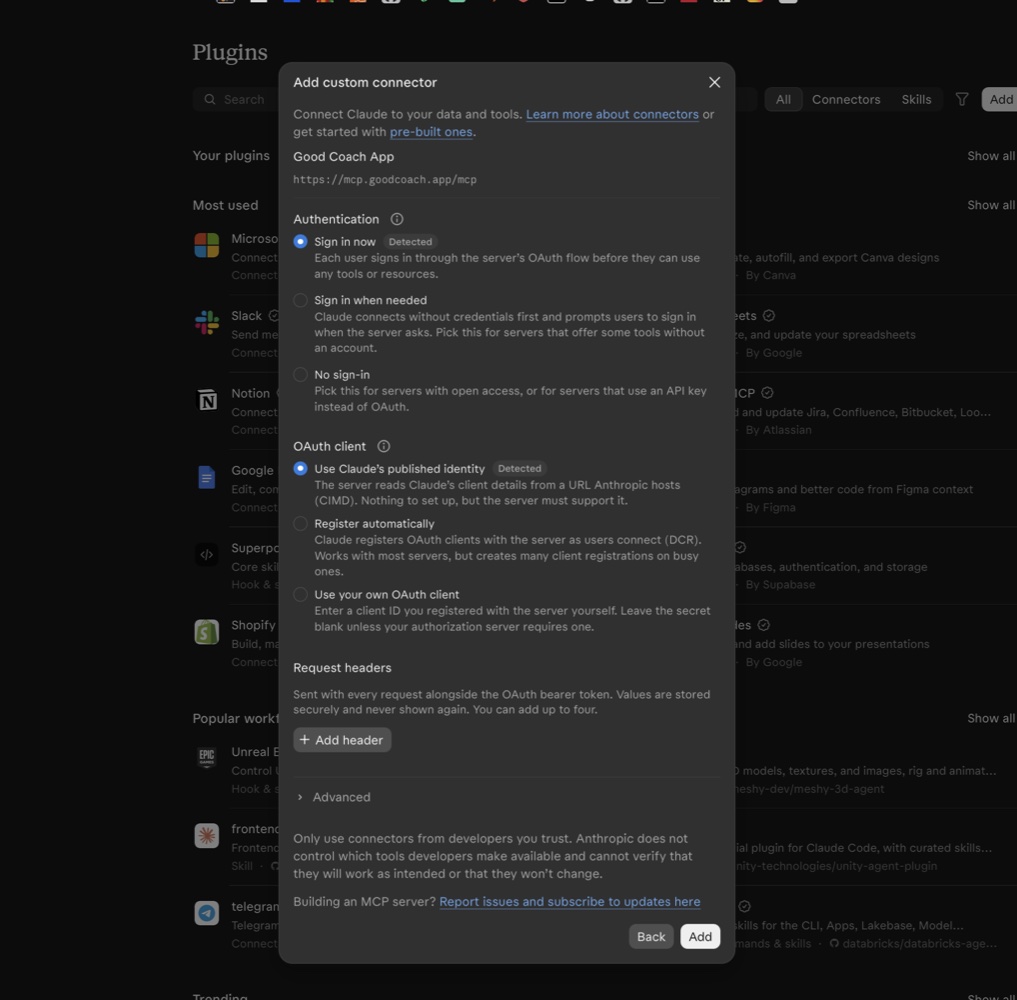
Claude: open Plugins, click Add and choose Add custom connector. Enter a name, such as Good Coach App, paste the address and click Continue. Claude detects how to sign in by itself: leave those options as they are and click Add.
-
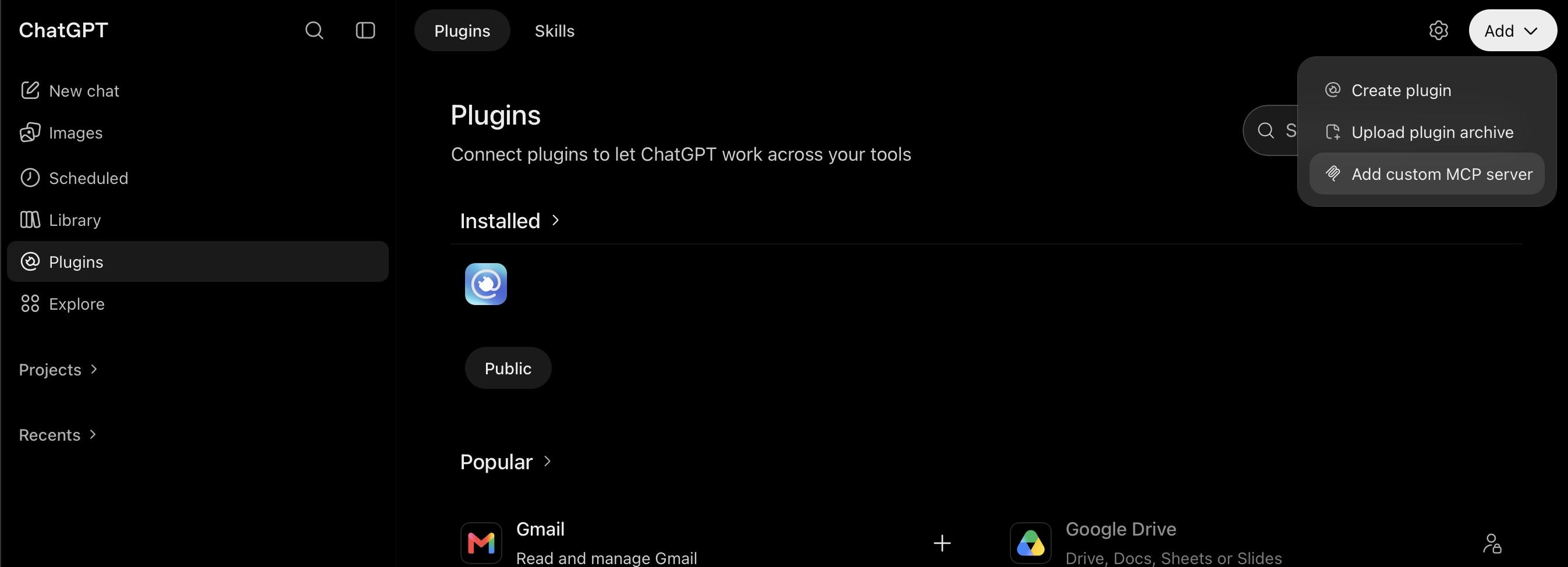
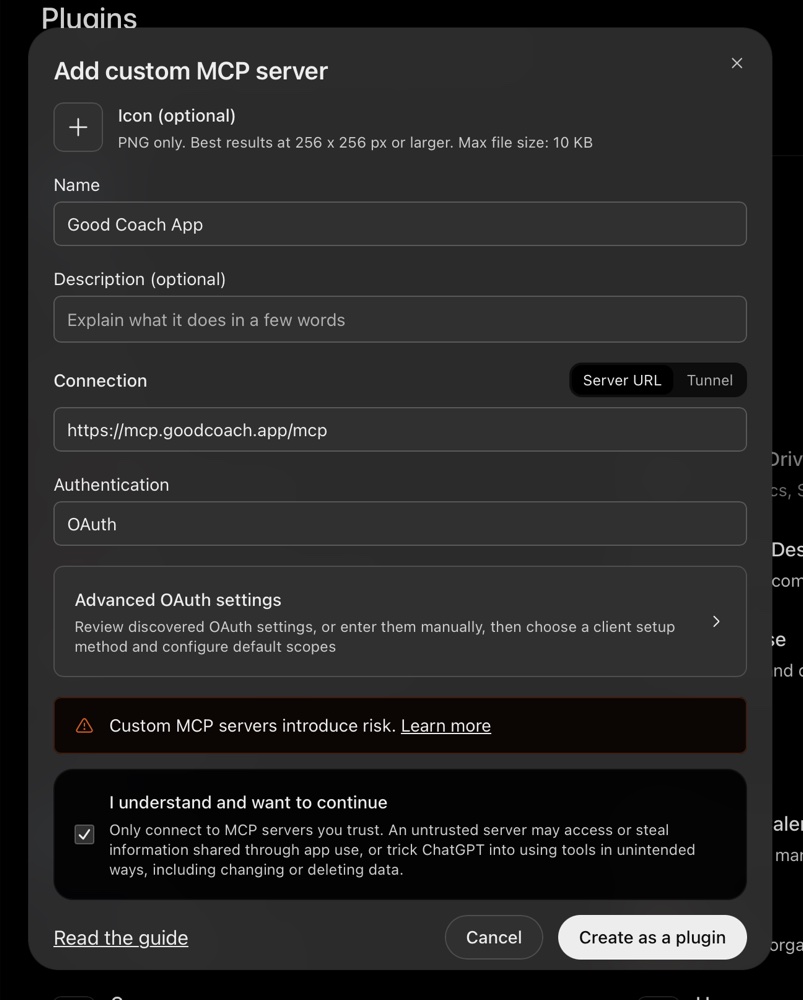
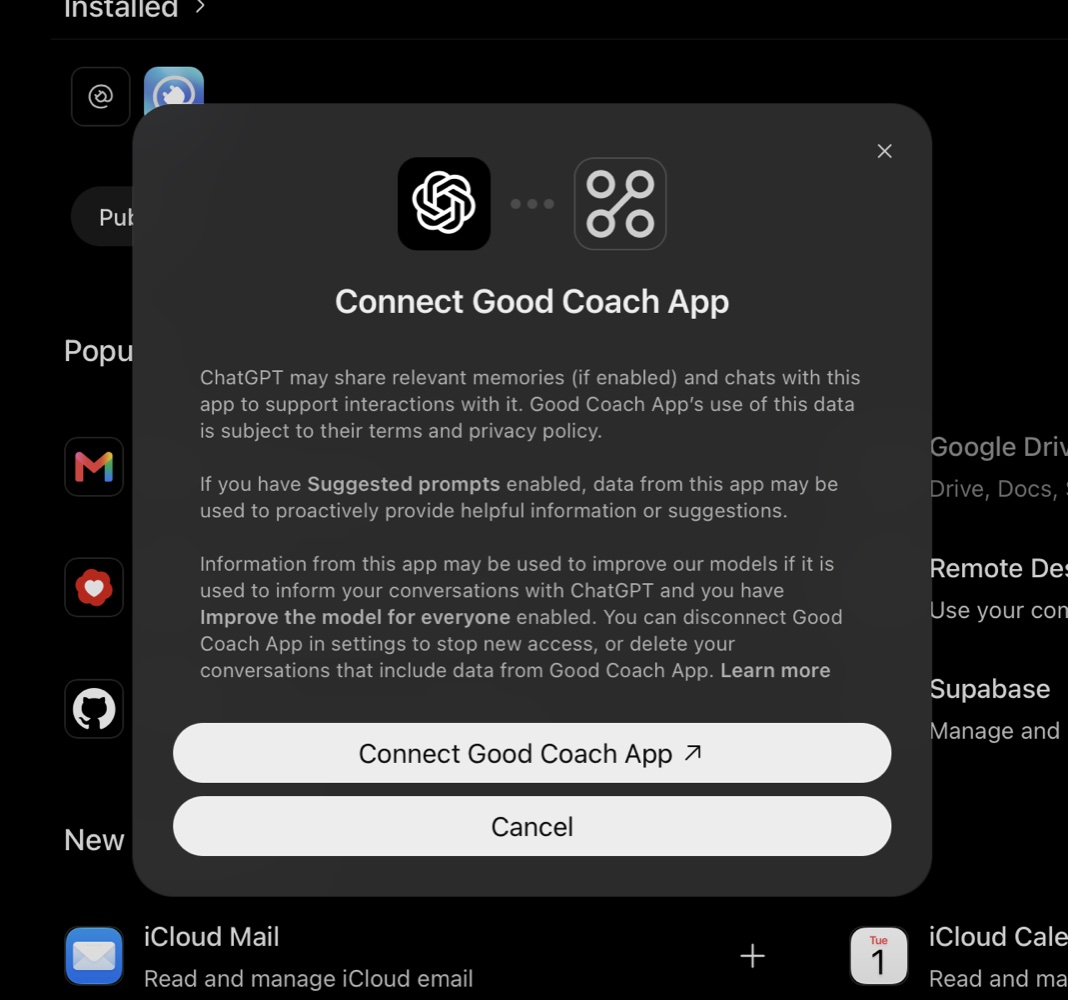
ChatGPT: open Plugins, click Add and choose Add custom MCP server. ChatGPT asks for an icon: upload the Good Coach App icon. Enter a name, such as Good Coach App, and paste the address. Leave Authentication on OAuth, tick I understand and want to continue and click Create as a plugin, then Connect Good Coach App.
-
-
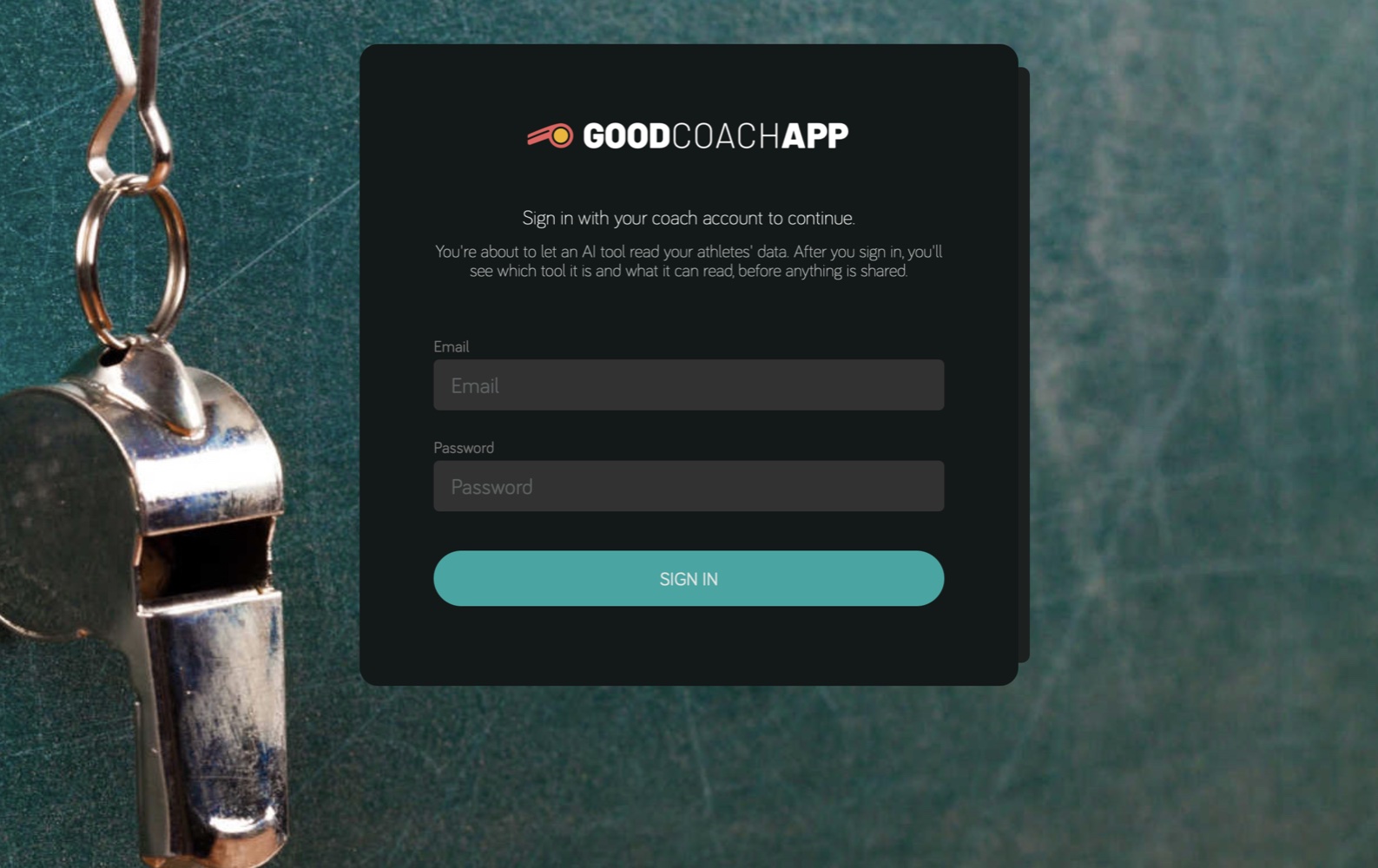
The tool opens Good Coach App's sign-in page. Sign in with your coach account if you aren't signed in already.
-
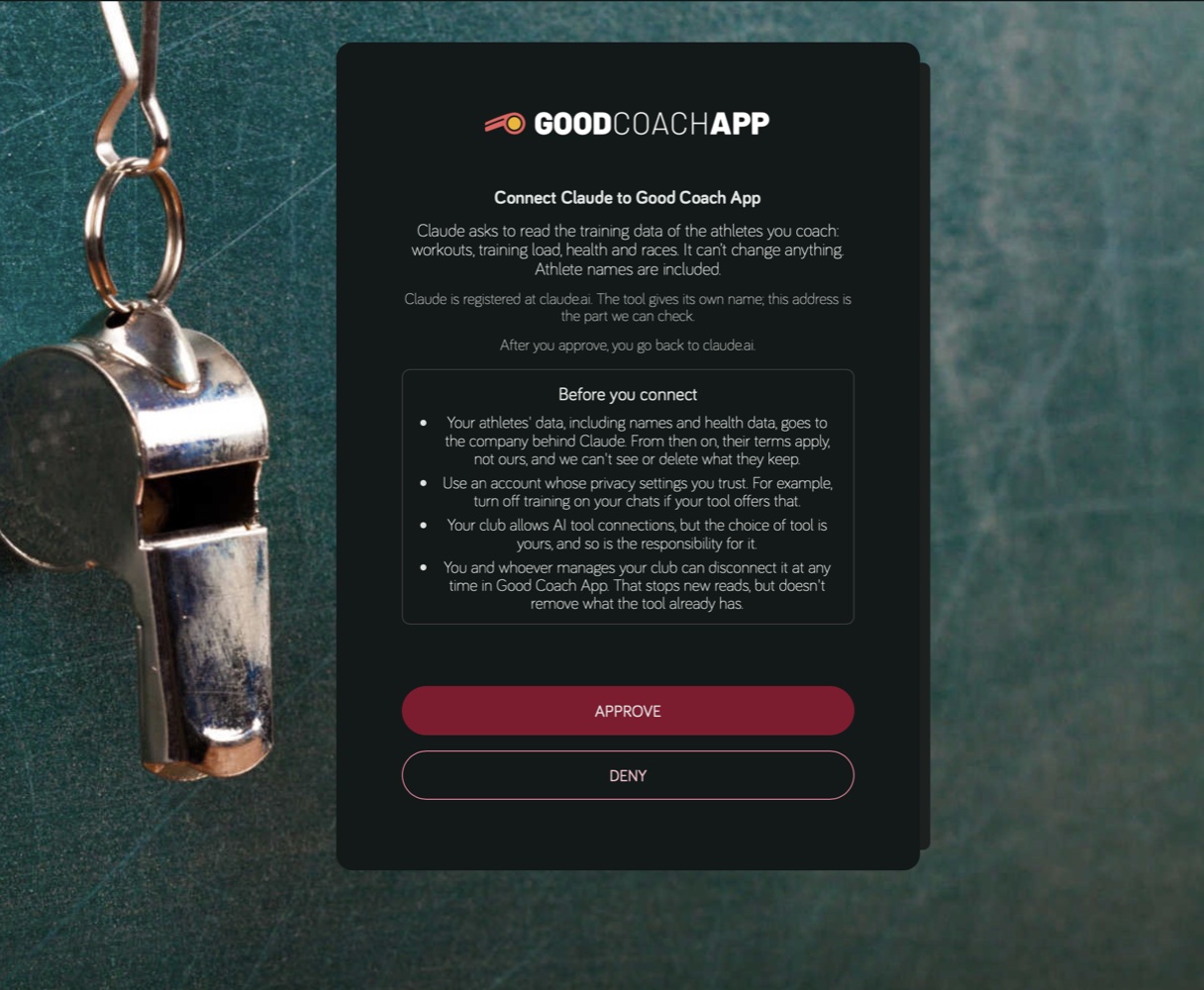
Check who is asking and click Approve.
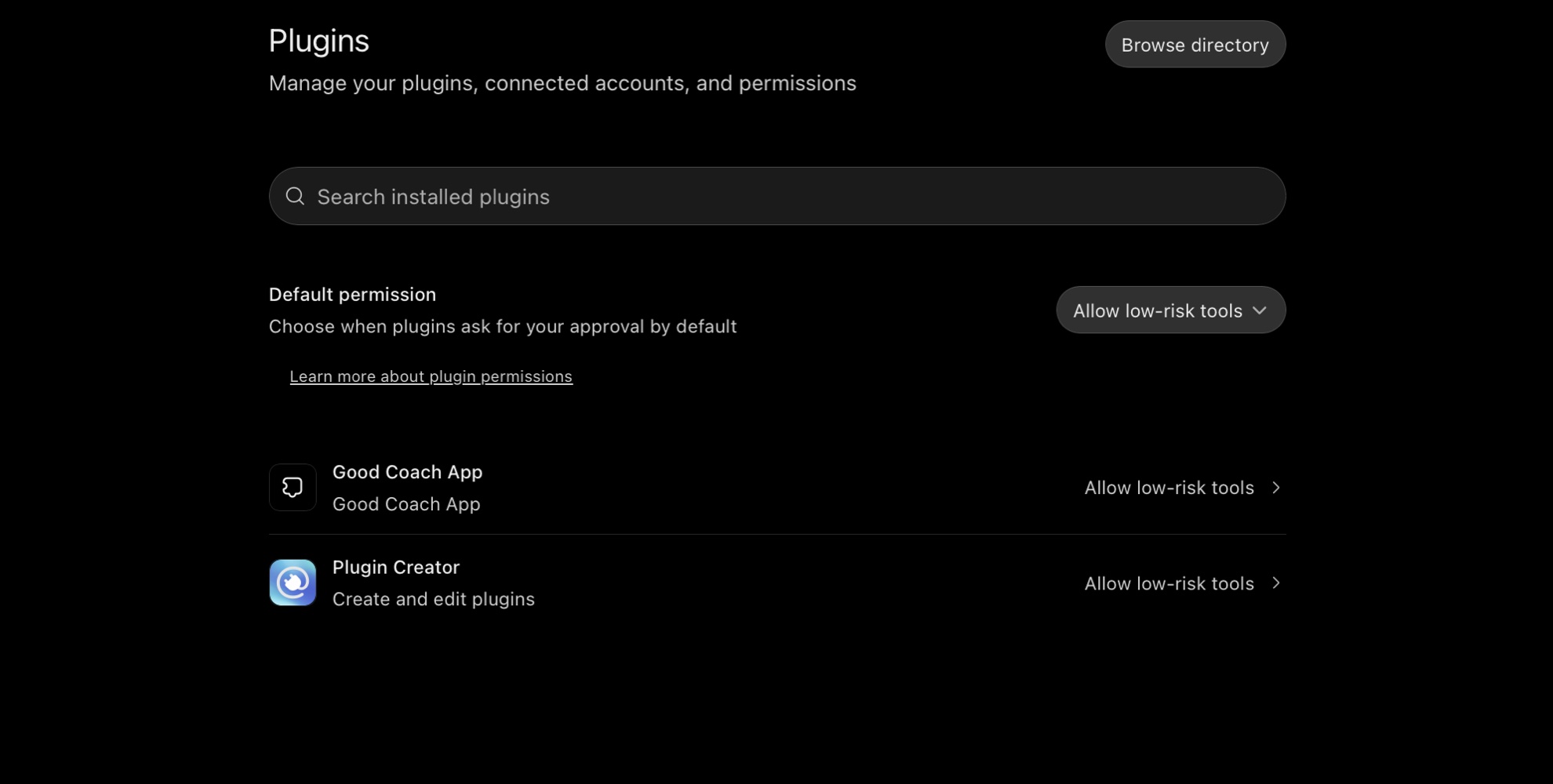
In ChatGPT, choose when it asks you. In ChatGPT's plugin settings, Default permission (or the permission of Good Coach App alone, in its own settings) decides when ChatGPT asks before using a tool. Choose Allow read-only tools: every Good Coach App tool only reads, so ChatGPT won't ask you before each read. With Allow low-risk tools, ChatGPT decides by itself what is low-risk and may refuse some reads.
If you coach in more than one club where AI tool connections are on, choose the club the tool reads from. A connection reads one club; to use another club, connect again and choose that one.
Before you click Approve
A fake or untrustworthy tool can steal your athletes' data. Once you approve it, it reads everything you can see, including names and health data, and that can't be undone.
The page shows which AI tool is asking and where it is registered. Any tool can call itself "Claude", but the address it is registered at can't be faked: Claude is registered at claude.ai, ChatGPT at chatgpt.com or openai.com. If the name and the address don't match, click Deny. If the page says it can't confirm who made the tool, approve only if you trust it.
If the page warns that the tool runs on your own computer, approve only if you started the connection yourself.
Asking
Ask in your own words. A good first question is "which athletes can you see?": the tool then knows who is who and can answer about any of them.
Answers are the tool's own. It quotes the values Good Coach App shows you, and it is told to read them as the app does and to give you the data in context rather than a verdict. Still check anything important against the app before you act on it.
Your AI tool does the AI work, so asking it uses none of your AI credits.
Privacy
When you connect an AI tool, the athlete data it reads leaves Good Coach App and goes to the company behind that tool, under its terms and your account's settings there:
- Names are included. Unlike the AI Assistant, which replaces names before anything is sent, your AI tool sees athletes' real names, so that you can ask about them by name.
- Health data is included, as far as you can see it in Good Coach App.
- We can't see or delete what the tool keeps. Disconnecting stops new reads; it doesn't remove what the tool has already read.
- Use an account whose privacy settings you trust. For example, turn off the use of your chats for training models, if your tool offers that.
The club decides whether AI tool connections fit what it tells its athletes about their data. You choose the tool, and with it the responsibility for that choice.
Good Coach App keeps a record of each request your AI tool makes: which tool, which athlete and when, never your question or what you typed. It is what the connections list in Preferences is built on.
Seeing and disconnecting connections
In Preferences, under AI tool connections (MCP), each connected tool shows when it was connected, when it was last used and how many requests it has made. Click Disconnect to end a connection at once.
- Each coach sees and disconnects their own connections.
- The club's Owner and coaches with Manage Club see and disconnect every coach's connections.
- A connection that hasn't been used for 30 days ends by itself; connect again from your AI tool.
- Changing your password, or turning on two-factor authentication, disconnects all your AI tools, in every club. Connect them again afterwards.
When Good Coach App adds tools
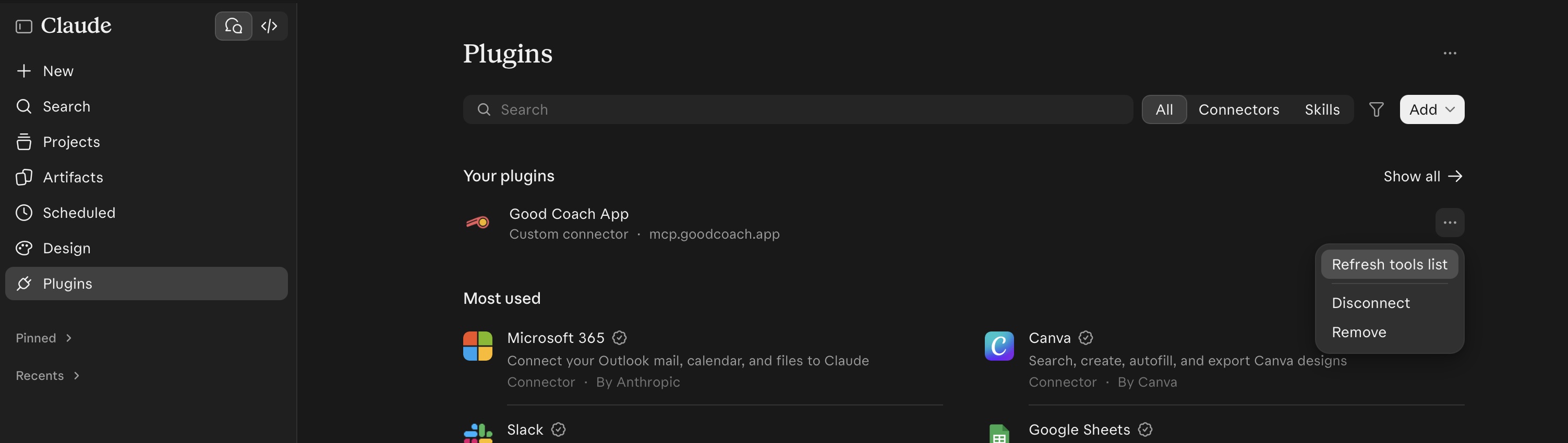
Your AI tool keeps the list of Good Coach App tools it got when you connected it. When Good Coach App adds a tool, you see it after refreshing that list:
- Claude: in Plugins, click ⋯ next to Good Coach App and choose Refresh tools list.
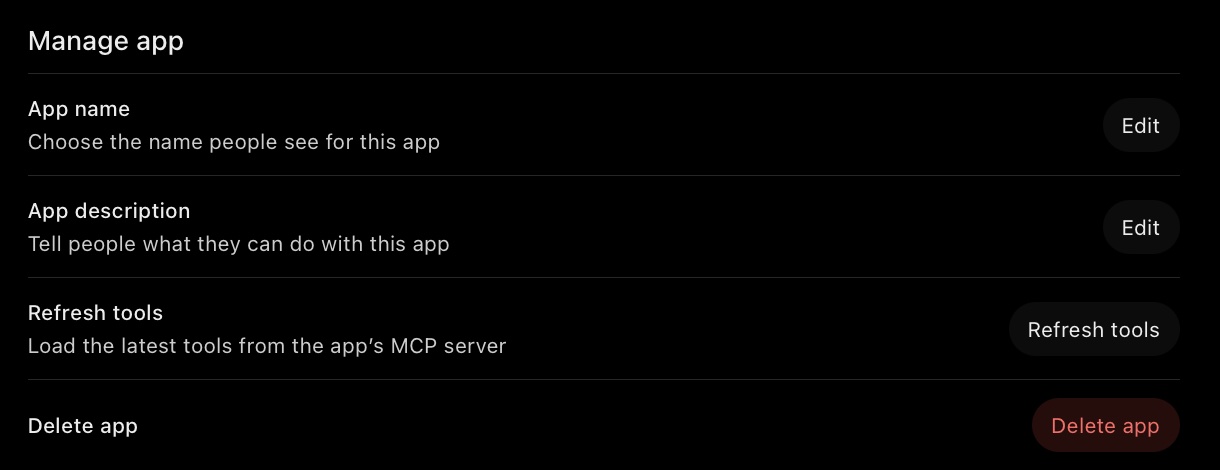
- ChatGPT: in Plugins, open Good Coach App's settings and click Refresh tools, under Manage app.
You don't need to connect again.
When something doesn't work
- "None of your clubs can connect an AI tool": the club isn't on the Club plan, AI tool connections aren't switched on, or your permissions don't let you read training data in the club.
- "Good Coach App is blocked for this club until…": the club has an overdue invoice, or it has more athletes than the free plan allows but no billing information or payment method. The club's Owner can pay in Profile → Invoices or add the details in Profile → Billing information (Settlements and billing). Your AI tool reads again as soon as that's done; you don't need to connect it again.
- "This connection request has expired": the sign-in page waits 10 minutes. Start connecting again from your AI tool.
- "Too many requests" or "used their reading time for this hour": AI tools can ask many questions quickly, so Good Coach App limits how fast they read, per coach and per club, to keep the app fast for everyone. Wait a minute, or try again within the hour.
- "Good Coach App is busy right now": try again shortly.
- The tool says it can't read an athlete: you don't coach them in this club, or the connection is for another club.