General information on integrations
Utilising the full capabilities of the Good Coach App depends on using the accurate training that our system draws from external providers. Therefore, it is important to understand how the integration works.
Data sources
Each integration can do up to three things: import completed workouts, import health data (sleep, HRV, resting heart rate and more), and export structured workouts - send the workouts your coach plans to the device, so the athlete can follow the intervals on the watch or bike computer. The one rule to remember: import works from every source below, but only some sources accept exported workouts. For example, a Garmin watch does all three, while a Polar watch sends its workouts and health data to the Good Coach App but cannot receive a structured workout from it.
| Source | Workout import | Health data | Structured workout export | More |
|---|---|---|---|---|
| Garmin Connect | ✓ | ✓ | ✓ | Exporting to Garmin |
| COROS | ✓ | ✓ | ✓ | Exporting to COROS |
| Suunto | ✓ | ✓ | ✓ | Suunto integration details |
| Amazfit (Zepp app) | ✓ | ✓ | ✓ (running, cycling and swimming) | Exporting to Amazfit, Amazfit (Zepp) integration details |
| Apple Health / Apple Watch | ✓ (iOS) | ✓ | ✓ | Exporting to Apple |
| Polar Flow | ✓ | ✓ | - | Polar integration details |
| Wahoo | ✓ | - | ✓ (cycling and running) | Exporting to Wahoo |
| ROUVY | ✓ | - | ✓ (cycling) | Exporting to ROUVY |
| WHOOP | ✓ (summary only, optional) | ✓ | - | WHOOP integration details |
| Strava | ✓ | - | - | How does importing work? |
Devices without a direct integration (e.g. Huawei, Samsung, Zwift) can still send their workouts through Strava or Apple Health - see bridged integrations. Read more about how importing works, importing health data and common problems with exporting.
When you connect with Strava and Garmin, it is not possible to have two automatic integrations, one of which is Strava. You can still have two or more automatic integrations with Garmin, Suunto, Polar and Coros. In such cases, you can only connect with Strava treating it only as a manual source of training, as it is a last resort for devices we do not support, and other settings would result in duplication of training.
How do I link my account to an external service?
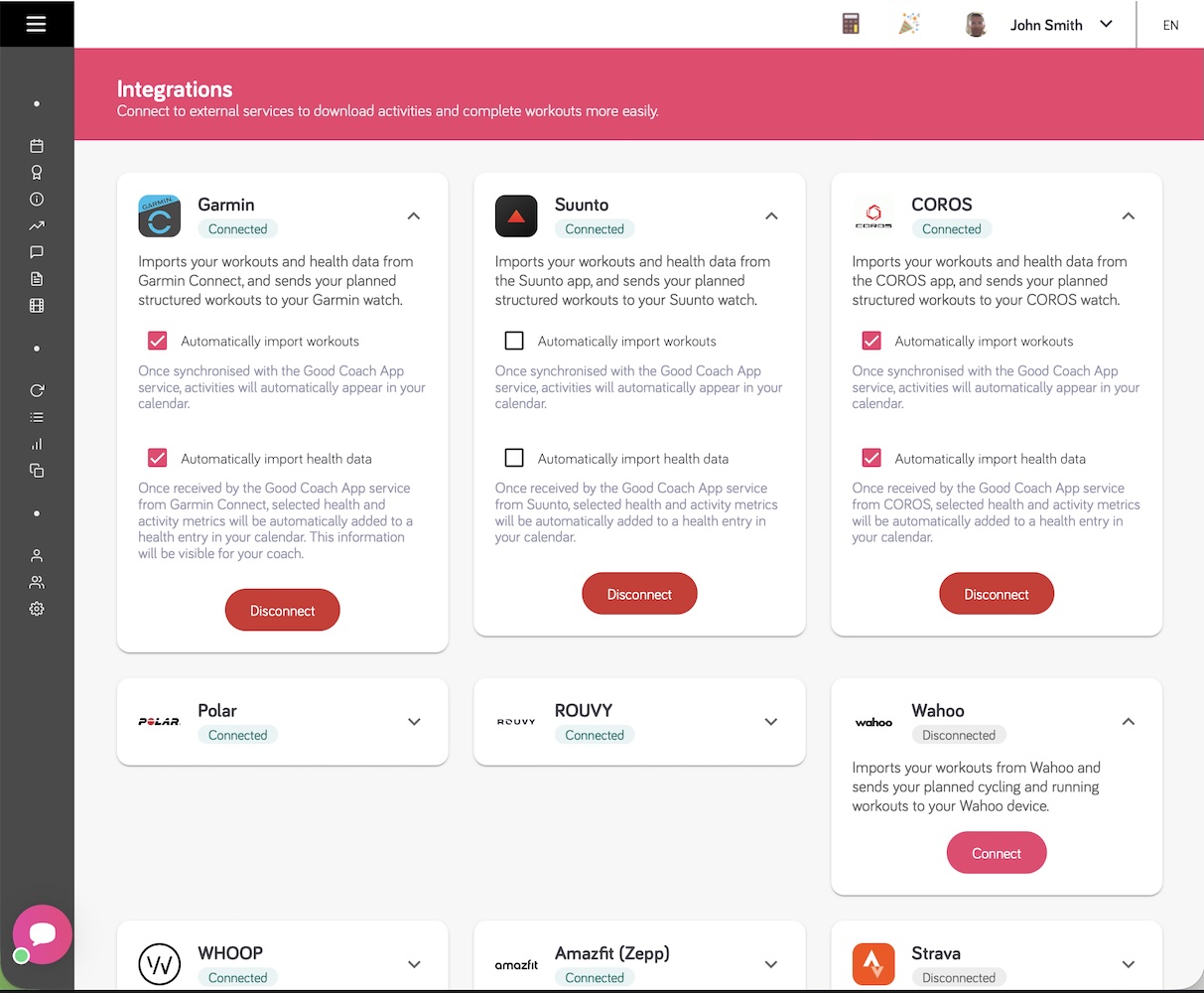
You connect services on the Integrations page, which looks the same in the browser app and in the mobile app (iOS and Android). Every service has its own card showing whether it is connected - tap or click the card to open it. For example, to connect Garmin: open Integrations, open the Garmin card, press "Connect" and log in to Garmin Connect.
Browser app
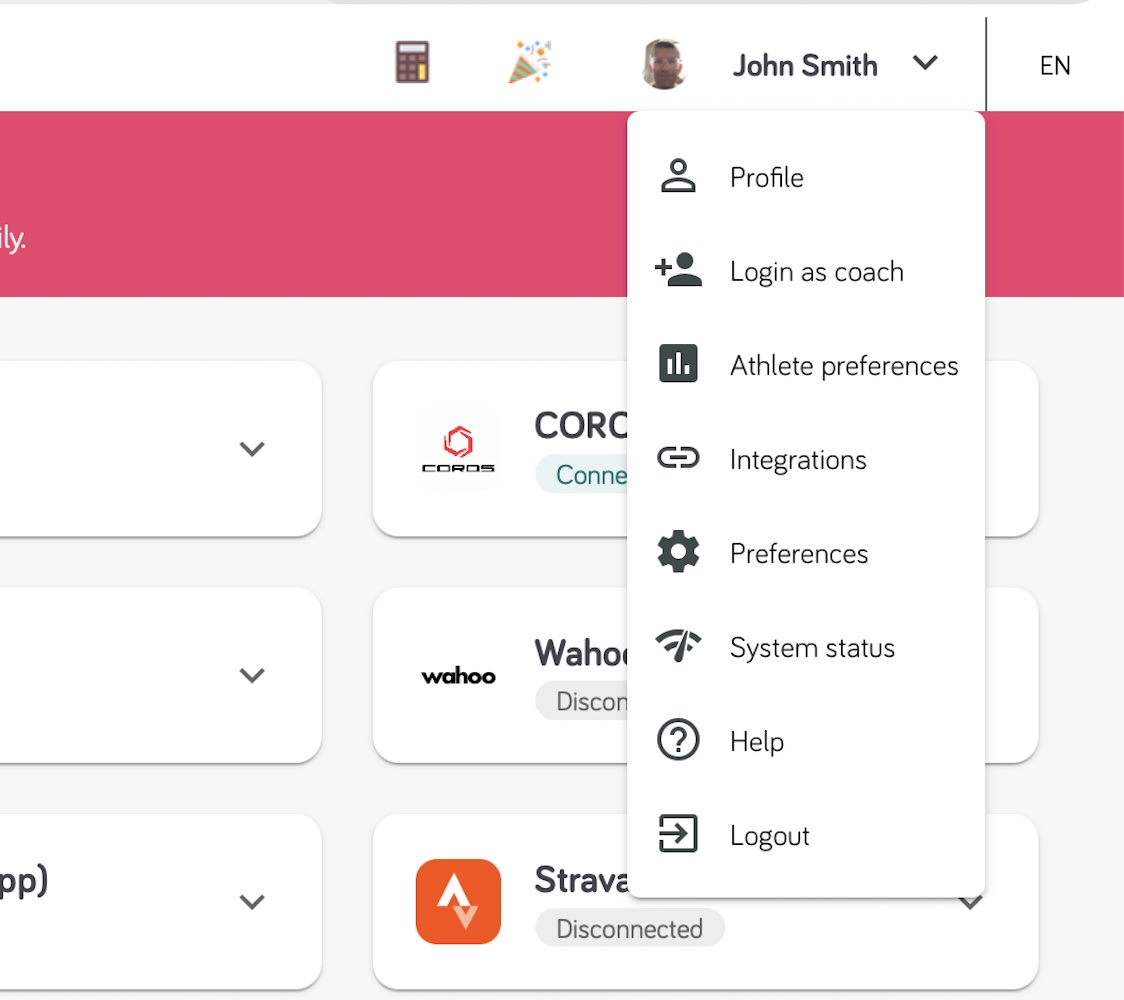
- Open the menu with your name in the top right corner and select Integrations.
- Click the card of the service you want to connect to open it, then click "Connect".
- You will be redirected to the login page of that service. Log in and allow access to your data.
- Back in the Good Coach App, the card shows "Connected". Choose what to import with the checkboxes on the card, for example Automatically import workouts.
Mobile app (iOS and Android)
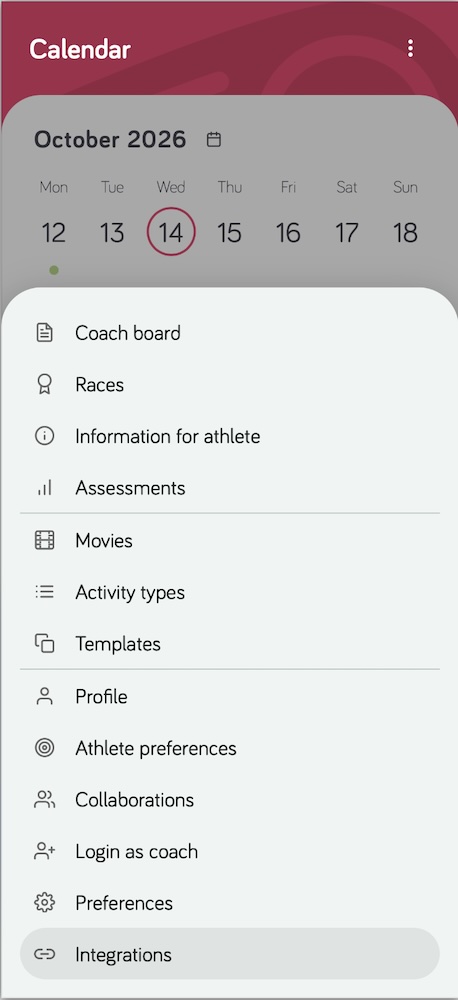
- Tap More (⋮) at the right end of the bottom bar and select Integrations.
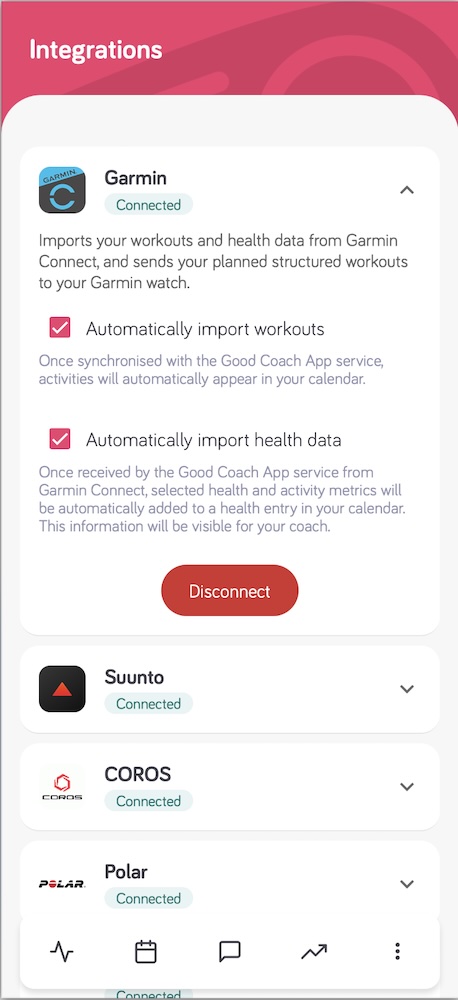
- Tap the card of the service you want to connect to open it, then tap "Connect".
- You will be redirected to the login page of that service. Log in and allow access to your data.
- Back in the Good Coach App, the card shows "Connected". Choose what to import with the checkboxes on the card.
Apple Health is the one exception: it can only be connected in the mobile app on an iPhone, because the data comes from the Health app on that phone.
How does importing workouts work?
You can read more information here.