Common problems
Common problems with importing workouts
1. The workout did not appear in the calendar immediately after the workout.
- check if the workout is visible in a third-party provider's app (e.g. Garmin Connect), it's possible that it wasn't downloaded correctly from the watch
- if you have recently connected to the integration, remember that it will only work for future workouts after the moment of connection (the exception is Garmin, in its case we also try to download all workouts from the 30 preceding days)
- make sure you log in to external provider giving permissions using the same login credentials you use to log in to the external provider app you sync your watch with
- for Apple Watch, check if you don't have battery optimisation or saving mode enabled, which can delay background apps
- for Apple Watch, check if Background App Refresh is enabled for the Good Coach App in iOS settings. (Settings -> Apps -> Good Coach App -> Background App Refresh)
2. The workout is not available for manual import
- check if your integration is enabled in the Good Coach App (mobile app -> Settings -> Integrations -> Garmin Connect (or other integration))
- check that you have not disconnected the Good Coach App in an external provider's app, in which case you can simply disconnect and reconnect in the Good Coach App mobile app
- if you have recently connected to the integration, remember that it will only work for future workouts after the moment of connection (the exception is Garmin, in its case we also try to download all workouts from the 30 preceding days)
3. One workout appears in the calendar twice
- check if you have enabled automatic import of workouts in the case of two integrations. A common case is to run automatic import from the Strava app and another app (e.g. Garmin).
- if your watch app is also connected to Strava (i.e. sends workouts to Strava), workouts from Strava can also be imported into the Good Coach App automatically.
- if you use WHOOP together with a watch, the copy from WHOOP is normally skipped. If the same workout still appears twice, the two versions differ too much to be recognised as one (for example in start time or duration) - delete the WHOOP copy, and consider leaving Automatically import workouts off for WHOOP. More about WHOOP.
- the solution is to disable automatic import of workouts from one of the integrations in the Good Coach App. In this case, these workouts will still be available for manual import.
Common problems with exporting workouts
When a coach publishes or updates a workout, it is automatically sent to all connected integrations — Garmin Connect, COROS, Suunto, Amazfit, ROUVY, and Wahoo. Amazfit receives the next 7 days at a time, and later workouts as their day comes closer - see Exporting workouts to Amazfit (Zepp). Exporting usually takes a few seconds, but in some cases may take a few minutes. You can confirm a successful export by opening the workout details in Good Coach App and checking for the green badge next to the integration name. Apple Watch is an exception — workouts are not exported automatically and must be started directly from the Good Coach App on the watch.
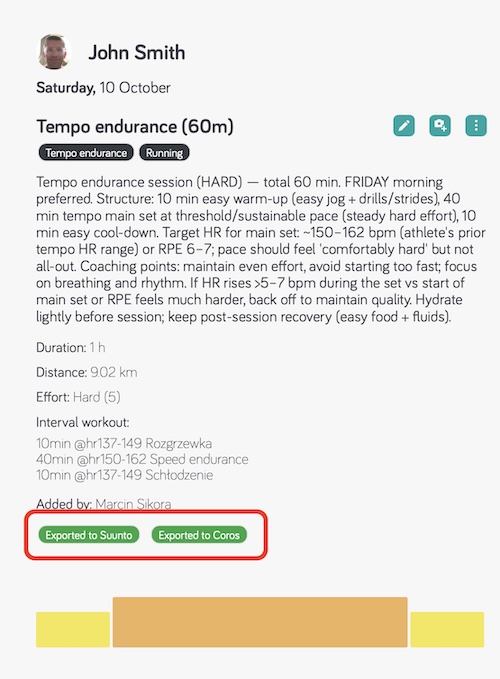
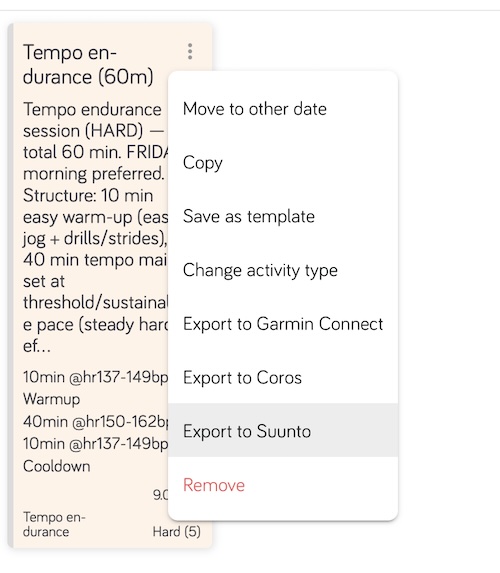
If the badge is missing, or you think something went wrong, you can send the workout again yourself: open the menu (⋮) on the workout in the calendar and choose Export to … for the service, for example Export to Garmin Connect. Amazfit has no such option: every change sends its whole week again.
Training plan synchronized but not visible in Garmin Connect calendar
This is a known limitation of the Garmin Connect app — it doesn't always refresh the calendar automatically. If the green badge is visible in Good Coach App workout details, but you can't see the workout in Garmin Connect calendar section, force-quit the Garmin Connect app completely (don't just switch away from it or send it to the background) and reopen it. The workout should appear in your Calendar section.
Training plan synchronized but not visible in COROS calendar
The training plan synchronization appears successful, but the training plan workouts are not displayed in your COROS calendar.
- after synchronization is complete, you need to manually open the training plan in COROS:
- Open your COROS app or navigate to your COROS device
- Go to the Training Plan Library
- Find and open the synchronized training plan
- Once opened, the training plan workouts will appear in your calendar
This is a required step in the COROS system - training plans must be manually opened before they become visible in your calendar, even after successful synchronization.
Workout was not sent to ROUVY
- Check that the workout is a structured cycling workout — ROUVY export is not available for other sport types.
- Check that all steps use time-based duration — workouts where all steps are defined by distance will not be exported to ROUVY.
- Make sure the workout is published and has not been marked as completed.
- If the workout was sent but power values look wrong, check that the athlete's FTP is set in Good Coach App. Without an FTP value, absolute watt targets cannot be resolved and the export falls back to intensity-based estimates.
Workout was edited after being sent to ROUVY — changes not reflected
ROUVY does not currently support updating or deleting workouts via API. If a workout was already exported to ROUVY and is then edited or deleted in Good Coach App, the change will not be applied in ROUVY to original workout. The original version of the workout remains on the athlete's ROUVY account, you have to look for new version of the workout in the ROUVY.
Workout exported to Wahoo but not visible on ELEMNT device
The workout was sent successfully but does not appear on the ELEMNT bike computer or watch.
- Wahoo only displays planned workouts on the device when they are scheduled within the current day plus the next 6 days. Workouts planned further ahead will appear automatically once they fall within that window after the next device sync.
- Make sure the ELEMNT device has synced with the Wahoo app after the workout was exported.
- Check if sport type of the workout is supported by Wahoo (cycling or running). If the workout has unsupported sport type, it will be not sent to Wahoo and not appear on the device.
Wahoo workout not updated after editing in Good Coach App
After editing a workout (content or date), the old version still appears on the Wahoo device.
- Changes are pushed automatically — make sure the device has performed a fresh sync with the Wahoo app.
- If the athlete had previously connected Wahoo before the export feature was introduced, they may need to reconnect in Good Coach App to grant the required
plans_writepermission.
Workout not visible on the Amazfit watch
The workout is in the Good Coach App calendar but does not appear on the Amazfit watch.
- Amazfit receives only the workouts in the next 7 days - today and the six days after it. Workouts planned further ahead are sent automatically once they fall within that window.
- Check that the workout is a running, cycling or swimming workout. Other sport types are not sent to Amazfit.
- Make sure the Zepp app has synced with the watch after the workout was sent.
- Open the workout details: Exported to Amazfit shows that Zepp accepted the workout.
Apple Watch — "WorkoutKit authorization denied" error
If you see the message "WorkoutKit authorization denied. Please go to Settings > Privacy > Workouts to enable access" when trying to start a workout, Good Coach App does not have the required permission to use WorkoutKit on your Apple Watch.
To fix this:
- Open the Apple Watch app on your iPhone
- Scroll down and tap Workout
- Scroll down and tap Connected Apps
- Find Good Coach App in the list — the toggle next to it will be off
- Turn the toggle on
After enabling it, the workout should export without issues.
Differences in exporting interval workouts for different platforms
Because sports watches and training platforms from different manufacturers have different capabilities, there may be minor differences when exporting interval workouts to Garmin Connect, Coros, Suunto, Amazfit, Apple Watch, ROUVY, and Wahoo. There are certain settings that are only available for Garmin watches. They will not work the same for athletes using different platforms.
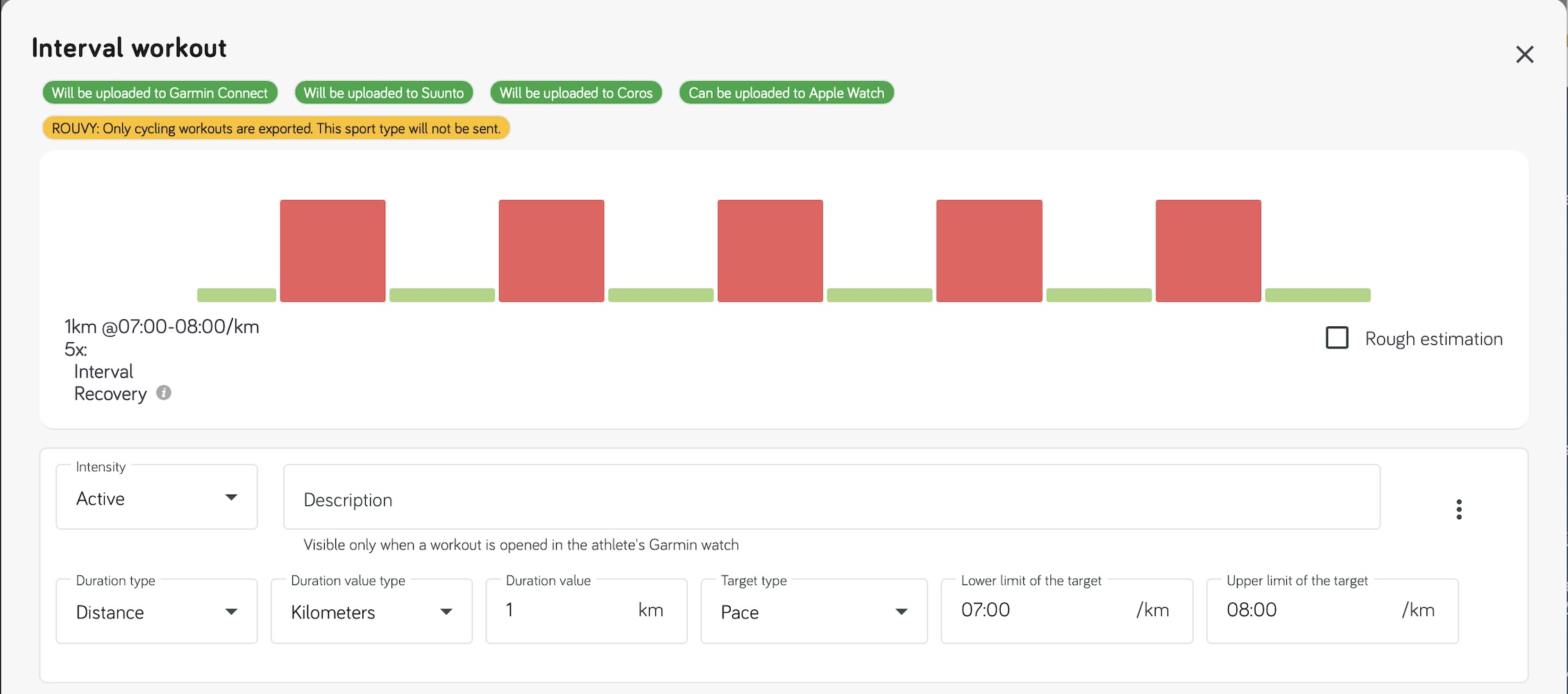
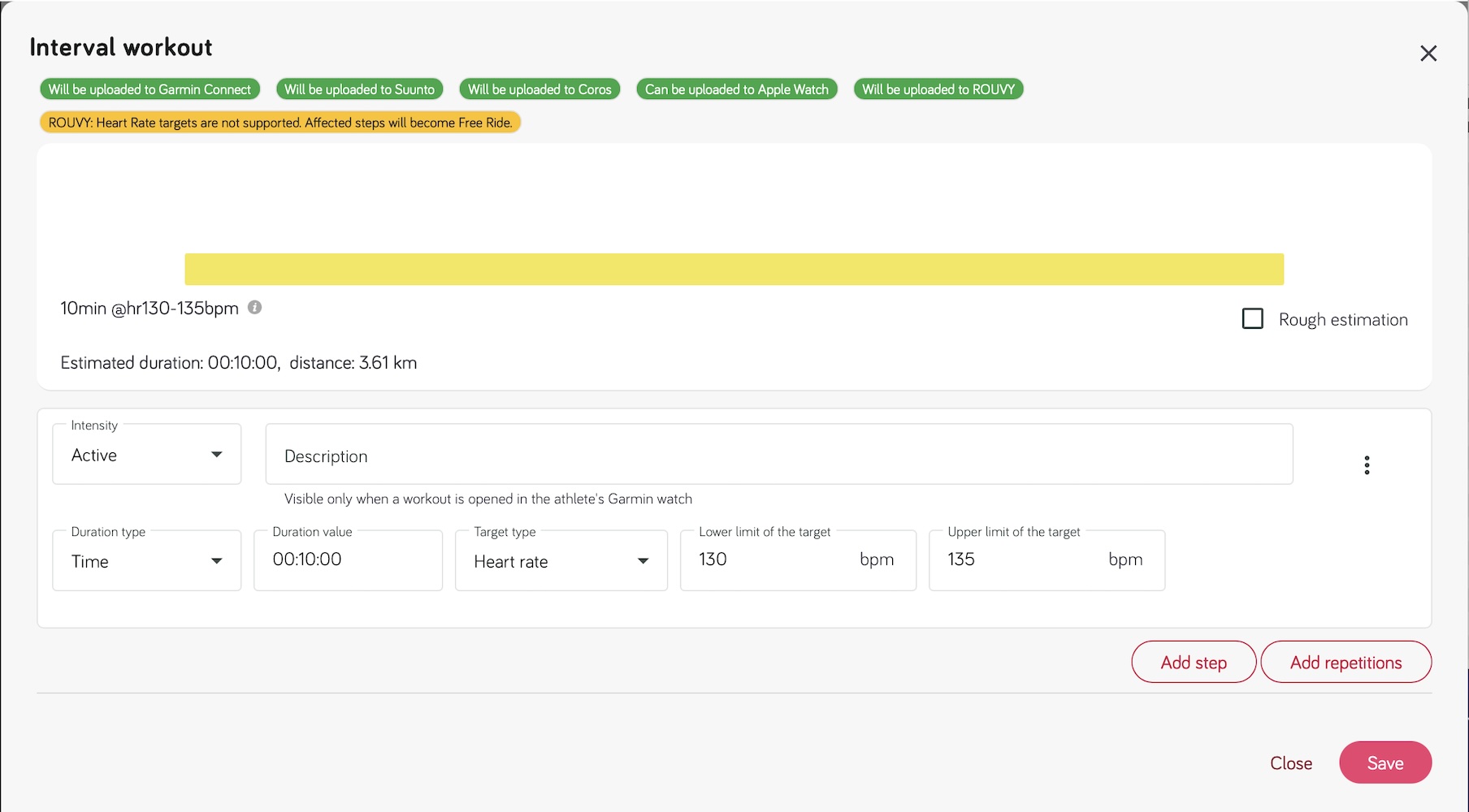
While you build an interval workout, the editor already tells you about these differences. Green labels above the chart show where the workout will be sent, for example Will be uploaded to Garmin Connect. Yellow labels warn when something in the workout can't be exported as built to a platform - for example ROUVY receives only cycling workouts, and turns heart rate targets into Free Ride. The table below lists all such differences.
Detailed differences
| Specific case | Garmin | Suunto | Coros | Amazfit | Apple Watch | ROUVY | Wahoo |
|---|---|---|---|---|---|---|---|
| Sport types | Supported all | Supported all | Supported running, cycling, swimming, strength. All other sport types are not exported. | Supported running, cycling, swimming (sent as pool swimming). All other sport types are not exported. | Supported all | Cycling only. All other sport types are not exported. | Cycling and running only. |
| Duration type Calories | Supported | Not supported | Not supported | Not supported. Sent as an open step. | Supported | Not supported | Supported. Converted to kilojoules (1 kcal = 4.184 kJ). |
| Duration type Distance | Supported | Supported | Supported | Supported | Supported | Not supported. Distance-based steps are skipped. If all steps use distance, the workout is not sent. | Supported. |
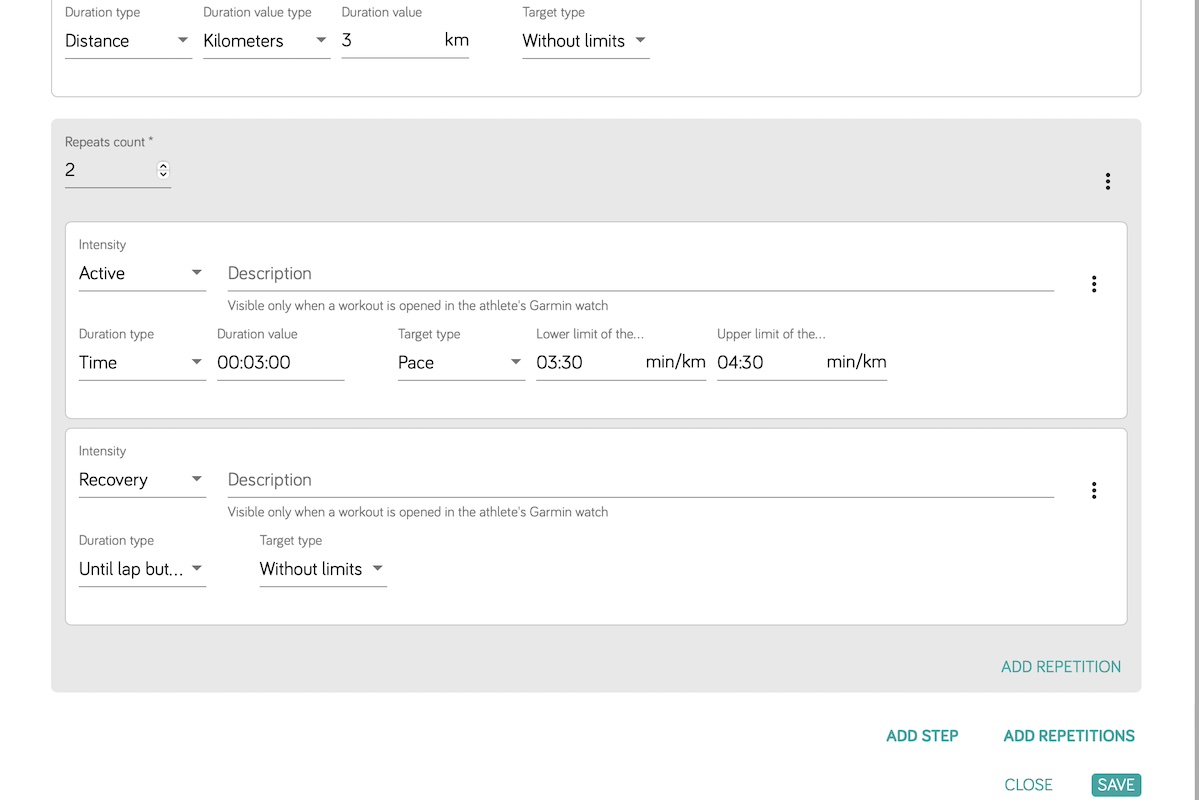
| Duration type Until lap pressed (Open) | Supported | Supported | When you select Open duration type, it will be converted to 20 minutes step and you have to finish it on the watch with the lap button manually. Open lap is supported only in one case: for steps in repetitions, where there are exactly two steps and the second step is Rest or Recovery intensity with Open target type. In this case target type will be also ignored. | Supported. Finish the step with the lap button. | Supported | Not supported. Open steps are exported as Free Ride. | Not supported. Open steps are skipped. |
| Target type Power | Supported all | Not supported Power 3s, Power 10s, Power 30s. When you select this option it will be converted to Power. | Not supported Power 3s, Power 10s, Power 30s. When you select this option it will be converted to Power. | Not supported Power 3s, Power 10s, Power 30s. When you select this option it will be converted to Power. Percentage power targets are not exported. | Not supported Power 3s, Power 10s, Power 30s. When you select this option it will be converted to Power. | Supported. Requires athlete FTP to be set for accurate conversion of absolute watt targets. | Supported. Uses FTP fractions when FTP is set; otherwise raw watts. |
| Target type Heart rate | Supported | Supported | Supported | Supported in bpm. Percentage heart rate targets are not exported. | Supported | Not supported. Converted to Free Ride step (no power target). | Supported. Both absolute bpm and threshold HR percentage. |
| Target type RPE | Shown in the step description (for example "RPE 6 Hard"), without a target. | Shown in the step description (for example "RPE 6 Hard"), without a target. | Shown in the step description (for example "RPE 6 Hard"), without a target. | Sent as a heart rate range from the athlete's max and resting heart rate; without them, no target. Step descriptions are not shown. | Supported | Converted to estimated FTP% using Borg CR-10 scale. | Supported natively as RPE (1–10 scale). |
| Target type Cadence | Supported | Supported | Supported only for workouts with running sport type. Otherwise ignored. | Not supported yet. Ignored. | Supported | Supported. Exported with cadence target alongside intensity-based power estimate. | Supported as RPM target. |
| Workout updates / deletions | Supported | Supported | Supported | Supported. The next 7 days are sent again after every change, and every night, so later workouts follow as their day comes closer. | Not automatic. Export the workout again after a change; the previous version stays on the watch too. | Not supported. Edits and deletions in Good Coach App are not reflected in ROUVY after the initial export. | Supported. |
| Strength sport type | No difference between other sports | Supported, but simplified comparing to Garmin. However, full workout info is displayed. | May give not expected results. | Not supported. | Supported, but simplified comparing to Garmin. Full workout info is displayed. | Not supported. | Not supported. |
Example of Open repetition type in Coros intervals: