Amazfit (Zepp) integration details
Amazfit watches connect to the Good Coach App through the Zepp app, the app you use to sync your watch. Once connected, the integration brings in your workouts, with their full detail, and your health data, and sends the workouts your coach plans to your watch. For example, after a morning run with your Amazfit watch, the workout appears in your calendar with its route, laps and heart rate as soon as the Zepp app syncs, and your coach sees it matched against the plan.
Connecting Amazfit (Zepp)
- Log in to the Good Coach App as an athlete and open Integrations (in the browser app from the menu with your name in the top right corner, in the mobile app from More (⋮) in the bottom bar). See How do I link my account to an external service? for more information.
- On the "Amazfit (Zepp)" card, click "Connect".
- The system will redirect you securely to the Zepp login page. Log in with the same account you use in the Zepp app on your phone and give the Good Coach App permission to read your data.
- Once you have successfully connected, you will return to the Good Coach App where you will see that the status on the card has changed to "Connected".
- Automatically import workouts and Automatically import health data are switched on when you connect - untick either one if you don't want it. See more. Automatic import from Strava is switched off at the same time, so your workouts don't arrive twice.
- Planned workouts are sent to your watch from now on - see Exporting workouts to Amazfit (Zepp).
When you connect, the Good Coach App asks Zepp for your workouts, sleep and HRV from the last 30 days, so your recent history appears within a few minutes.
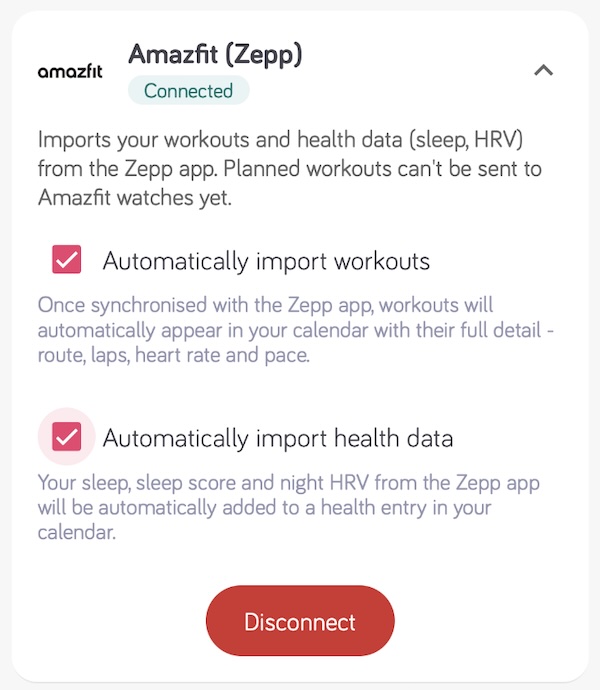
What we import from Zepp
Workouts
Completed workouts are imported from the FIT file recorded by your watch, with their full detail - duration, distance, route, heart rate, pace or power, and laps - and are matched against your plan for the day. Read more in How does importing work and Connecting activities.
A workout arrives once the Zepp app has synced it from the watch. If Automatically import workouts is off, the workout is still waiting for you and you can add it to the calendar manually.
If the same workout already came through Strava or Apple Health, the Amazfit version replaces that copy, because it carries the full recording.
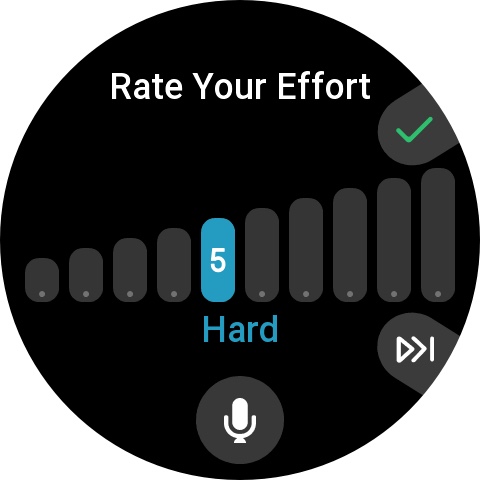
After a workout the watch asks you to Rate Your Effort from 1 to 10. Your rating is saved as the workout's RPE in the Good Coach App - the scale is the same as ours.
The watch records every step of a planned workout as a lap, but does not say which step it was. If you skip a step or press the lap button during the workout, the laps shown against the plan can shift.
If the Zepp app also sends your workouts to Strava, and automatic import from Strava is enabled in the Good Coach App, the same workout can arrive twice. Keep Automatically import workouts enabled for Amazfit (Zepp) and turn it off for Strava. The Good Coach App warns you about this when you enable it.
The workouts your coach plans are also sent to your Amazfit watch: the next 7 days at a time, and later workouts follow automatically as their day comes closer. See Exporting workouts to Amazfit (Zepp).
Health data
When Automatically import health data is enabled, we write Zepp data into the health entry for the matching day, creating the entry when it does not exist yet. Your coach sees the same entry.
| Data | Notes |
|---|---|
| Steps | Reported by Zepp |
| Calories | Active calories, reported by Zepp |
| Min. resting HR | The lowest heart rate of the night, calculated by the Good Coach App from Zepp's readings |
| Sleep average HR | The average heart rate of the night, calculated the same way |
| Sleep duration | Total sleep reported by Zepp, without naps |
| Sleep score | Zepp sleep score, 0-100 |
| Night average HRV | Average HRV of the night, reported by Zepp |
| Weight | The day's last weigh-in recorded in Zepp, for example by an Amazfit smart scale |
Sleep and HRV arrive after the Zepp app syncs the night from your watch, and go to the day Zepp assigns the night to - normally the day you woke up. Steps, calories, night heart rate and weight are fetched by the Good Coach App every hour in the morning (5:00-11:00 in your time zone) until the night is in, and four more times during the day. See more.
Zepp does not send floors climbed, a daytime resting heart rate or a stress level to the Good Coach App yet, so those fields stay empty unless another source fills them.
Each day has one health entry. If two services send health data for the same day, the later one overwrites the other's values, so your HRV can jump between two different measurements. Enable health import in one service only.
Disconnecting
Click "Disconnect" on the "Amazfit (Zepp)" card. If you remove the Good Coach App's access in your Zepp account instead, the integration is disconnected automatically, and the card shows it as not connected.
Troubleshooting
- A workout did not appear. Check that the workout is visible in the Zepp app - if not, sync the watch with the Zepp app first. Then check that Automatically import workouts is enabled on the "Amazfit (Zepp)" card.
- The same workout appears twice. Automatic import is probably enabled for both Amazfit (Zepp) and Strava. Turn it off for Strava - see Avoid duplicates.
- Health data does not arrive. Check that Automatically import health data is enabled, and that the watch was worn through the night and synced with the Zepp app.
- HRV jumps from day to day. Check that health import is enabled in one service only.
- A planned workout is not on the watch. Check that it is within the next 7 days - later workouts are sent automatically as their day comes closer - that it is a running, cycling or swimming workout, and that the Zepp app has synced with the watch. The workout details show Exported to Amazfit once it has been sent. See Exporting workouts to Amazfit (Zepp).
- You got a notification asking you to reconnect. Zepp no longer accepts the Good Coach App's access. Connect again on the Integrations page.
More on health import across all services: Importing health data.