Exporting workouts to Amazfit (Zepp)
Activating export to Amazfit
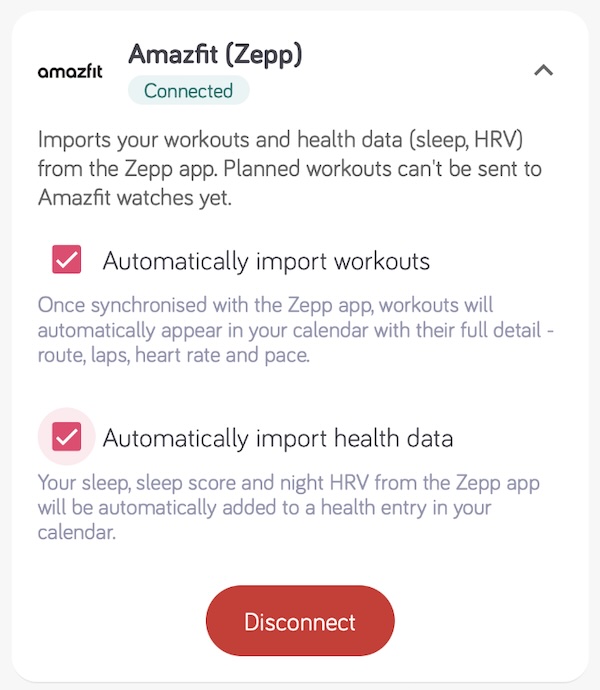
After connecting the Amazfit (Zepp) integration, export happens automatically - there is nothing else to switch on. See Connecting Amazfit (Zepp).
How does it work?
Only workout plans are sent to Amazfit. A competition is a race entry rather than a structured session, so it is never exported to your watch or to any external platform. For a structured session on race day, add it as a separate workout plan.
Amazfit works differently from Garmin or Coros: the watch holds the next 7 days of workouts - today and the six days after it - and the Good Coach App always sends that whole week at once.
- Every time the coach publishes, edits, moves or deletes a workout in those 7 days, the week is sent again within seconds, so the watch always shows the current plan. A deleted workout disappears from the watch, and a workout moved to another day moves with it.
- Workouts planned further ahead are not left out: every night the Good Coach App sends the new 7 days, so each workout reaches the watch as its day comes closer. Plan weeks or months ahead as usual - the workouts keep appearing on the watch day by day, with nothing to do by hand.
- After the Zepp app syncs with the watch, the workouts appear on it.
To confirm a workout was sent, open the workout details in Good Coach App and look for the green Exported to Amazfit badge. The badge means Zepp accepted the week with this workout in it.
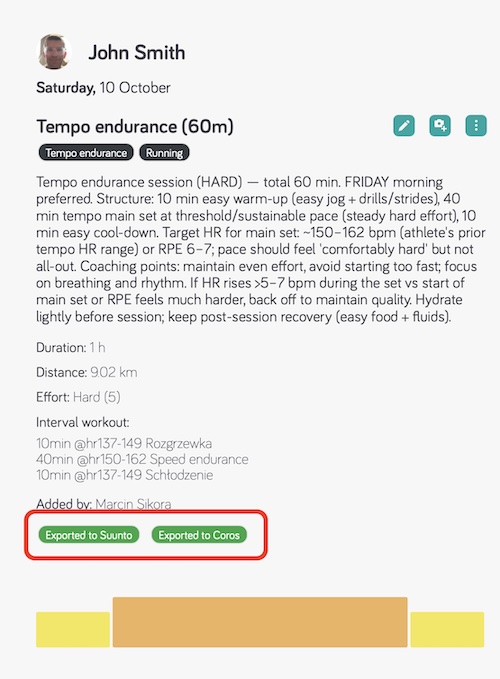
There is no Export to … option for Amazfit in the workout menu: because every change already sends the whole week again, there is nothing to send by hand. A workout more than 7 days ahead shows no badge yet - that is expected, and it is sent automatically once it is within the 7 days.
In the Zepp app and on the watch
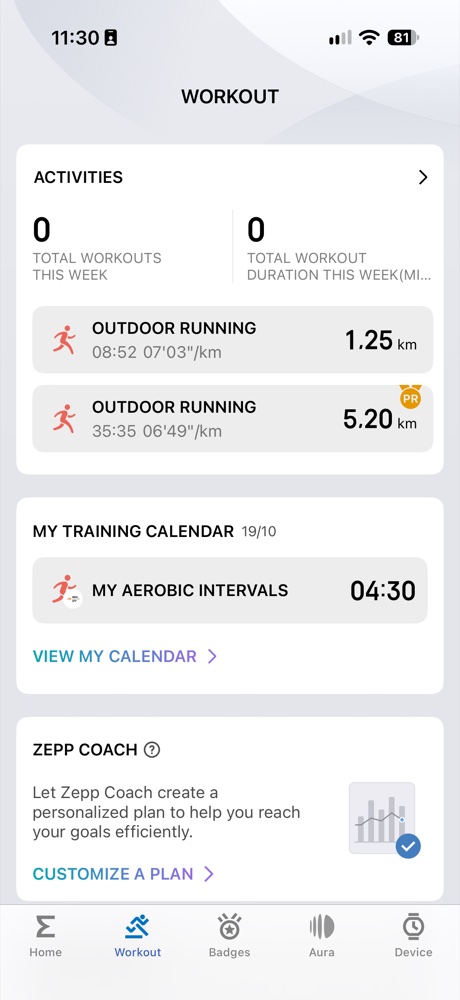
In the Zepp app, the workouts sent by the Good Coach App appear on the Workout tab under My training calendar, and in the calendar itself as a 3rd-party training plan on their day.
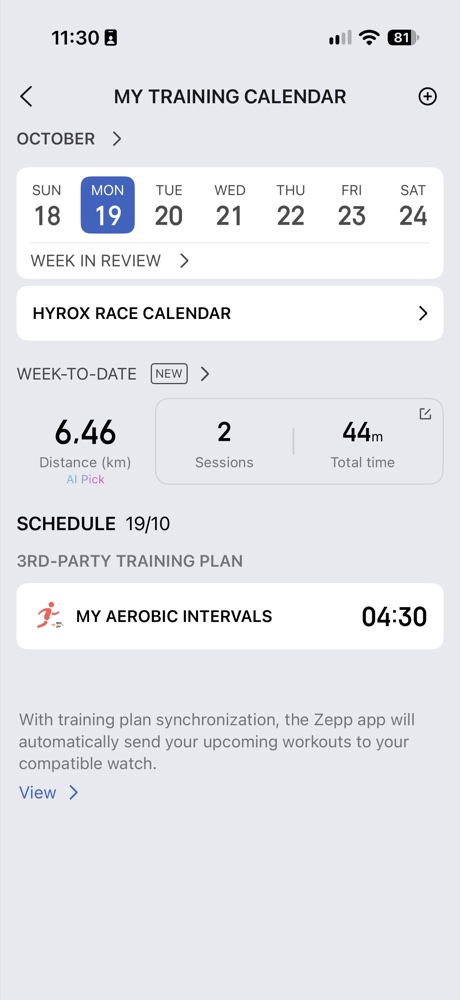
Open the workout to see its steps with their durations and targets - for example a pace alert or a heart rate alert.
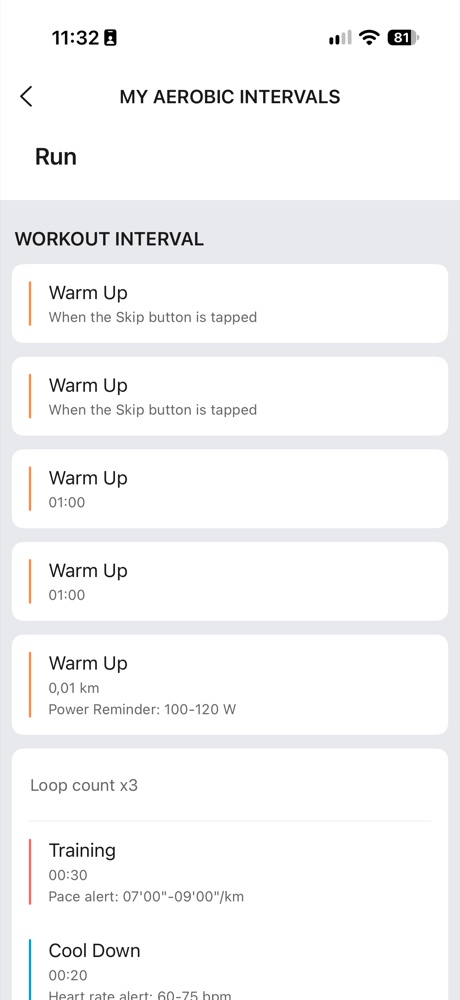
After the Zepp app syncs, the workout is ready on the watch: open it, check the steps and press GO.
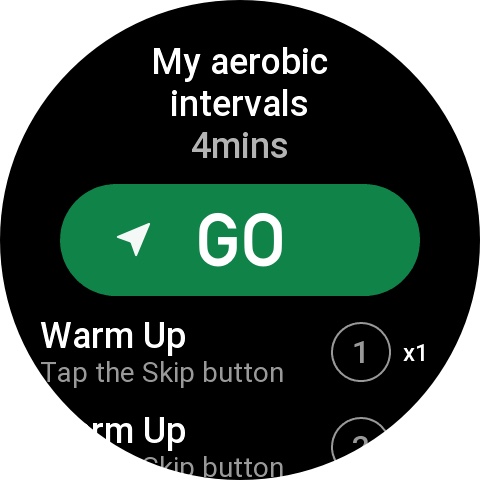
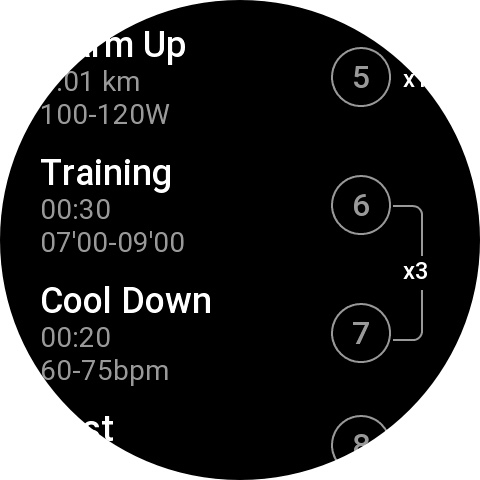
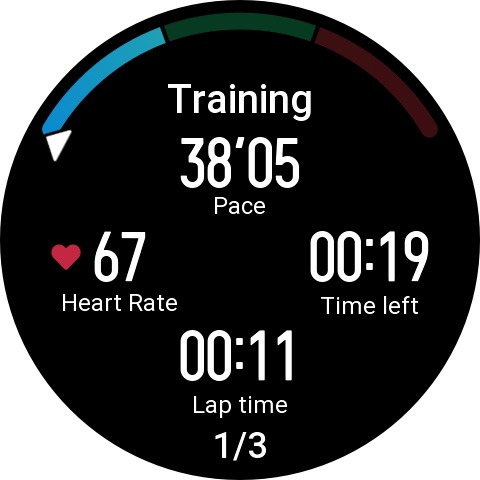
During the workout the watch shows each step's type - Warm Up, Training, Cool Down or Rest - with the time or distance left and the target, for example a pace range with a gauge or a heart rate range. An open step waits for you to press the Skip button.
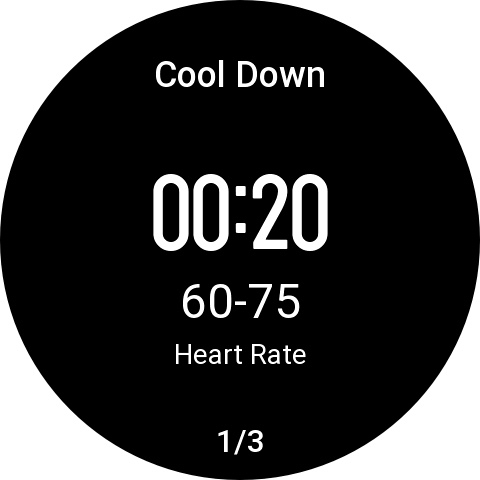
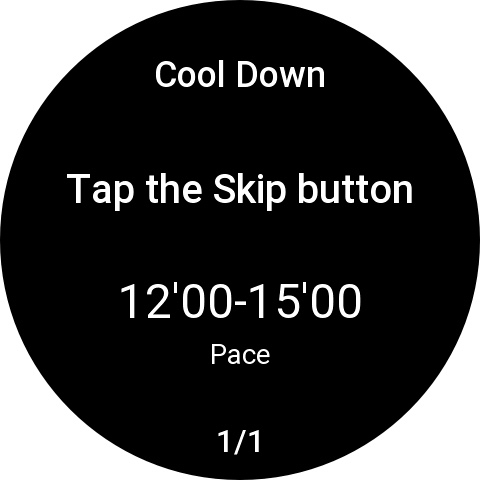
The watch shows no text on the steps. So the Good Coach App puts everything the coach wrote into the workout's description, which the Zepp app shows above the steps: the workout description first, then the list of steps with each step's notes and RPE - the same as on the workout tile in the Good Coach App calendar. Read it before you start. RPE targets are also sent as a heart rate range, so the watch can guide you (see below). We will update this page once Zepp shows step descriptions.
What gets exported
- Running, cycling and swimming workouts only. Swimming is sent as a pool swim. Other sport types are not sent to Amazfit.
- Published workout plans in the next 7 days, and later ones as their day comes closer. Drafts and completed workouts are not sent.
- Workouts without intervals are sent as one step with the planned duration or distance, so they still appear on the watch.
How steps are converted
| In Good Coach App | On the Amazfit watch |
|---|---|
| Duration: time, distance | Sent as they are |
| Duration: until lap pressed (Open) | Open step - finish it with the lap button |
| Duration: calories, repetitions | Sent as an open step |
| Target: heart rate (bpm) | Heart rate target |
| Target: power (watts) | Power target. Power 3s, 10s and 30s are converted to standard power |
| Target: pace or speed | Pace target |
| Target: heart rate or power in % | Not sent - the step has no target. Use absolute values for Amazfit |
| Target: cadence | Not sent - Amazfit does not take cadence targets yet |
| Target: RPE | A heart rate range from the athlete's max and resting heart rate, when they are set or measured. Without them, no target |
| Step and workout descriptions | The workout description and the list of steps with their notes and RPE are shown in the Zepp app, above the steps. Nothing is shown on the steps themselves |
| Repetitions | Supported, up to one repetition inside another |
The interval workout editor warns about each of these with a yellow label while you build the workout, and the green Will be uploaded to Amazfit label shows that the workout will be sent. See Differences in exporting interval workouts.
Limitations compared to other platforms
- 7-day window. Garmin, Coros and Suunto receive a workout as soon as it is published, however far ahead it is. Amazfit receives it once it is within the next 7 days - automatically, so the plan still reaches the watch, just closer to the day.
- Running, cycling and swimming only. Strength and other sport types are not sent.
- No cadence or percentage targets for now.
- No text on the steps. The coach's notes are in the workout description in the Zepp app, not on each step during the workout, and RPE targets become heart rate ranges.