Exporting workouts to Suunto
Setting up export to Suunto
After connecting to the Suunto service, workout export happens automatically. More about connecting can be found here: Suunto integration details.
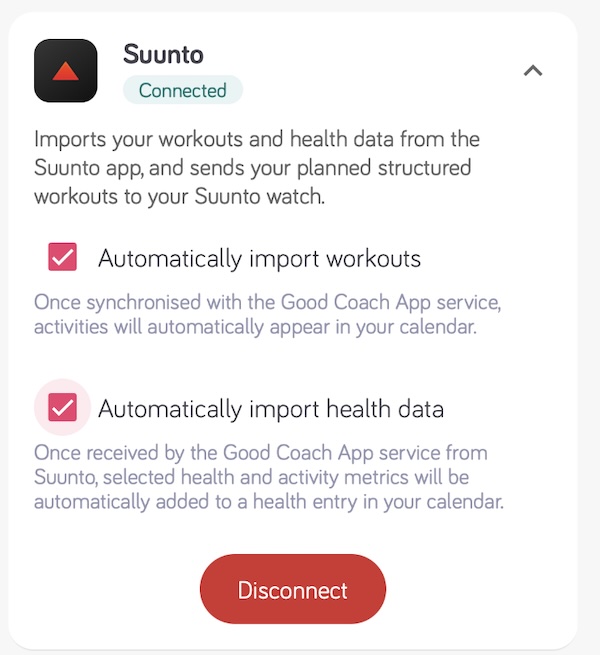
How does it work?
Only workout plans are sent to Suunto. A competition is a race entry rather than a structured session, so it is never exported to your watch or to any external platform. For a structured session on race day, add it as a separate workout plan.
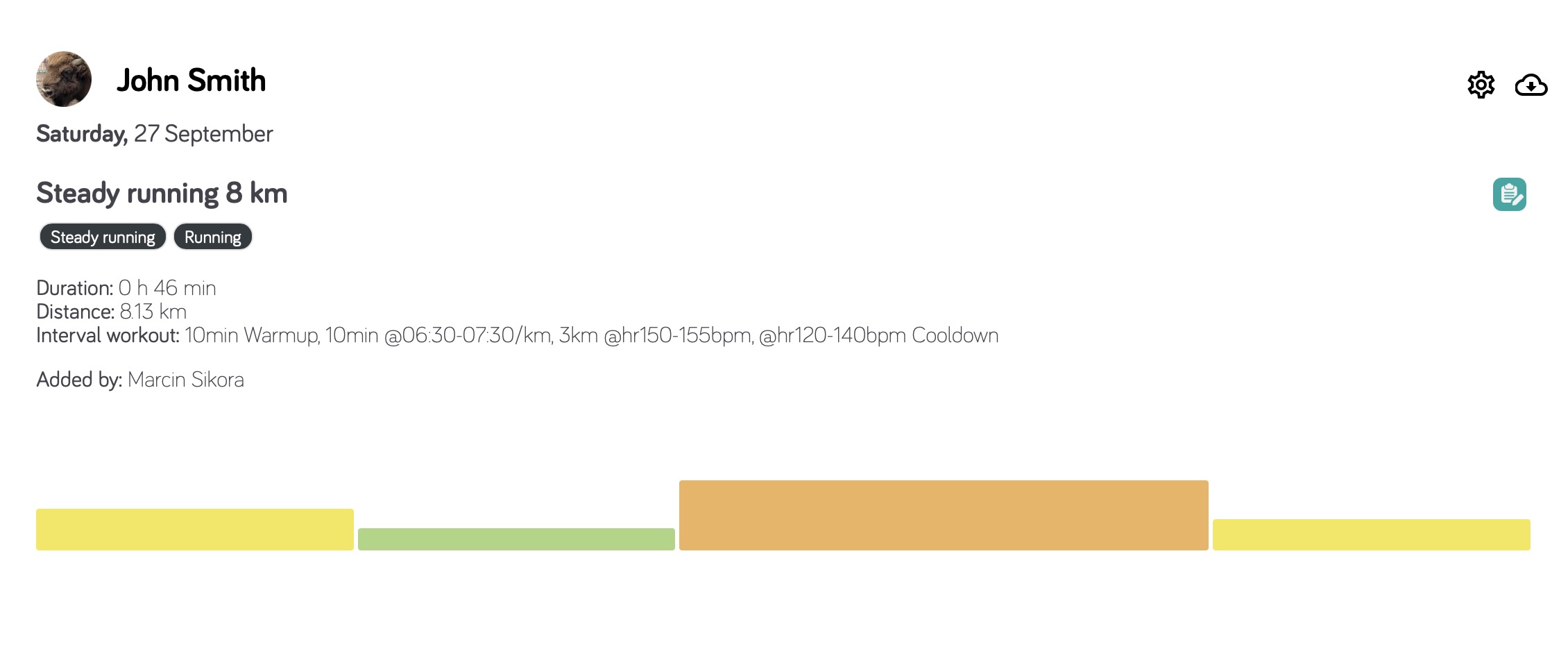
The app gives athletes the ability to export training plans to the Suunto app as guides.
Once enabled, all newly added and published workouts will be sent to the Suunto app as guides available on the given day within seconds. They will also be updated if they change in the Good Coach App system or if they are moved to another date or deleted. After synchronizing the watch, workouts will appear in it automatically for selection before the workout itself.
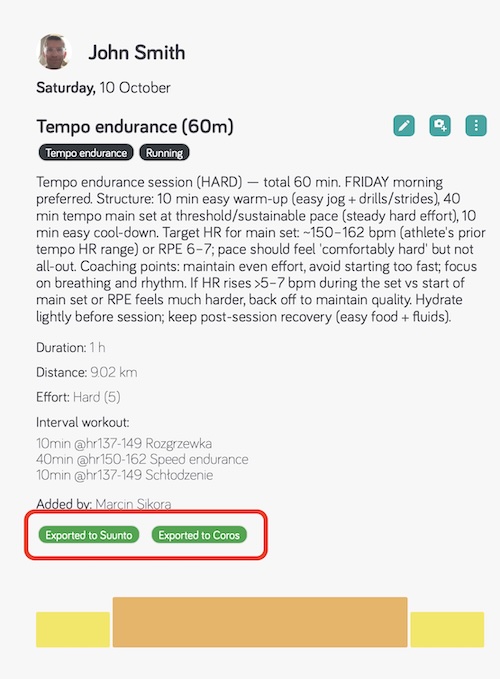
To confirm a workout was successfully exported, open the workout details in Good Coach App and look for the green badge next to Suunto.
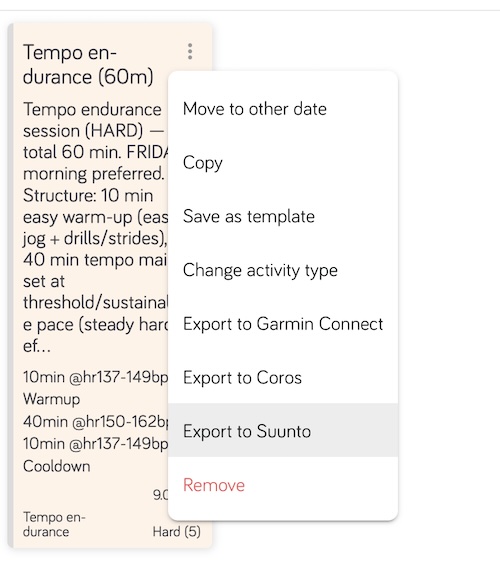
If the badge is missing, or you think something went wrong, you can send the workout again yourself: open the menu (⋮) on the workout in the calendar and choose Export to Suunto.
The guide works by adding an additional screen during training on the Suunto watch, which shows instructions from the Good Coach App. Depending on the workout built by the coach, the following will be displayed:
- additional information about heart rate, power, pace or cadence ranges required to perform the given training step,
- information about time or distance remaining until the end of the given training step, as required.
- additional text tips from the coach, especially for strength training.
When starting a new step, the athlete will also receive a notification on the watch with a description of the step and additional information from the coach, if added.
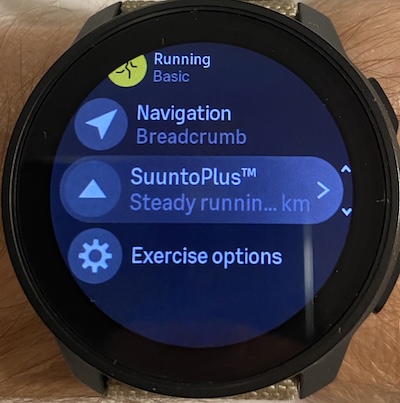
If you have two guides created for the same day, from two workout plans, you have to choose one of them to be used during the workout from SuuntoPlus menu on the watch.
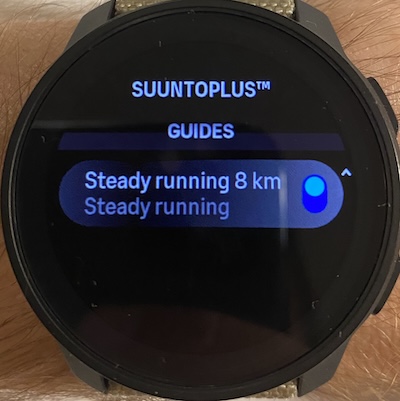
After completing the workout and synchronizing the watch with the Suunto app, the workout will appear in the Good Coach App as completed. We will also try to regularly remove old guides.
Suunto guides have some dynamic limitations in text length. We try to optimize the text to fit the limits, but in some cases, some information may be omitted.
How steps are converted
| In Good Coach App | In the Suunto guide on the watch |
|---|---|
| Sport types | All sport types |
| Duration: time, distance, until lap pressed (Open) | Shown as they are |
| Duration: calories | Not supported |
| Target: heart rate, pace, speed, cadence | Shown on the guide screen |
| Target: power | Shown on the guide screen. Power 3s, 10s and 30s are converted to standard power |
| Target: RPE | Shown as text in the step description, without a target |
| Descriptions and coach notes | Shown on the guide screen; very long texts may be shortened to fit the guide |
| Strength workouts | Simplified compared to Garmin, with the full workout text shown |
| Changes and deletions | Applied to the guide automatically |
The interval workout editor shows a yellow label for each case that is not sent as built. Compare all platforms: Differences in exporting interval workouts.
Example of export to Suunto guide
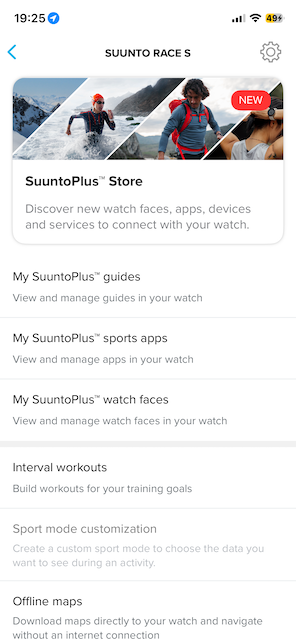
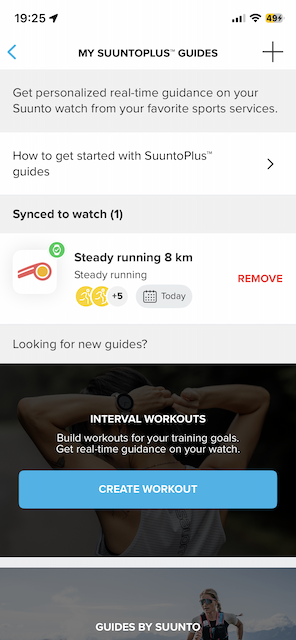
Open the Suunto app on your phone, click your watch in the left top corner of the app and go to the "My SuuntoPlus Guides" section. You should see the workout plan you exported from the Good Coach App.
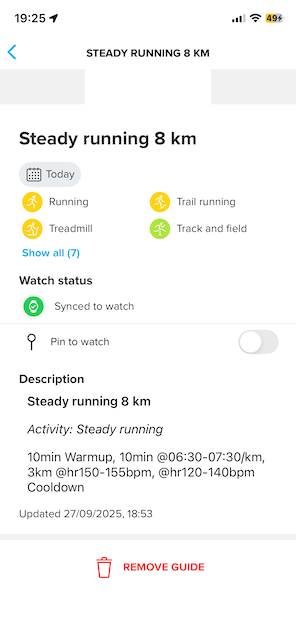
After successfull synchronization of the watch with the Suunto app, you should see the workout available when you start workout. It will be visible also on your watch in the SuuntoPlus menu.
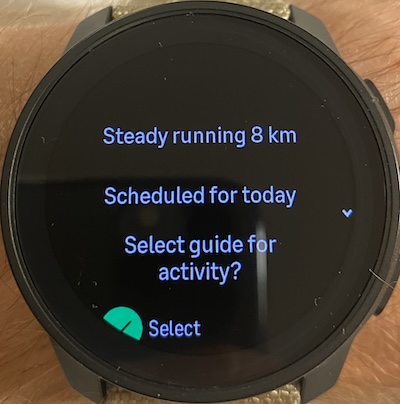
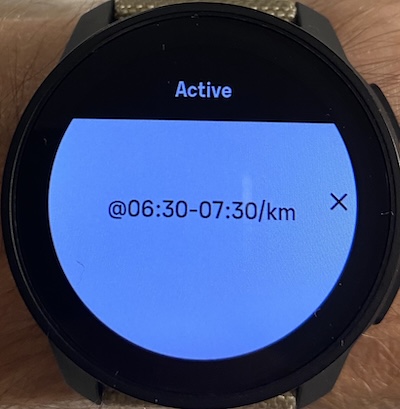
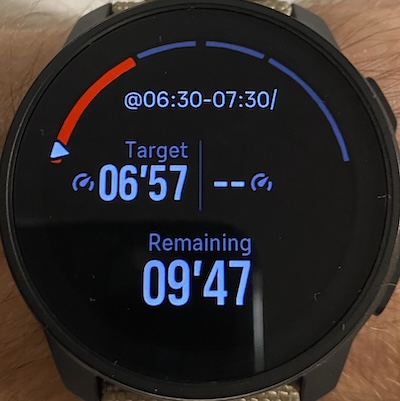
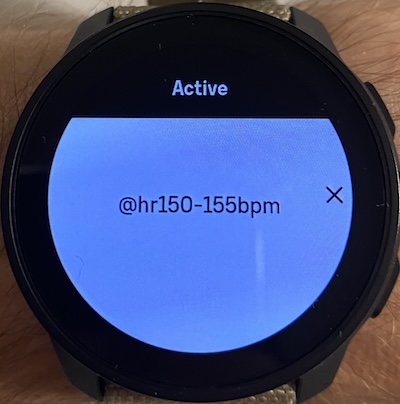
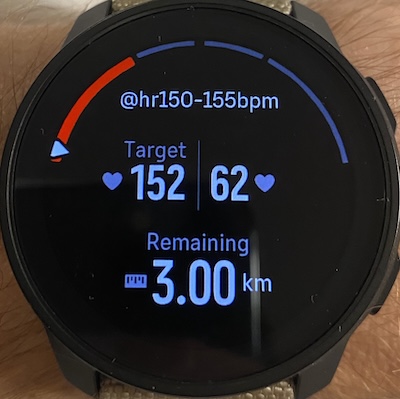
We will remove guide automtically after workout is completed and synchronized, but in case you want to remove it manually, you can do it from the Suunto app in the "Guides" section.