Training calendar
The calendar screen allows the addition of workout plans for the day and the completion of workouts by athletes. It also allows coaches and athletes to add notes. Statistics for the week are also available. In addition, in the iOS and Android apps, on the last day of the month, year, mesocycle and macrocycle, statistics for that particular period are available.
On the calendar screen, workouts can be added using templates.
In the iOS and Android mobile apps, it is possible to switch between a monthly and weekly calendar view.
Adding a workout plan
A workout plan is an entry by a coach or athlete that sets out the plan for the day. The plan can include name, description, activity type, distance or time. It should at least contain the activity type. If no name is entered, the activity type of the workout will be automatically stored in the name.
Start time
A workout plan can have an exact start time — for example 07:30. It is optional: a plan without a time works exactly as before.
- Open the workout plan.
- Next to the date, click Add time and pick the time.
- Save or publish the plan.
The athlete sees the time above the workout name on the calendar tile, and in their phone calendar if they subscribe to the calendar feed.
- It is the athlete's local time. 07:30 means 07:30 wherever the athlete is, and coach and athlete see the same 07:30 — also when you are in different time zones.
- The athlete can change it. The coach decides what the workout is, the athlete decides when: on a published plan, the athlete opens the workout and picks another time next to the date. Once the workout is completed, the athlete can no longer change it.
- To remove the time, click it and use the ✕ next to the field.
- Order on the calendar. Workouts and coach events with a time are ordered by time. Entries without a time keep their place.
- Copying keeps the time. Copying a workout, pasting a week or dragging it to another day keeps its start time. Workouts added from a template start without a time.
- Watches ignore it. Garmin, Coros, Suunto, ROUVY and Wahoo receive the workout on its date, as before.
Completing workouts
Once a workout plan is on the calendar, the athlete records how it went. For most workouts this is just a few taps on the workout tile; if you don't use a device, you can add the details by hand instead. Workouts that sync from a device (Garmin, Coros, Polar, Suunto, Wahoo, ROUVY, Strava) usually connect to the matching workout plan on their own. (For the underlying concept, see Workout completion.)
For step-by-step help, see the Completing workouts pages:
- Completing your workouts — the quick way, the form, and what the tile colours mean.
- Connecting a device workout to a workout plan — when a device workout shows as Unassigned, and how to connect it.
- Adding a workout file or extra detail — the full form and FIT files.
- How automatic connection works — the rules behind automatic connection (for the curious, and for coaches).
Preview of the workout plan laps
In the case of workouts containing detailed activity data from external integrations, where possible, we display detailed workout metrics. The most detailed data is provided by the latest Garmin watches, but other manufacturers also provide detailed information.
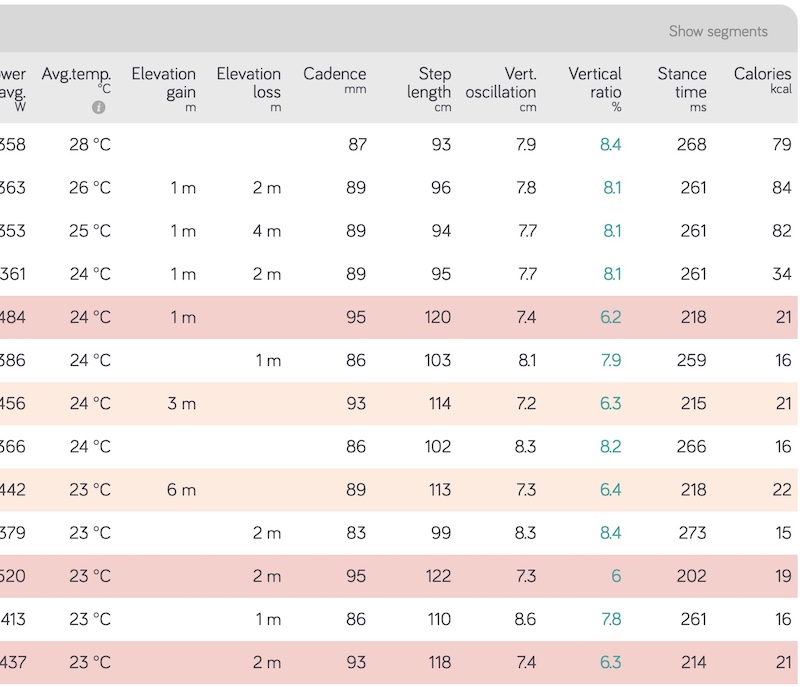
Where possible, and if the workout has been connected to a workout plan containing interval training, we try to match the laps recorded by the watch to the planned workout. This allows the coach to make a more accurate analysis of the effectiveness of the workout.
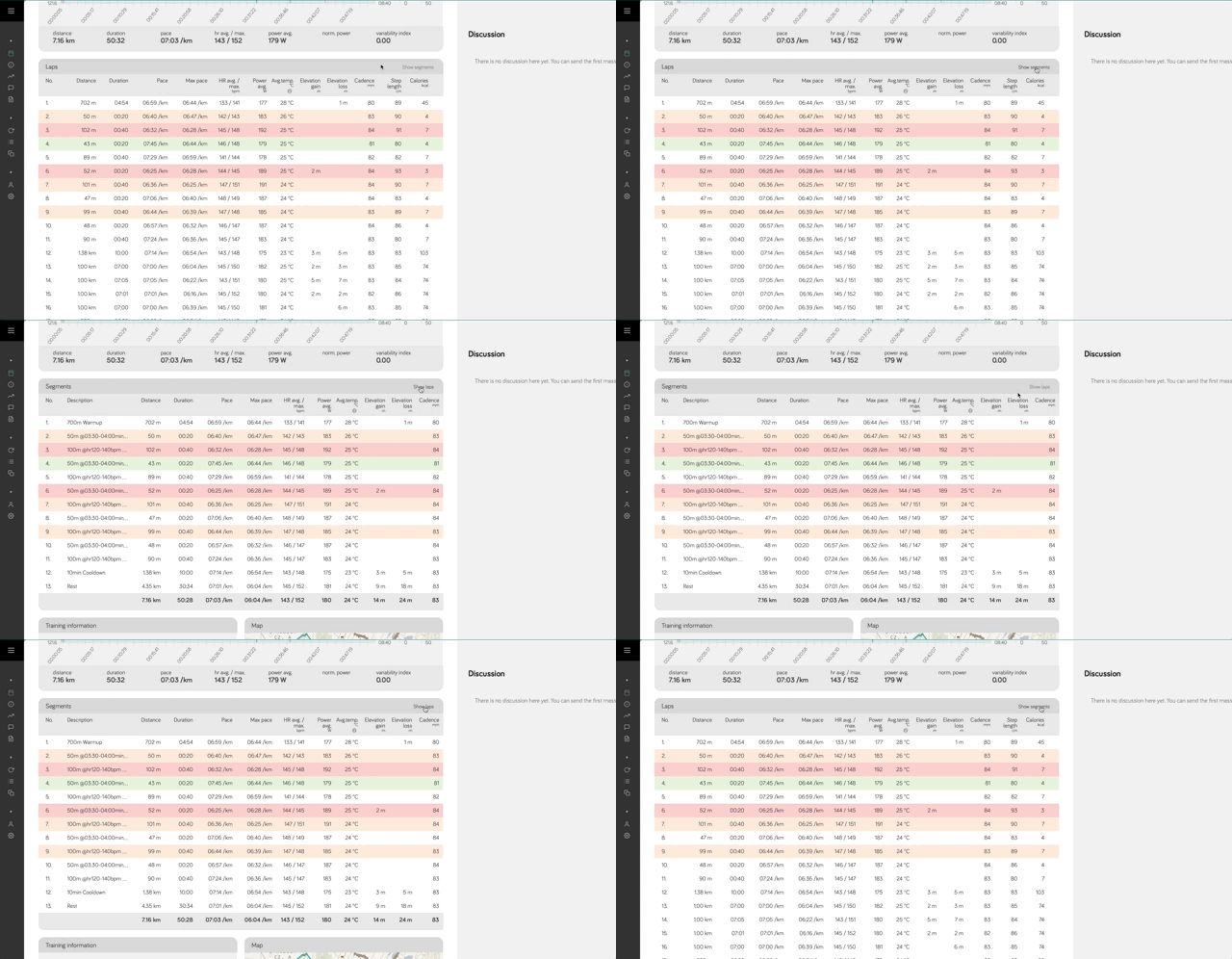
The laps view contains all types of laps recorded by the watch. The segments view contains those laps that have been matched to the planned workout segments or sent by the watch.
Switching between the laps view and workout segments is done using the "Show laps" and "Show segments" buttons.
Adding training break
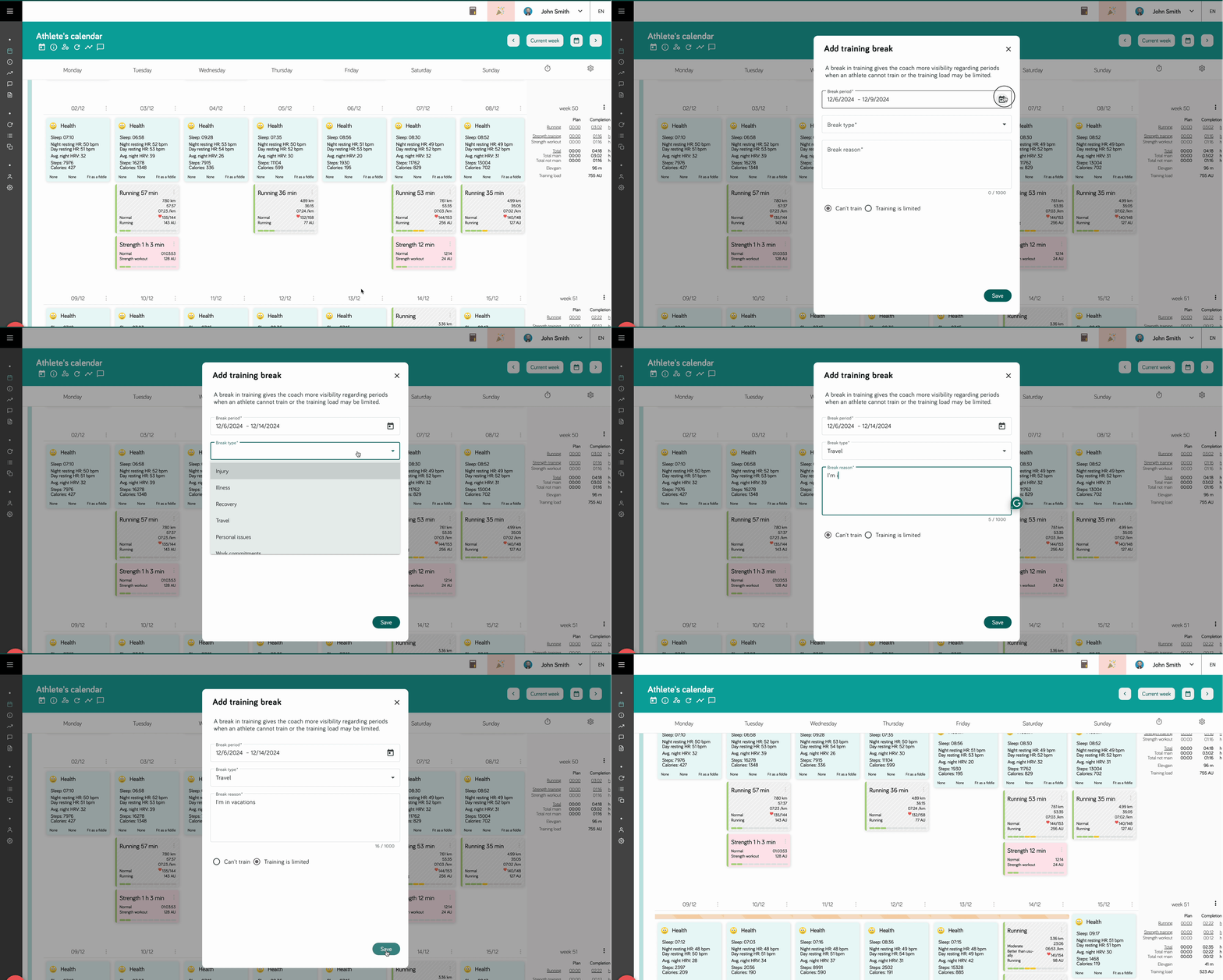
A coach or athlete can add a training break to the calendar. This is a period of time when the athlete is not available to complete the workout plan. The training break can be added for a specific day or for a longer period of time.
The training break can be added from the calendar, selecting the appropriate day and from the menu of that day selecting the option "Add training break". In the window, fill in all required fields.
The coach receives push notification to his mobile application when the athlete adds, modifies or removed a training break.
Adding assessment
If we have already added a specific type of assessment on the screen with activity types, we can schedule it for the selected athlete on the calendar. An assessment can be added by the coach as a past or future test. There is no need to enter the result for the assessment, the result can be entered by the athlete after the assessment is completed.
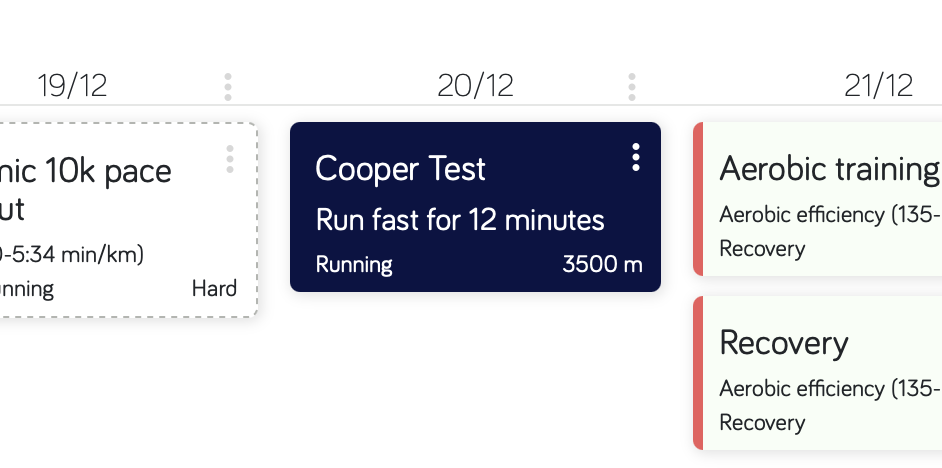
The entire assessment in the calendar can also be added by the athlete, there is no need for the coach to schedule it first.
After saving the assessment, it is also possible to comment on it as a chat.
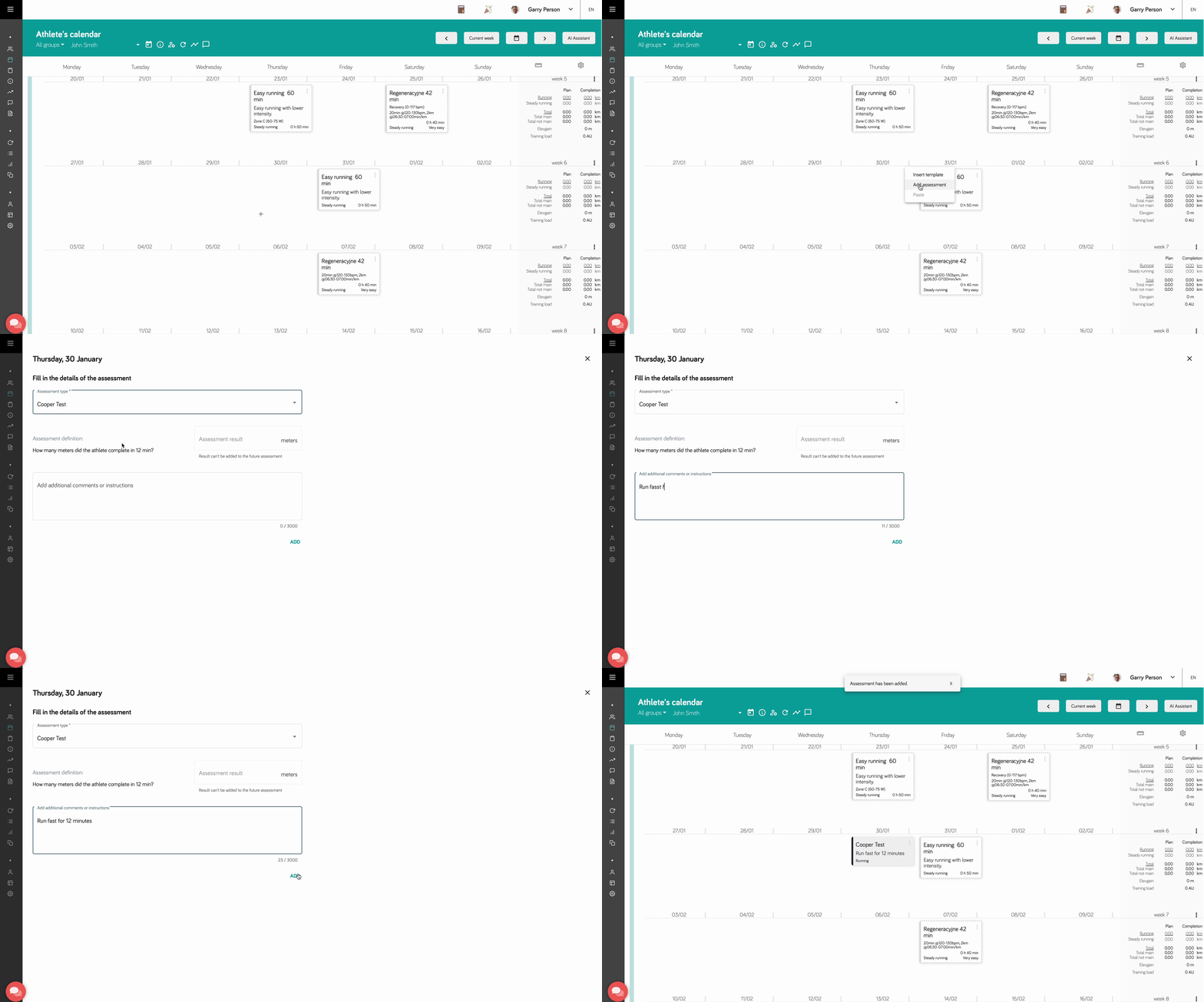
Assessments are fully available in both the browser app and the mobile apps.
Subscribe from your calendar app
You can follow your Good Coach App schedule from Google Calendar, Apple/iCloud Calendar or Outlook, so your workout plans, competitions and training breaks appear alongside the rest of your life. See Subscribe from your calendar app for how it works and how to set it up.