Devices we don't support directly (bridged integrations)
Good Coach App connects directly to Garmin Connect, COROS, Suunto, Polar Flow, Wahoo, ROUVY and Amazfit (Zepp). If your watch or app isn't one of these — for example a Huawei Watch (Huawei Health), a Samsung Galaxy Watch (Samsung Health), Zwift, or another brand — you can still get your completed workouts into Good Coach App by routing them through a service we do support.
We call this a bridged integration: your device sends the workout to an intermediate service, and that service passes it on to Good Coach App.
Your watch → its own app (e.g. Huawei Health, Samsung Health) → Strava or Apple Health → Good Coach App
There are two possible bridges.
Bridge 1 — Strava (works on iOS and Android)
Most watch apps can send completed activities to Strava. Once they do, Good Coach App can pick them up from there.
Step 1 — send your workouts to Strava
In your watch's own app, find the section for connecting external services and enable Strava. Huawei Health and Samsung Health have such a setting, usually under a "connected services" or "account linking" section — the exact menu names vary by app version.
Step 2 — connect Strava to Good Coach App
Connect Strava to Good Coach App (mobile or browser app both work) as described in General information on integrations.
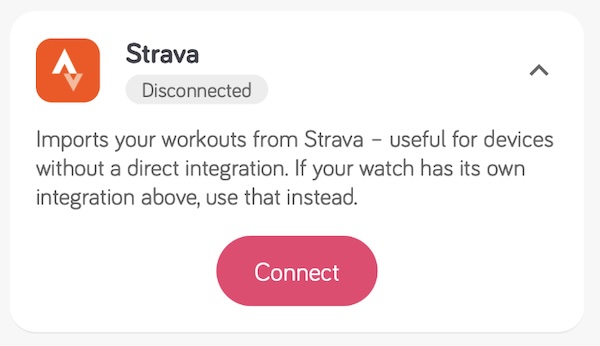
From then on, every workout you save on the watch travels automatically: watch → watch app → Strava → Good Coach App.
You cannot have automatic import switched on for Strava and for another integration at the same time — the same workout would arrive twice. If you also have Garmin, COROS, Suunto or Polar connected, turn off Automatically import workouts for Strava and import from it manually when needed. See Common problems.
Bridge 2 — Apple Health (iPhone only)
If you use an iPhone, most watch apps can also write completed workouts into Apple Health.
Step 1 — in your watch's app (e.g. Huawei Health, Samsung Health), allow it to write workout data to Apple Health.
Step 2 — in Good Coach App, import from Apple Health as described in How does importing work?.
Workouts then travel: watch → watch app → Apple Health → Good Coach App.
A workout recorded directly on an Apple Watch is imported into Good Coach App automatically, because watchOS writes the whole workout (including heart rate) to Apple Health at once.
A bridged workout is different. Apps like Huawei Health or Samsung Health often write the workout summary to Apple Health first and the heart rate samples separately, sometimes up to an hour later. If Good Coach App imported it the moment it appeared, it could import an incomplete workout permanently missing heart rate data — this has happened in practice.
For this reason, bridged Apple Health workouts are never imported automatically. Make sure your watch's own app has fully finished syncing the workout (including heart rate) to Apple Health, then import it manually.
To import manually, open the Calendar tab, go to the day of the workout, tap the ⋮ menu, and select Import from Apple Health.
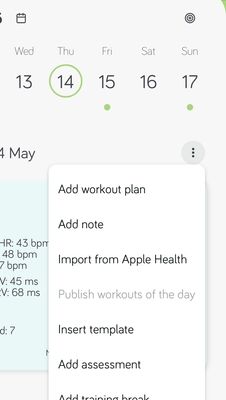
Good Coach App can only see workouts stored in the Health app on the same device where the Good Coach App is installed.
What a bridged integration can and can't do
| Strava bridge | Apple Health bridge | Direct (Garmin, COROS, Suunto…) | |
|---|---|---|---|
| Import completed workouts | ✓ | ✓ | ✓ |
| Full workout detail | Simplified — see below | Simplified — see below | ✓ |
| Health data (sleep, HRV, resting HR) | ✗ | ✓ — if your watch's app also writes health data to Apple Health, and you've granted Good Coach App permission to read it. See Importing health data. | ✓ (Garmin, COROS, Suunto) |
| Send your coach's planned workouts to the watch | ✗ | ✗ | ✓ (Garmin, COROS, Suunto) |
Your workouts will be simplified
A bridge passes on a reduced version of each workout. You will still get the map, distance and pace, time, heart rate, altitude, and usually cadence and power. You will not get device-only metrics such as running dynamics (ground contact time, vertical oscillation), respiration rate or temperature — even if your watch recorded them.
Your coach's plans will not appear on your watch
This is the most important limitation. A bridge is one-way: workouts flow into Good Coach App, but planned workouts and structured intervals cannot be sent back out to a bridged device. You'll need to read your plan in the Good Coach App and follow it manually on the watch.
If your watch brand is supported directly, connect it directly. Use a bridge only when there is no direct integration available for your device.
Huawei, Samsung — known watch brands
These are some of the most common watch brands without a direct integration. All of them work with Good Coach App today using either bridge above.
- Huawei (Huawei Health app) — use either bridge; Huawei Health's own Strava sync has been unreliable in some cases, so if workouts aren't arriving consistently via Strava, try the Apple Health bridge (iPhone) or a manual FIT file import instead — see How does importing work?.
- Samsung Galaxy Watch (Samsung Health app) — use either bridge; on iPhone, the Apple Health route has worked well for some of our athletes.
If your watch brand isn't listed here, the same two bridges still apply — check your watch's own app for a Strava or Apple Health connection option.
Troubleshooting
The workout isn't in Good Coach App
- Is it visible in your watch's own app (e.g. Huawei Health, Samsung Health)? If not, the problem is between the watch and that app — restart the app and re-sync the watch. Nothing further down the chain can help until it appears there.
- Is it visible in Strava (or in the Health app)? If not, re-check the connection in step 1 above.
- If it's visible in Strava but not in Good Coach App, open the Calendar tab and use the Import from Strava button — with automatic import switched off, workouts are stored but not added to your calendar until you import them.
The workout appears twice
You have automatic import enabled for Strava alongside another integration. Switch automatic import off for Strava.