WHOOP integration details
WHOOP is a health tracker first: it measures your sleep and how you recover. Once connected, your health data comes into the Good Coach App automatically, and you can also choose to import your workouts. For example, after a night with the WHOOP strap, your sleep, sleep score, night heart rate and HRV appear in that day's health entry in your calendar, and your coach sees them too.
Connecting WHOOP
- Log in to the Good Coach App as an athlete and open Integrations (in the browser app from the menu with your name in the top right corner, in the mobile app from More (⋮) in the bottom bar). See How do I link my account to an external service? for more information.
- On the WHOOP card, click "Connect".
- The system will redirect you securely to the WHOOP login page, where you will give the Good Coach App permission to read your data.
- Once you have successfully connected, you will return to the Good Coach App where you will see that the status on the WHOOP card has changed to "Connected".
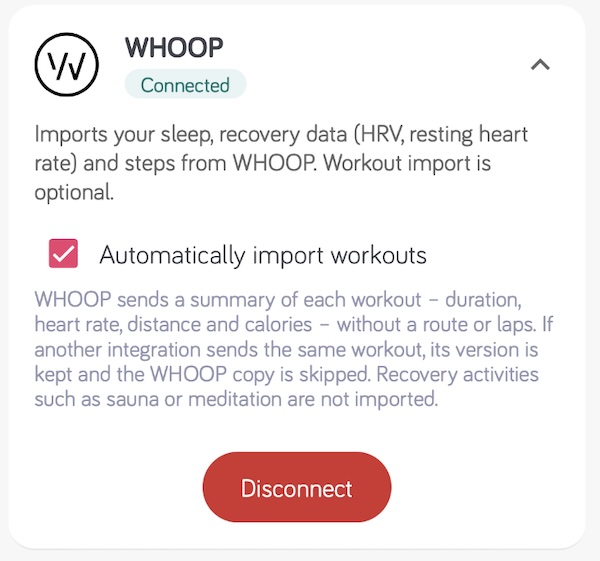
That is all you need for health data. Unlike other integrations, WHOOP has no "Automatically import health data" option: health import is always on while WHOOP is connected.
- Enable Automatically import workouts only if you also want WHOOP workouts in your calendar. It is off by default - read Workouts below before enabling it.
What we import from WHOOP
Health data
We write WHOOP data into the health entry for the matching day, creating the entry when it does not exist yet. Your coach sees the same entry.
| Data | WHOOP source | Notes |
|---|---|---|
| Sleep duration | Sleep | Sum of light, deep (slow wave) and REM sleep, without time awake; naps excluded |
| Sleep score | Sleep | WHOOP Sleep Performance, 0-100% |
| Min. resting heart rate | Recovery | WHOOP resting heart rate, measured during sleep |
| Night average HRV | Recovery | WHOOP HRV (RMSSD), measured during sleep |
| Recovery | Recovery | WHOOP Recovery, 0-100%. Used by Readiness |
| Steps | Cycle | Steps counted by WHOOP for the day |
A night is added to the day on which it ended, so the night from Monday to Tuesday is in Tuesday's health entry.
WHOOP does not report calories, floors climbed, a stress level, sleep average heart rate or night max HRV, so those fields stay empty unless another source fills them.
Health data is updated as soon as WHOOP finishes scoring a night - usually shortly after you wake up and the WHOOP app syncs with the strap - and again every few hours. Within a few hours of connecting, we also bring in up to 4 weeks of earlier nights.
For the first few nights WHOOP is still learning your personal baseline, and the WHOOP app marks your data as calibrating. The Good Coach App imports your sleep, resting heart rate and HRV from the very first night anyway, and your Recovery counts toward readiness from the first night too.
Workouts
When Automatically import workouts is enabled, every workout WHOOP records is added to your calendar and matched against your plan for the day. Read more in Connecting activities.
A WHOOP workout is a summary only: sport, start time, duration, average and max heart rate, distance, elevation gain and calories. It has no route, no laps, no pace or power chart and no heart rate chart. That is why WHOOP always ranks last among workout sources:
- If the same workout already came from another integration (your watch, a bike computer, Strava), the WHOOP copy is skipped.
- If another integration sends the same workout later, its version replaces the WHOOP copy.
- If you delete a workout in WHOOP, it is removed from the Good Coach App too, unless you have already edited it there.
- Recovery and everyday activities that WHOOP tracks, such as sauna, meditation, ice bath or massage, are not imported.
The name of an imported workout is the WHOOP activity name, for example "Running" or "Functional Fitness". Only workouts recorded after you connected are imported.
If you wear a sports watch or use a bike computer with its own integration, keep Automatically import workouts enabled there and leave it off for WHOOP - you will get the full workout with route and laps. Enable it for WHOOP when WHOOP is the only device recording a workout, for example in the gym or in team sports. If you enable it while another integration already imports workouts automatically, the Good Coach App warns you about possible duplicates and asks you to confirm.
One source of health data
Each day has one health entry. If two services send health data for the same day - for example WHOOP and a Garmin watch - the one that arrives later overwrites the other's values, so your HRV and resting heart rate may jump between two different measurements, which makes the trends and readiness hard to read.
When you connect WHOOP, turn off Automatically import health data in your other integrations (Garmin Connect, Coros, Suunto, Polar). Your workouts from those integrations keep arriving as before.
Troubleshooting
- Nothing arrives at all. Check that the WHOOP card shows "Connected". If you removed the Good Coach App's access in your WHOOP account, the Good Coach App sends you a notification - connect WHOOP again on the Integrations page.
- Sleep for last night is missing. WHOOP adds a night only after the strap has synced with the WHOOP app on your phone and WHOOP has scored the sleep. Open the WHOOP app and check that last night is there.
- A WHOOP workout did not appear. Check that Automatically import workouts is enabled for WHOOP. If the same workout came from another integration, the WHOOP copy was skipped on purpose; recovery activities are never imported.
- The same workout appears twice. This can happen when another integration sends it very differently (for example a different start time or duration). Delete the WHOOP copy, and consider turning off WHOOP workout import if your watch records your workouts.
- HRV or resting heart rate jumps from day to day. Check that health import is enabled in one service only - see One source of health data.
More on health import across all services: Importing health data.