Deadlines
Deadlines let you track dates that matter for each athlete — the kind of thing coaches used to keep in a separate spreadsheet: when a subscription is paid until, when a medical certificate or licence expires, or any dated follow-up you don't want to forget. Instead of living outside the app, those dates now sit next to the athlete and warn you before they lapse.
A deadline is just three things: a type (free text, e.g. Medical certificate), a date, and an optional note. Good Coach App then does the counting for you — showing how many days are left, flagging the ones coming due, and turning the overdue ones red.
Deadlines are a coaching-side tool — athletes never see them, anywhere in the app (including on their own calendar). They are visible only to people who can manage athletes:
- On a personal account, that's you — it's available to the account owner as normal, with nothing to set up.
- On a club subscription, the Owner always has access; other roles (coaches, administrators) need the Manage athletes permission granted to them.
Deadlines are also shared across the club — every coach with access sees and edits the same ones, so nothing is tied to a single coach's private view.
Adding a deadline
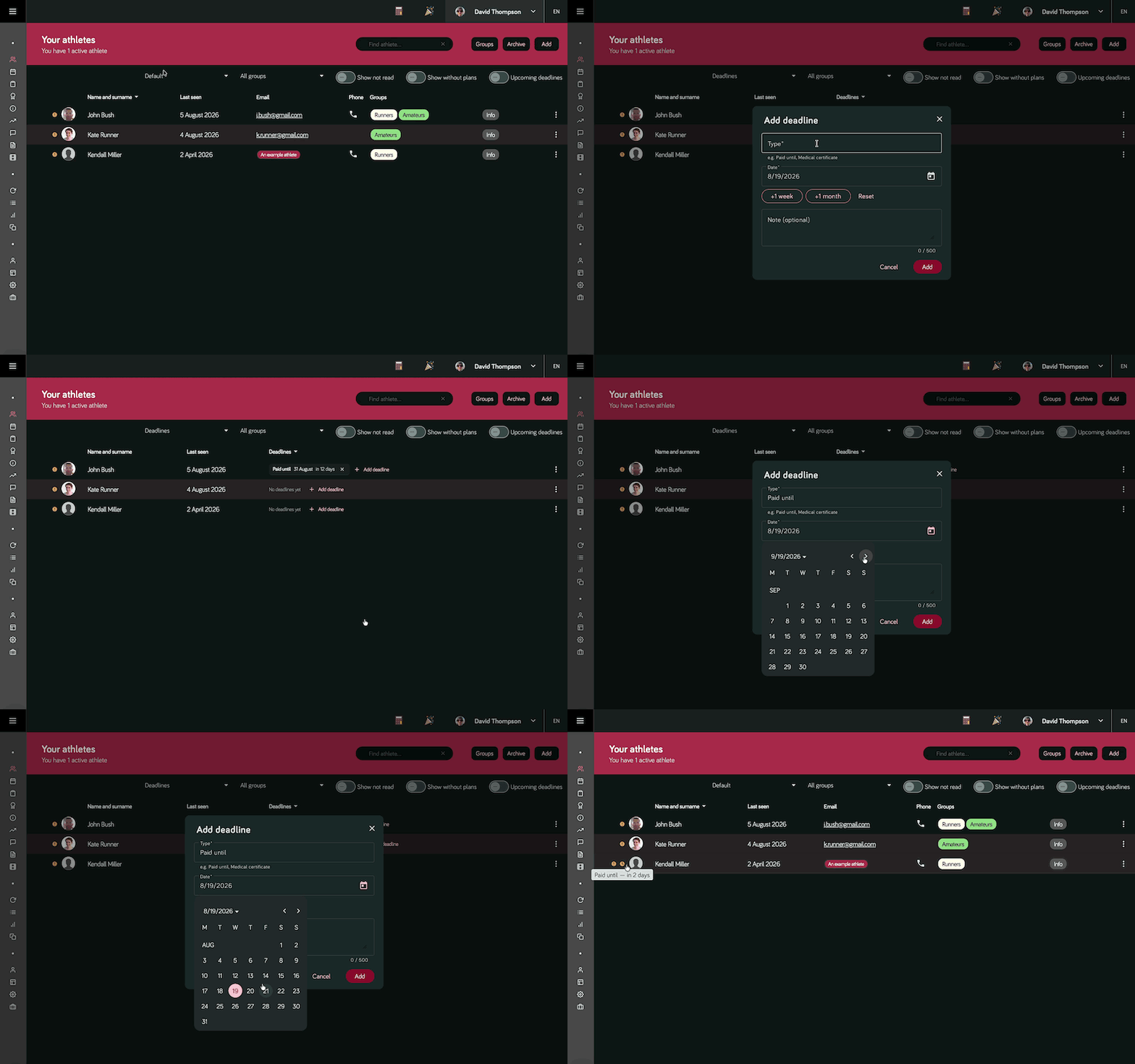
The athletes list can be shown in different views, picked from the view selector above the list — the default layout, a training-load view, and a Deadlines view. Switch to the Deadlines view to work with dates: on desktop choose it from the view dropdown; on mobile tap the filters icon and pick Deadlines under View mode.
In this view every athlete shows their deadlines, and each row carries an Add deadline button — beside a No deadlines yet hint for athletes who have none, or at the end of the list for those who already have some. Tap it to open the form and fill in:
- Type — what the date is for. As you type, the app suggests types you've used before (case- and accent-insensitive), so medical cert lines up with an existing Medical certificate instead of creating a near-duplicate.
- Date — when it falls due.
- Note (optional) — any extra context, up to 500 characters.
Keep types short and reusable — Paid until, Medical certificate, Licence renewal, Insurance. Reusing the same wording across athletes lets you act on a whole type at once with bulk actions.
Where deadlines show up
On the athletes list
When an athlete has a deadline that is due soon or overdue, an extra indicator — a small clock icon — appears on their row: orange for due soon, red for overdue. Hover it to see which deadlines are behind it. Athletes with nothing coming up show no clock, so the warnings stand out.
This is a separate, additional indicator that appears only for deadlines. Any warning you already rely on — such as the alert shown when an athlete has no workout plans for the coming days — is untouched and keeps working exactly as before; the deadline clock simply sits alongside it.
The Deadlines view
The Deadlines view — chosen from the view selector above the list — is a focused layout built around dates. It keeps the essentials — status dot, photo, name, last seen and the actions menu — and, in place of the usual columns, shows every deadline for each athlete with its type, date, note and a plain-language countdown such as in 3 days or 2 days overdue. Athletes are ordered by whatever is most pressing first, and anyone without a deadline sinks to the bottom with an empty row you can add to on the spot.
The Upcoming filter
The Upcoming filter keeps only the athletes who have a deadline that is due soon or already overdue. It stacks with your other filters — combine it with a group, for example, to answer "who in my junior squad has something lapsing this week?" in one glance.
On the calendar
Deadlines also appear as a small marker on the day they fall due in the athlete's calendar, so you see them right where you plan training. The marker is colour-coded like everywhere else (neutral, orange when due soon, red when overdue), its note shows on hover, and clicking it opens the deadline to edit or extend. This is switched on by default — you can turn it off under Calendar settings → Show deadlines.
Renewing and extending
Most deadlines aren't one-off — a monthly payment or a yearly certificate comes round again. Open a deadline and use the quick nudges to roll it forward without picking a new date by hand:
- +1 week and +1 month push the date forward; press them again to keep stacking (two taps of +1 month = two months on).
- Reset snaps back to the original date if you overshoot.
- Nothing is saved until you press Save.
So renewing next month's Paid until is: open it, tap +1 month, Save.
Editing and clearing
Opening a deadline also lets you change its type, date or note. When something is done for good — a certificate renewed and re-dated, or a follow-up no longer needed — use Clear at the bottom of the dialog. It asks for confirmation and then removes the deadline from the athlete.
Doing several athletes at once
When the same date applies to a group — a squad medical, a season's membership — you don't have to repeat yourself. Select several athletes on the list and apply a deadline in bulk:
- Add the same deadline type and date to everyone selected (athletes who already have that type are left untouched).
- Update an existing type across the selected athletes — handy for pushing a shared date forward.
- Clear a type from everyone selected at once.
The warning window
How far ahead a deadline counts as due soon (the orange stage before it goes overdue) is up to you. Set it under Preferences → Deadline warning window (days) — the default is 7 days. Raise it if you like more lead time, lower it if you only want to be nudged at the last moment. Overdue deadlines always turn red regardless of this setting.
Morning reminders
Deadlines also reach you outside the app. On any morning when a deadline changes status, Good Coach App sends you a short summary — around 8:00 in your own time zone — so nothing slips by even on days you don't open the athletes list. If you work across several clubs, you get one summary per club.
A deadline appears in that summary on the day it crosses a line, and only on that day:
- The day it enters the warning window — it has just come within your due soon lead time.
- The day it falls due — its date is today.
This "on the crossing day only" behaviour is deliberate: the reminder is a one-time nudge, not a message that repeats every morning until you deal with it. A deadline that has been sitting in the warning window for a few days, or one that is already overdue, won't keep pinging you — the always-on view for those is the in-app clock icon, colours and calendar markers, which stay accurate the whole time. It keeps the morning message about what's new today rather than re-listing everything still outstanding.
A few things follow from this:
- The "entered the window" reminder uses your warning window, which is 7 days by default — so you get it even if the club never opened that setting. The due-day reminder always fires.
- Extending or re-dating a deadline re-arms it: it will remind you again when it next enters the window, or falls due, on its new date.
- The summary scales with the day: a single deadline is spelled out in full (athlete and type); a few are listed by athlete; and on busy days it collapses to counts — for example Expires today: 4 · Upcoming: 6 — so the notification stays short.
Tapping the notification takes you to the athletes list, where you can act on anything — on its own, or via the Upcoming filter.