Managing your athletes list
Grouping athletes
Athletes can be grouped. This allows you to quickly filter athletes by group. You can add athlete to multiple groups. The group name is displayed in the athlete row.
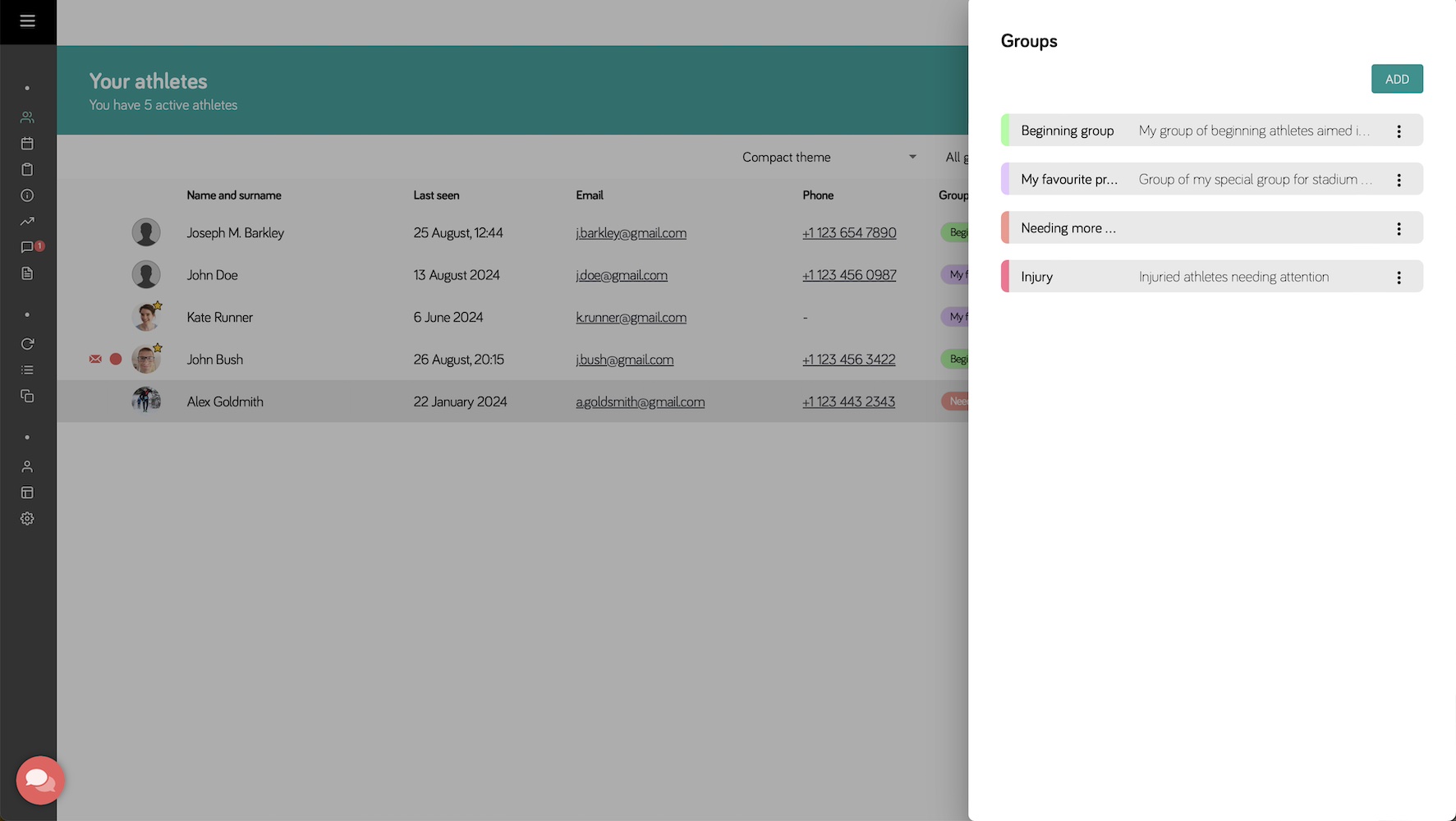
After adding athlete to group, you can filter athletes by group using the dropdown list at the top of the screen.
Note that athletes are not informed about being assigned to a group.
Groups list
The list of groups is available after clicking button "Groups" on the right top part of the screen. It contains a list of groups to which athletes can been assigned.
Each group can contain a name and a description. The description is optional and can be used to describe the purpose of the group. It's also possible to assign a color to the group. This color will be displayed in the athlete list.
You can also reorder the groups by dragging and dropping them.
Filtering athletes
Athletes can be filtered by first name, last name or email by entering a phrase or part of a phrase into the text box at the top of the screen.
It is also possible to use the switch "Show only not read". If only this filter is activated, only those athletes will be shown in the list for whom something new has happened recently and whose data the coach has not yet viewed.
This option helps to focus only on athletes about whom there are new developments that require the coach's involvement.
Changing the order of the athletes
Athletes can be placed in any order. To do this, simply hover over the row with the athlete of your choice, grab the row and move it down or up to place it in the desired position in the table.
In addition, it is possible to add an athlete to favourites, which will result in the athlete always being placed at the top of the table. You can add an athlete to favourites using the context menu in the athlete row.
You can also sort athletes alphabetically or by last activity time using the sorting icons in the table headers. In this mode, manual reordering of athletes is not possible. Clicking the table header again will switch back to manual sorting mode, where you can freely arrange athletes again.
Disconnecting with athletes
Removing the athlete's connection to the coach can be done in three ways:
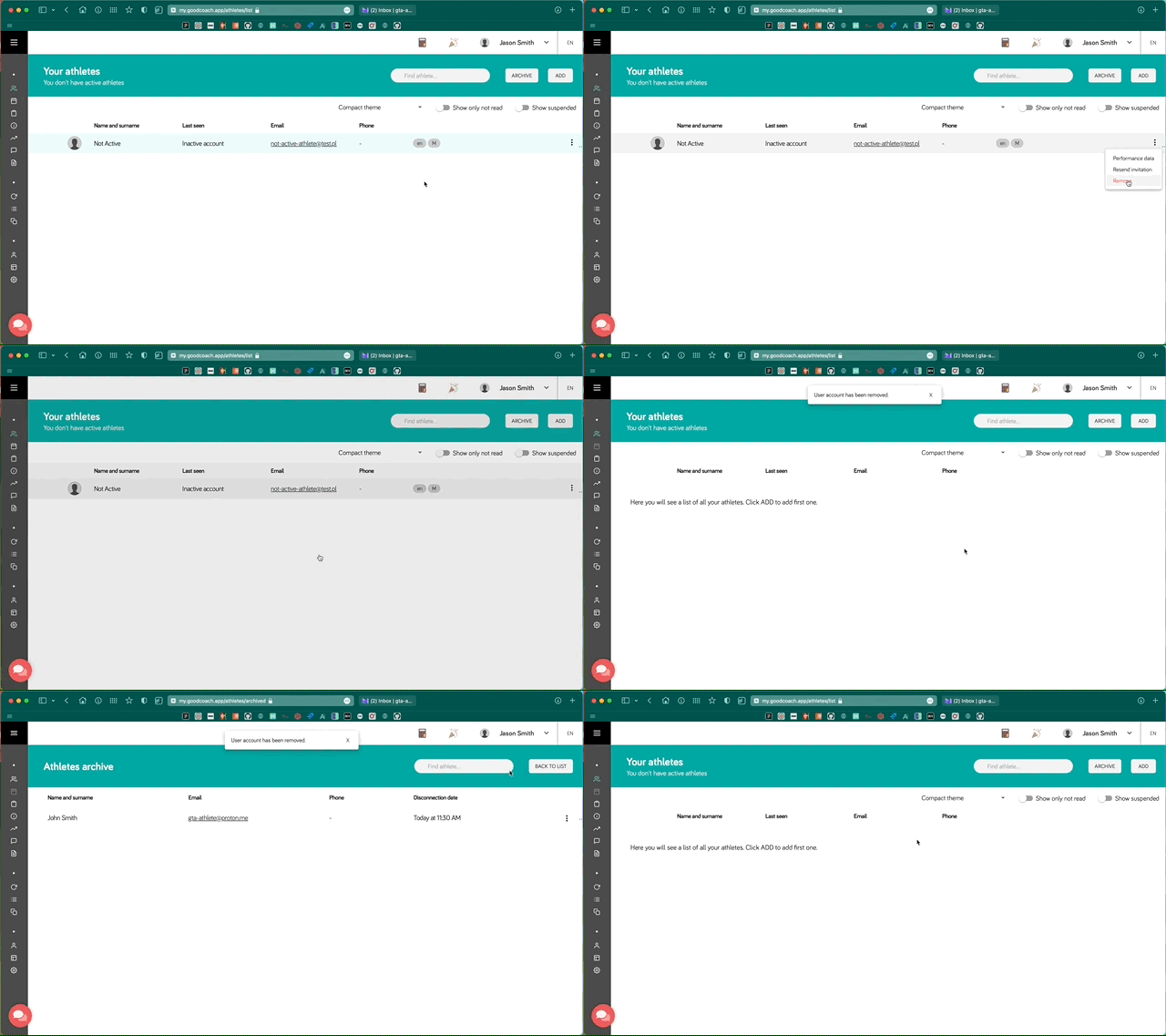
Removal of inactive athlete by coach
If a coach has an athlete on the list who has not yet activated his account in the Good Coach App, he can delete him. To do this, click on the icon with three dots to the right of the athlete row and select the "Delete" option.
After performing this operation, the athlete will be completely removed from the system.
Removal by coach of athlete with active account
If the athlete has activated his account in the Good Coach App, the coach can disconnect him. To do this, click on the icon with three dots in the upper right corner of the row with the athlete and select the "Disconnect" option.
After disconnecting an athlete who has an active account in the Good Coach App, you will still be able to easily reconnect with him. His details will be moved to the archive and he can be contacted via the "Invite again" option from the Archive.
After the disconnection, the athlete will be notified by email.
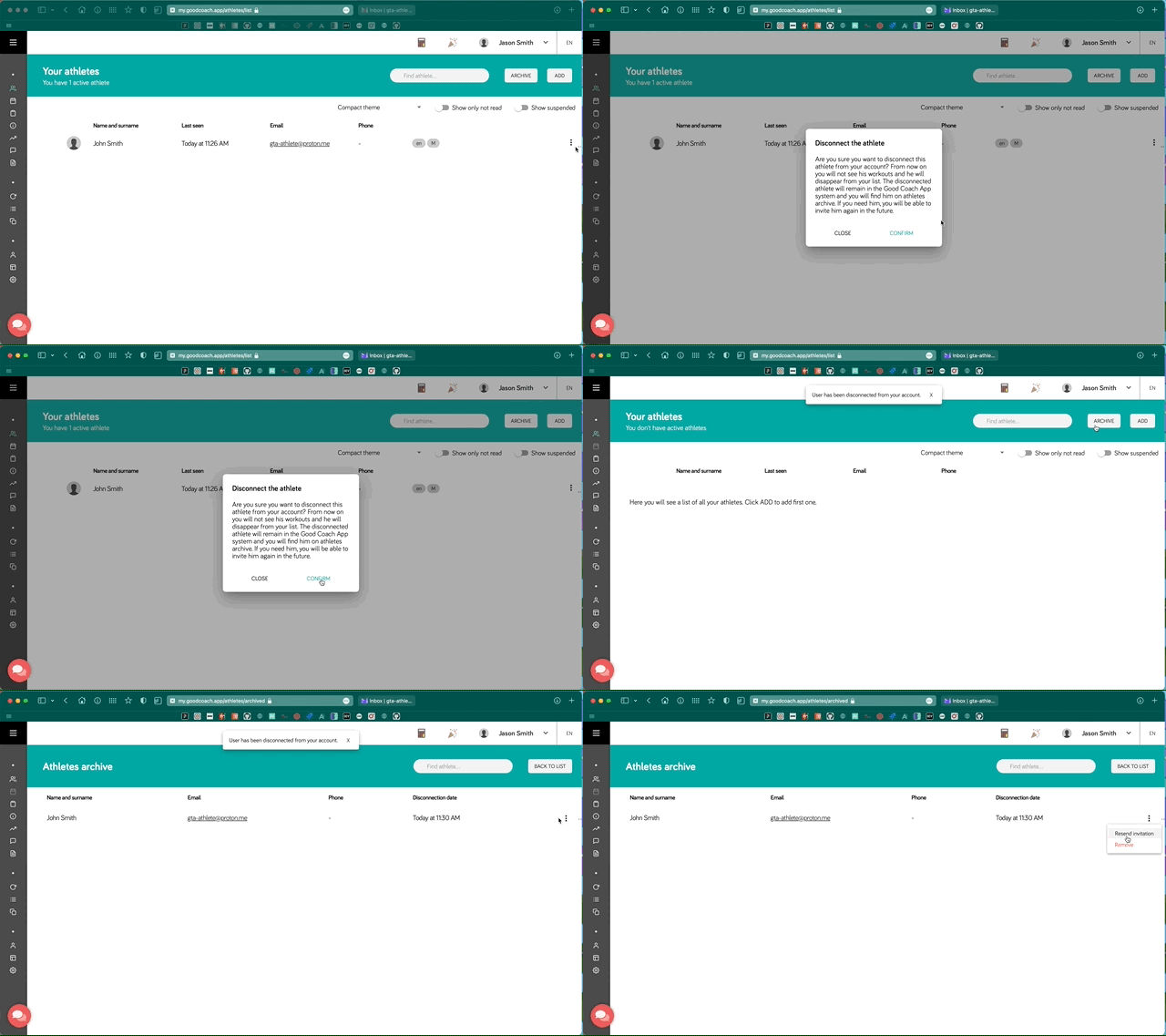
After disconnecting from the coach, the athlete retains all previous workout plans and workouts completed in the calendar.
Disconnection by athlete
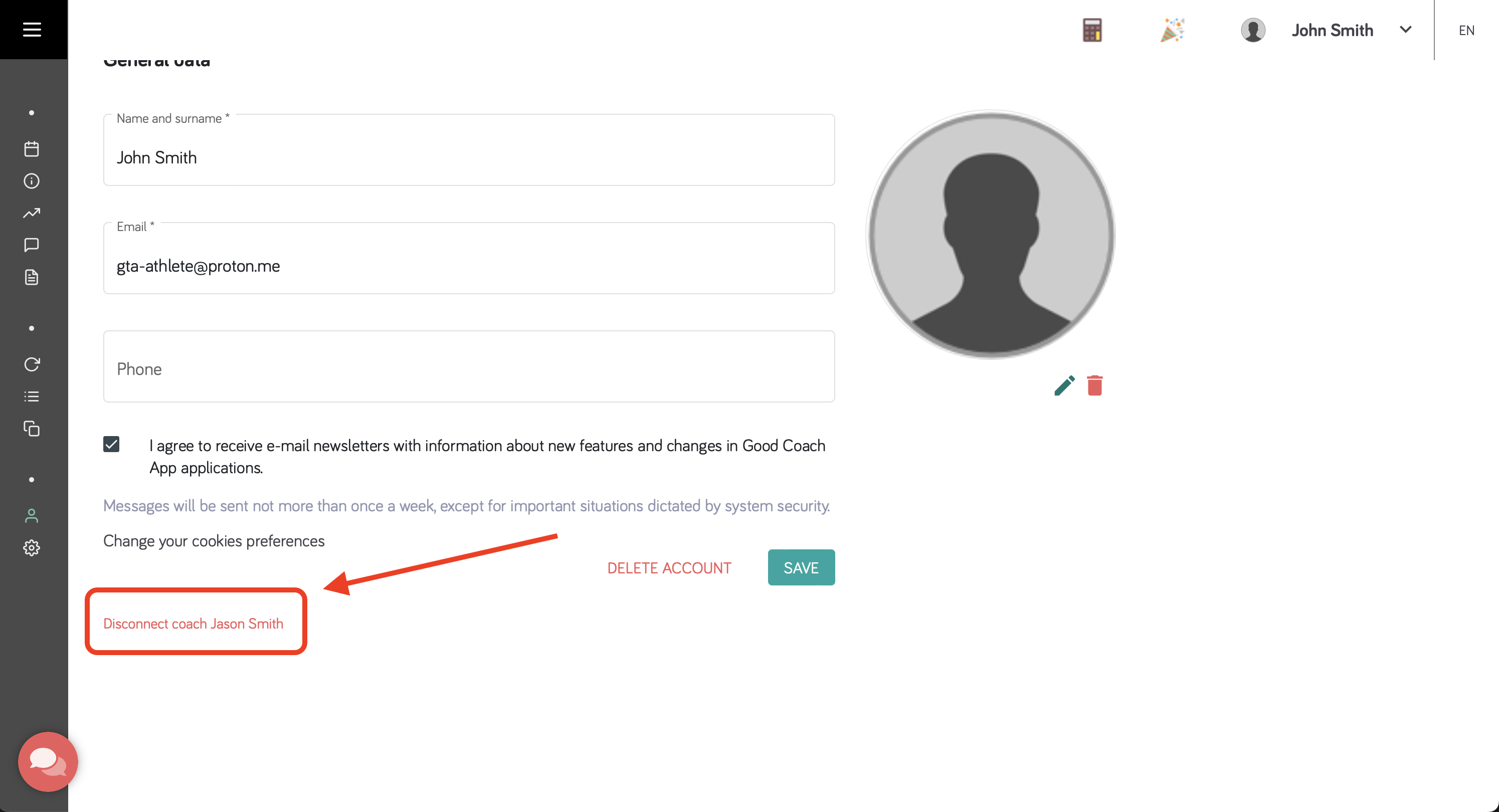
The athlete can also terminate the relationship with the coach himself. To do this, he must go to the settings of his profile and next to the selected coach select the "Disconnect" option.
After disconnecting, the coach will receive information about it via email.
Performance data of athletes
In both the mobile and web applications, it is possible to determine the athlete's so-called performance data. Currently, this data includes:
- Maximum heart rate
- Resting heart rate
- Height
- Weight
- Athlete's main sports
The performance data in the browser application are available:
- for the coach - in the athlete list, in the context menu next to the row with the athlete
- for the athlete - in the application menu at the top right of the screen
In the mobile app, they are available:
- for the coach - in the athlete list, in the context menu next to the athlete row (Android) or after completion of the swipe right gesture (iOS)
- for the athlete - in the profile menu
Heart rate data
Heart rate data is essential for more accurate methods of calculating cardio load. You can read more about it here.
Height and weight
At the moment the data can be posted for your own convenience, it is not yet used anywhere in the application.
Athlete's main sports
An athlete's main sports are the disciplines they actually train. Setting them gives you more precise weekly statistics and activity reports for the discipline that matters, and it decides which sport the Ramp column reports in the Training state view.