Marking your workouts as completed
After you finish a workout, the step that shapes what comes next is letting your coach know how it went. For most workouts, you can do this quickly and easily, right from your calendar.
The quick way
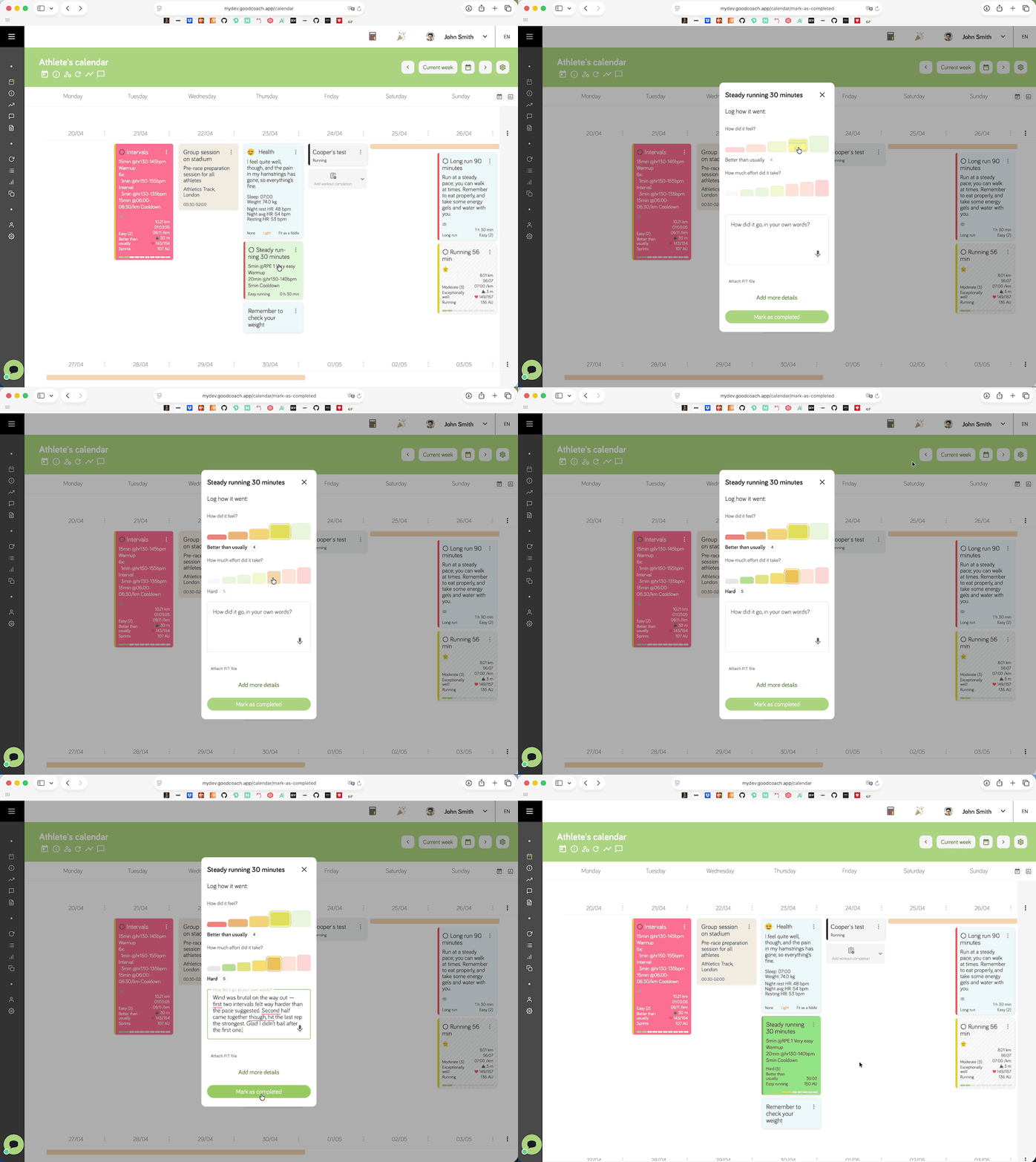
When a workout plan gives you the chance to add input of your own, a small round button appears on its tile in the calendar. Its icon hints at the step needed:
- an empty circle when nothing has been recorded yet and you're logging the workout completion yourself, or
- a circle with a pencil when a workout from your watch is already there and just needs your input.
Tap this button, and a short form opens where you can:
- set your Feeling (how you felt after the workout),
- set your Effort (how hard it was), and
- add a Comment in your own words (optional).
On a phone you can set Feeling and Effort with a single tap, or slide your finger across the scale and lift to choose. Then save — that's it.
It's the same simple step in two situations:
- You did a workout without a device, and you're recording it yourself.
- A workout came from your watch and just needs your Feeling, Effort, or Comment added.
That's fine — go ahead and mark it done without waiting. When the device workout arrives, it joins your completed plan automatically. Your Feeling, Effort, and Comment are kept, and the device adds the detailed data (pace, heart rate, actual Duration, and more). The only time it won't join on its own is when you have two similar plans that day and the app can't tell which one you meant — then it leaves the device workout for you to connect by hand.
Why your comment matters
Feeling and Effort give your coach a quick read, but they're just two numbers. A sentence or two in your own words is what turns a logged workout into something your coach can really act on — how your legs felt, where it got hard, the weather, poor sleep, a niggle, or simply that it went better than expected.
That context is exactly what a watch can't capture. The more honest detail you share, the better your coach can adjust your plan, spot a problem early, and shape the next sessions around how you're actually doing. Even one line helps — there's no need to write a lot.
And it isn't one-way. What you write reaches your coach, who can reply, adjust your plan, or check in — so each workout you complete becomes part of an ongoing conversation, not a form you fill in and forget. The more you share, the more that back-and-forth works for you.
Dictate your comment instead of typing
On many phones and computers you can speak your Comment instead of typing it. Tap the microphone in the Comment field and start talking; tap it again to stop. If your device doesn't support dictation, the microphone simply won't appear.
You can also say a few commands to punctuate and format as you go:
- "new line" / "new paragraph" — starts a new line
- "period" / "full stop" / "dot" — inserts
. - "comma" — inserts
, - "question mark" — inserts
? - "exclamation mark" / "exclamation point" — inserts
! - "colon" — inserts
: - "delete" / "delete that" / "scratch that" — removes the last word
The commands follow your app's language. If you've set the app to another language, say them in that language.
What the colours mean
The colour along the left edge of each workout tells you its state at a glance:
- Grey — a planned workout that's still upcoming. Nothing to do yet.
- Red — a past workout you haven't completed yet. Tap to complete it.
- Yellow — it came from your watch and is connected to your workout plan, but you haven't added your Feeling, Effort, or Comment yet. Tap to add them.
- Green — your input is in. Nothing more to do.
Sometimes a workout from your watch shows up on its own tile with a cross-hatched background. That means it isn't connected to one of your workout plans yet. See Connecting a device workout to a workout plan to fix it.
Attaching a workout file
When you add a completion manually, you can also attach a FIT file — the file your device's app (such as Garmin Connect) creates for each workout. This gives your coach the full picture: pace, heart rate, and more. The Duration, Distance, and average heart rate fill in from the file automatically.
Without a file, the completion only holds the basic information you typed in, so your coach can't analyse the workout in detail. If you can, an external integration is the easiest way to get full data every time.
Want to add more detail?
The quick form keeps things simple on purpose. If you'd rather enter exact numbers, see Adding extra detail.
This button appears on your athletes' accounts, not your own. The input they add — Feeling, Effort, or a Comment — stands out from a workout that only synced automatically. For why that signal matters and how to act on it, see Seeing who's engaged.