Connecting a device workout to a workout plan
When a workout syncs from your watch, it usually connects to the matching workout plan on its own. Every now and then it doesn't — here's how to spot that and put it right.
What it looks like when a workout isn't connected
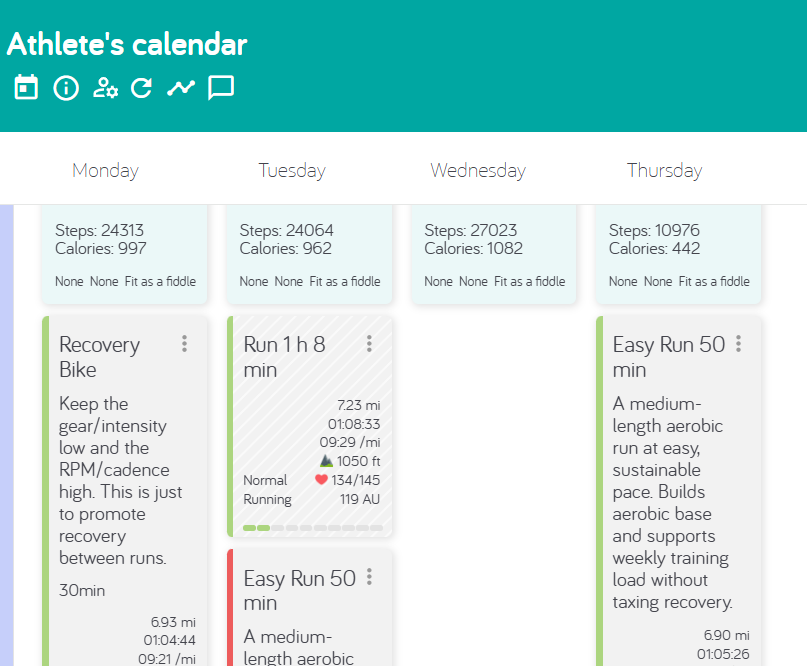
The workout shows up on its own tile with a cross-hatched background. This simply means the app wasn't sure which workout plan it belonged to, so it left the choice to you.
Connecting it yourself
- In the browser: drag the workout onto your workout plan (or the workout plan onto the workout) to connect them. They become a single tile.
- On the mobile app: tap the workout, then choose the workout plan to connect it to.
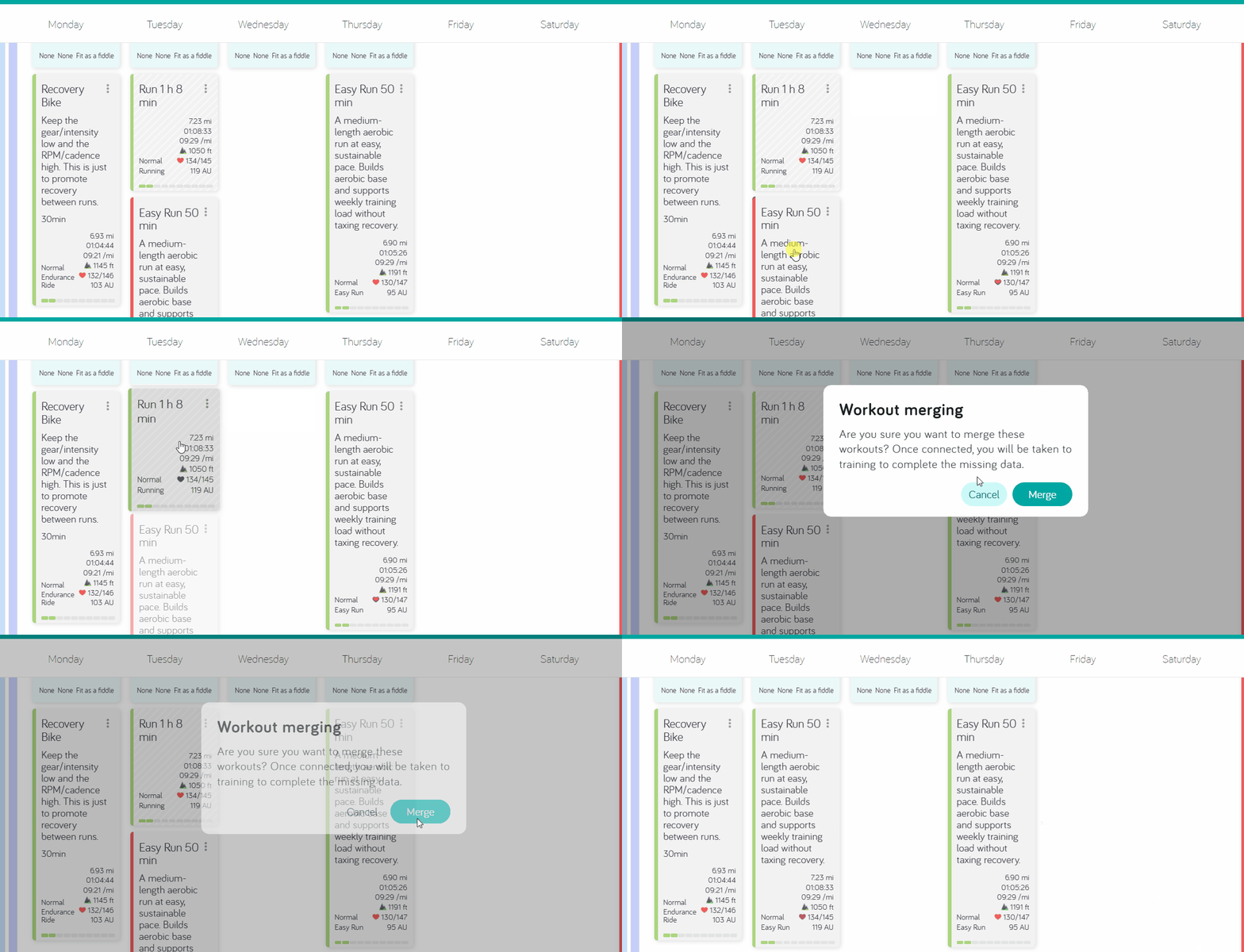
If you quick-completed the workout plan yourself and the device workout later shows up as a separate Unassigned tile, you can still connect the two. Your Feeling, Effort, and Comment stay exactly as you entered them — the device workout just adds its detailed data (pace, heart rate, actual Duration, and more).
If you did the workout on a different day than it was planned, move the workout plan to that day first. See moving a workout plan.
Disconnecting a wrong connection
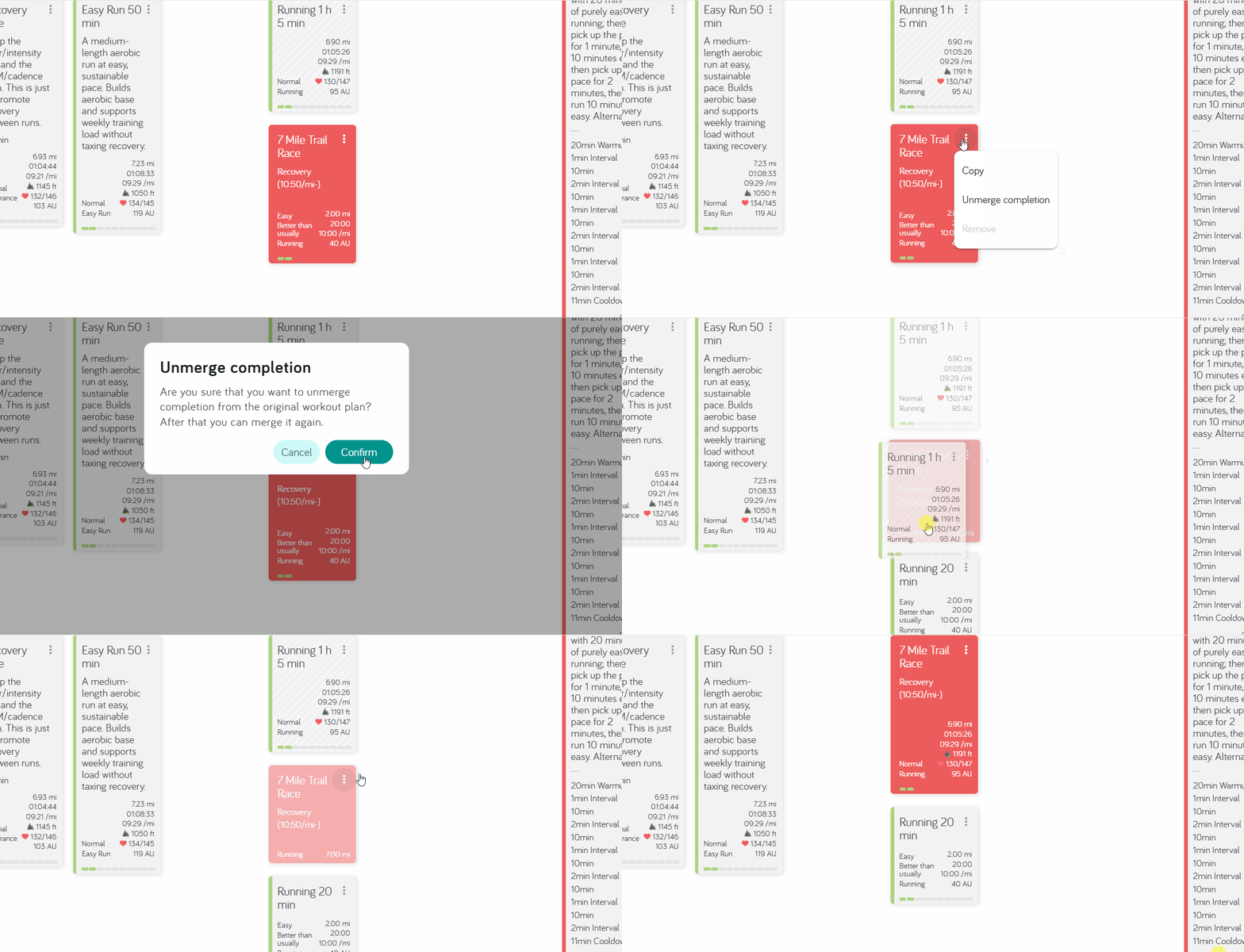
Sometimes the wrong workout connects to a workout plan. A common example: your warm-up connects to your competition, and then the competition itself arrives on a separate cross-hatched tile.
To fix this, open the workout and disconnect it. The two come apart again — you get the empty workout plan back, plus the separate Unassigned workout — and you can then connect the right one.
Workouts that aren't connected to a workout plan can throw off your training summaries, so it's worth connecting them after each session. Both you and your coach can connect or disconnect a workout.
Curious why it didn't connect on its own?
The app follows a few rules when it decides. See How automatic connection works.