Adding extra detail
Most of the time, the quick button is all you need — see Completing your workouts. But if you don't use a device, or you want your coach to see exact numbers, you can fill in the full form and attach a file.
Filling in the full form
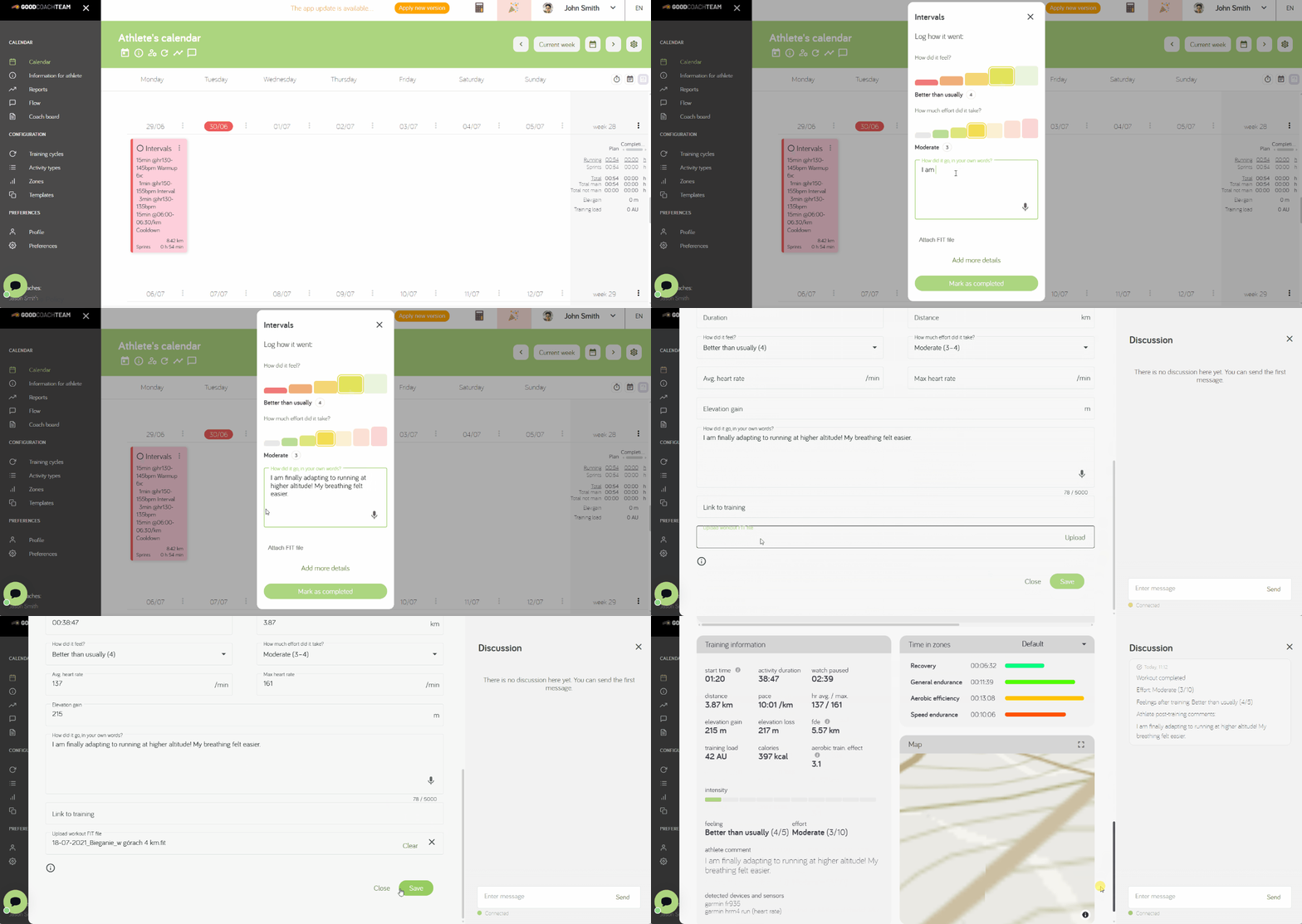
Open the workout plan and choose Add completion manually. Enter the details of your workout and save.
At a minimum you'll usually enter the Duration — and the Distance too, if your coach marked it as required. Everything else, including a Comment, is optional.
If you completed a workout plan with the quick button, the app records the planned Duration for you. To enter your actual time or any other details, open the workout and choose Edit. And if a device workout later connects to that plan, its actual Duration and Distance replace the planned values automatically.
Attaching a workout file
When you add a completion manually, you can attach a FIT file — the file your device's app (such as Garmin Connect) creates for each workout. This gives your coach the full picture: pace, heart rate, and more. The Duration, Distance, and average heart rate fill in from the file automatically.
Without a file, the completion only holds the basic numbers you typed in, so your coach can't analyse the workout in detail. If you can, an external integration is the easiest way to get full data every time.
If you stopped and restarted your watch by accident and ended up with two separate activities, download both FIT files from your device's app, merge them with an external FIT-merging tool, then upload the single combined file here.
Editing a workout later
Already saved a workout but want to add or change something? Open it and choose Edit. The same works for a workout that isn't connected to a workout plan — open it, choose Edit, and add the details.