Onboarding for athletes
Your coach has created a Good Coach App account for you. This page walks you through your first week: activating the account, getting your workouts, and showing your coach how they went. You don't need any technical knowledge.
Get started in 5 steps
- Open the email from your coach's club, or the link your coach sent you, and activate your account.
- Set your password. Use the app in your browser, on your phone, or both.
- Allow notifications. That's how you'll know your plans are ready.
- Connect your watch or training app.
- Train, sync your watch, and tell your coach how it went with the small round button on the workout. Your coach replies in the workout chat.
The sections below explain each step.
Each step, explained
1. Activating your account
When your coach adds you, you get an email with the subject Activate your account and the heading Welcome to the Good Coach App!. It comes from your coach's club: "[club name] has created an account for you in the Good Coach App". Tap Activate Your Account.
Got a link from your coach instead? That works too. Your coach may send you a link or a QR code directly, in a message or in person. It can be your personal activation link, or your coach's own link for connecting with them. Whichever it is, open it and the page tells you what to do next.
No email and no link? Check your spam folder. If it isn't there, tell your coach your correct email address. Until you activate your account, your coach can change the address and send the email again. A small typo is enough for the email to go somewhere else (see I can't see my plans).
2. Your password and the app
After you open the link, you set your own password and accept the terms. That's your account ready, and you're already connected with your coach.
You can use the Good Coach App wherever it suits you:
- In the browser on a computer or phone: my.goodcoach.app. Nothing to install, and it's handy for looking at a whole week or month.
- In the mobile app: App Store (iPhone) or Google Play (Android).
The mobile app isn't required, but it helps: you have your plan in your pocket, including during the workout, and you get notifications straight away. Log in with the same email your coach used. More in Installation.
3. Notifications
When the mobile app asks whether it can send you notifications, tap Allow. You'll be told when:
| You'll see | What it means |
|---|---|
| New workout plans: "Coach … published a plan for Monday" or "…from Monday to Sunday" | Your coach has new workouts ready for you. Open the calendar. |
| Updated workout / Workout date update / Workout removed | Your coach changed something you already had. |
| New note, New competition, New assessment | Your coach added something else to your calendar. |
| New workout has just arrived | Your synced workout has reached the Good Coach App. Tell your coach how it went. |
| Did you complete training? | A planned workout is still waiting for you to complete it. |
| A comment, or cookies from your coach | Your coach replied, or liked how your workout went. |
| Reconnect … | The connection with your watch's app has expired. Connect it again so workouts keep coming. |
4. Connecting your watch
This is the step that saves you the most time. Once your watch is connected:
- every workout you record comes to the Good Coach App on its own, so you don't type anything in;
- many watches can also receive your coach's workouts, so you can follow the intervals on your wrist.
You can connect in the browser or in the mobile app. You only do it once.
- Open Integrations:
- in the browser: open the menu with your name in the top right corner and choose Integrations;
- in the mobile app: tap More (⋮) at the right end of the bottom bar and choose Integrations.
- Open your device's card (Garmin, COROS, Suunto, Polar, Apple Health…) and choose Connect.
- Log in to your device's app and allow access.
- Back in the Good Coach App, the card says Connected. Now check the boxes on the card:
- Automatically import workouts: make sure it's ticked, otherwise your workouts won't come in.
- Automatically import health data (sleep, HRV, resting heart rate…): worth ticking too. It helps your coach understand how you're doing right now and adjust your plans to it.
The device list, and what each one can do, is in General information on integrations. Is your device missing (Huawei, Samsung, Zwift…)? It can usually send workouts through Strava or Apple Health. See bridged integrations.
5. Telling your coach about yourself
Open Athlete preferences in the menu. Add what you know:
- Heart rate: maximum and resting
- A recent race time, such as 10 km
- Schedule preferences: which days you can train and how much time you have
Leave them empty. Your coach can fill them in later, or plan a test to find them. More in Athlete preferences.
6. Your first plans
Your coach can start adding workouts even before you activate your account, so you may see them in your calendar the first time you open the app.
If your calendar is still empty, that's normal too. Your coach is preparing your plans, and you get a New workout plans notification when they're published.
7. Doing the workout
Open the workout on its day in the calendar. A workout plan tells you what to do: the activity, how long or how far, and your coach's description. Some plans are split into parts (warm-up, intervals, cool-down) with a target heart rate, pace or power for each. If your watch can receive workouts, the plan is already on it, so start it from the watch and follow the steps.
8. After the workout: what happens to it
Here's the whole journey of a workout, from your watch to your coach's reply.
Sync your watch
After the workout, sync your watch with its app (Garmin Connect, COROS, Suunto, Polar…). From there the workout comes to the Good Coach App on its own, and you get New workout has just arrived. Usually it's quick, but sometimes it takes a few minutes.
A workout that is only on your watch doesn't reach the Good Coach App, or your coach. If a workout is missing, first check that it's in your watch's app.
It merges with your coach's plan
The workout merges with that day's workout plan automatically when it's the same sport type and similar in distance. The plan and the workout become one tile, and your coach can see what was planned next to what you actually did.
If it doesn't fit (for example, you have two runs planned that day, you trained on a different day, or the workout was very different from the plan), it waits on its own tile with a cross-hatched background. You merge it yourself by moving it onto the plan:
- In the browser: drag the workout onto the plan.
- In the mobile app: tap the workout and choose the plan it belongs to.
More in Connecting a device workout to a workout plan. If you're curious why a workout didn't merge, see How automatic connection works.
Training without a watch?
Complete the workout yourself with the same small round button on the workout's tile (described below). Tap it, fill in the short form, save. Your coach sees the workout as done, together with your feedback.
If your watch syncs later after all, the workout still merges with the plan, and what you wrote is kept. More in Marking your workouts as completed.
You tell your coach how it went
A small round button appears on the workout's tile, like a checkbox waiting to be ticked. Tap it, and a short form opens:
- Feeling: how you felt
- Effort: how hard it was
- Comment: a few words in your own language (optional, but worth it)
Save, and that's it. It takes a few seconds.
Your comment is the part your coach values most. A watch can't tell them that your legs were heavy, that you slept badly, or that it went better than expected. One sentence is enough, and you can dictate it instead of typing.
Your coach reads it and replies
Your feedback appears in the workout's chat, the comments on that workout. Your coach sees it there, and also in Flow, the screen where they read all their athletes' conversations in one place. Your coach replies in the same workout chat, and you get a notification. That closes the loop: plan → workout → your feedback → your coach's reply → the next plan, shaped by how you're doing.
You can write in the workout chat at any time, not only after the workout: if something hurts, if you need to move a session, or if you have a question.
The colours on the tile
The colour on the edge of each workout shows where you are:
- Grey: still ahead of you
- Red: in the past and not completed yet
- Yellow: arrived from your watch, waiting for your feedback
- Green: done, nothing more to do
Common questions
My coach says the plans are published, but I can't see them
Most often you have two accounts. For example, you signed up yourself as jan.kowalski@…, and your coach added you as jan.kowalsky@…, with a typo or a different address. Both accounts work, but your plans are on the other one.
- Check which email you're logged in with (in your profile).
- Send it to your coach and ask them to compare it with the address they used.
- Your coach corrects it on their side. You don't need to create anything new.
If the email matches, ask your coach to check that the workouts are published, not saved as drafts.
I didn't get the activation email
Check spam first. If it isn't there, ask your coach and tell them your correct email address. Until you activate your account, your coach can change the address and send the email again. Your coach can also send you your activation link directly.
I already had an account before my coach added me
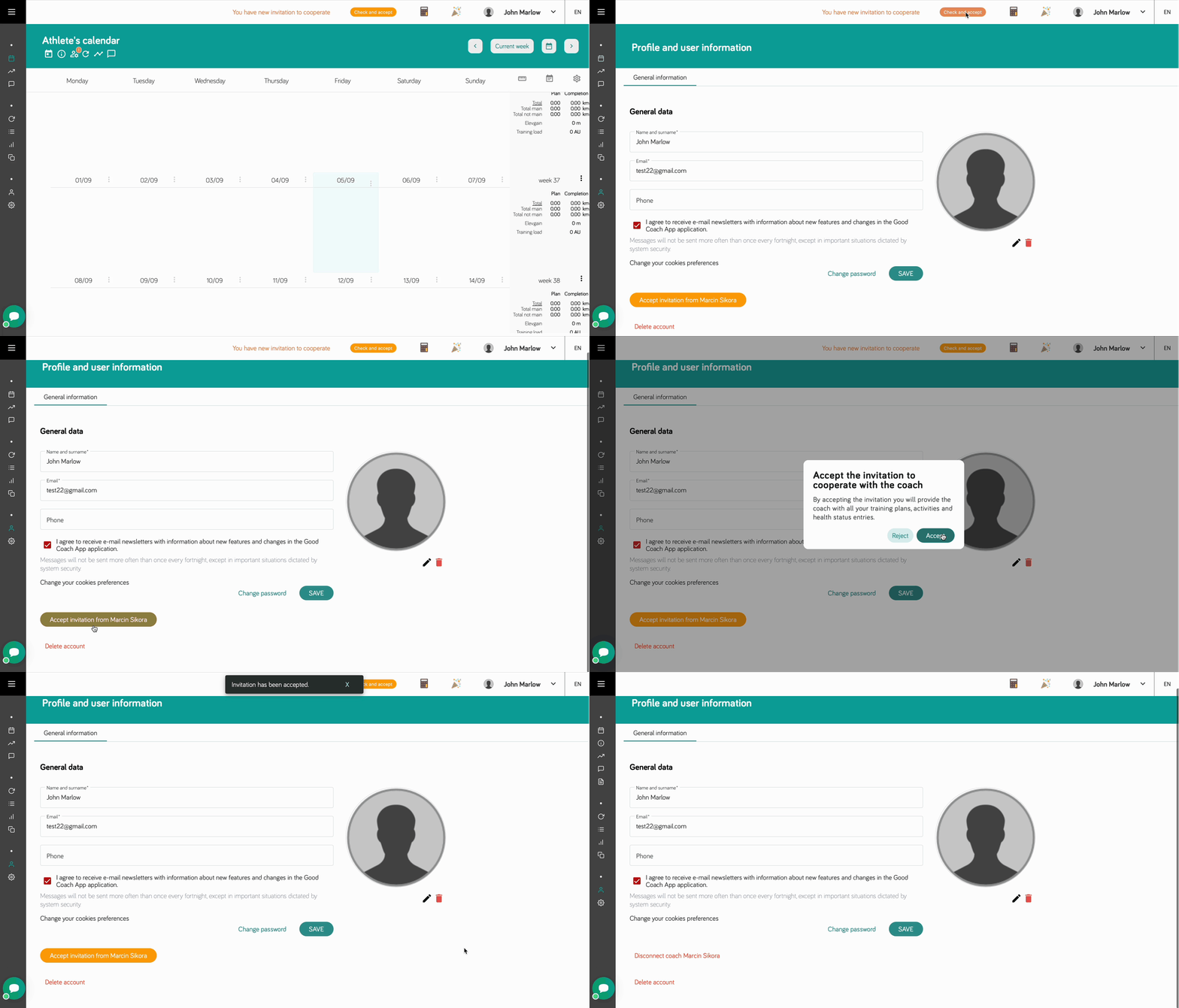
Then you get an invitation instead of a new account. If you signed up within the last 7 days, you're connected automatically. Otherwise, accept the invitation from the email, or from your profile in the app. Your coach can also send you a personal link or QR code.
My workout from the watch didn't show up
- Check that the workout is in your watch's app (Garmin Connect, COROS, Suunto…). If it's only on the watch, sync it first.
- Give it a few minutes.
- In Integrations, check that your device's card says Connected and that Automatically import workouts is ticked.
- If the workout is there but sits on its own cross-hatched tile, merge it with your plan.
See also Common problems.
Can I train with two coaches?
Yes. You can be connected with more than one coach at the same time.
Can I see my workouts in Google or Apple Calendar?
Yes. See Subscribe from your calendar app.
Can I share my workout with friends?
Yes. See Sharing your workout.
Want to go deeper?
- Importing health data: sleep, HRV, resting heart rate
- Training zones
- RPE: Rating of Perceived Exertion
- Races