Sharing your workout
Done a session you're proud of? Turn it into an image and share it on Instagram, WhatsApp or anywhere else. You choose what the image shows: your time and pace, the interval workout your coach planned, your route, the elevation profile, and more.
The one thing to remember: the image is made on your device and only you decide where it goes. The start and end of your route are always hidden, so nobody can tell where you live.
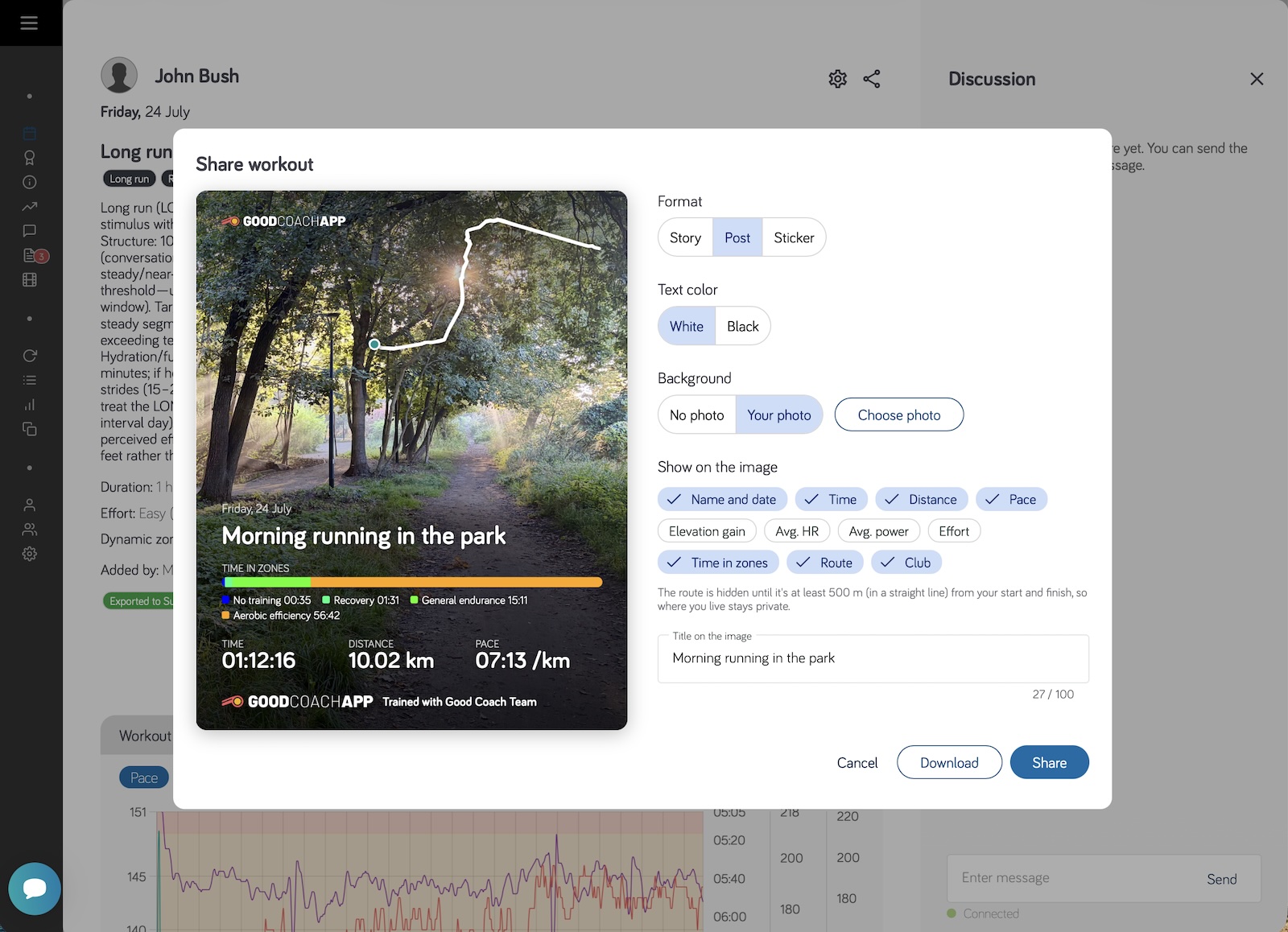
Share a workout
- Open a completed workout.
- Tap the share icon in the top bar of the workout ("Share as image").
- Pick a format, a background and what to show on the image. The preview shows exactly what will be shared.
- Tap "Share" and choose an app. On a computer you can also tap "Download" to save the image.
Only athletes can share, and only their own workouts.
Formats
| Format | Size | Best for |
|---|---|---|
| "Story" | 1080 × 1920 | Instagram and Facebook stories |
| "Post" | 1080 × 1350 | A post in the feed |
| "Sticker" | Transparent, no background | Pasting onto your own photo |
How to use a sticker: share it or save it, then in an Instagram story add your own photo and paste the sticker on top. You can move and resize it like any other sticker.
What you can show
Under "Show on the image", turn items on or off. You only see the items your workout has data for.
- "Name and date" — you can change the text under "Title on the image".
- Time, distance, pace or speed, elevation gain, heart rate, power and "Effort" (your RPE, with your club's labels).
- "Interval workout" — the planned structure of the session, e.g. warm-up, main set, cool-down.
- "Elevation profile" — the shape of the whole session. It only appears when the workout climbs at least 50 m.
- "Time in zones" — uses your own zones, in the zone profile you picked in the workout view.
- "Route" — the line of your route, drawn over the image without a map.
- "Club" — your club's logo and "Trained with …".
Your choices are remembered on this device for the next time.
Background and text color
- "Background": "No photo" (a Good Coach App gradient), "Workout photo" (if you added one to the workout), or "Choose photo" to pick one from your device. You crop it to the format right away, and it stays selectable as "Your photo".
- "Text color": "White" for dark photos, "Black" for bright ones.
Your privacy
- Your route is hidden near your start and finish. It only appears once you are at least 500 m away in a straight line — a little more on each route, so the hidden spot can't be worked out.
- No map is ever drawn, only the line.
- Health data (sleep, HRV, resting heart rate, readiness) never appears on the image.
- Nothing is uploaded. The image is created on your device, and the location data stored in your photo is removed.
Good to know
- "Not enough room for: …" — when you turn on many items, the image shortens the interval list first and then leaves out the elevation profile, time in zones or the route. The message tells you what was left out; turn something else off to make room.
- The share icon appears once the workout's file has loaded. Workouts entered by hand, without a file, can be shared straight away, but without the route, elevation profile or zones.
For coaches
Your athletes can put your club's logo on their images, so every story they share shows where they train. The logo comes from "Preferences" → "Club personalization":
- "Club logo" is used when the athlete picks white text.
- "Logo (dark version)" is used when the athlete picks black text.
Add both versions so your logo looks right on any image. Without the matching version, the image shows only the club's name.